![Yeti Support.png]](https://support.yetisoftware.com/hs-fs/hubfs/Yeti%20Support.png?height=40&name=Yeti%20Support.png)
Table of Contents:
Check Your Internet Connection
-
Cellular Data: Make sure your mobile data is turned on in your phone’s settings.
-
Avoid Public Wi-Fi: Public Wi-Fi is often slow, unreliable, and can cause the app to disconnect. We recommend turning Wi-Fi off when using Yeti in the field so it connects directly through mobile data.
-
Test Your Connection:
-
Open your mobile browser.
-
Visit www.yetisnow.com.
-
If the page loads, your connection is working.
-
-
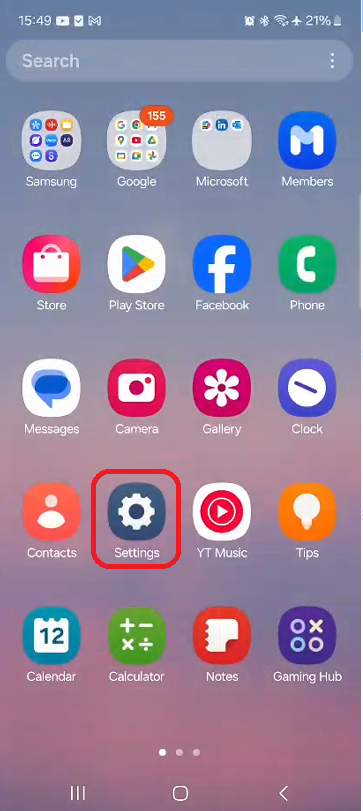
Open your Settings.
-
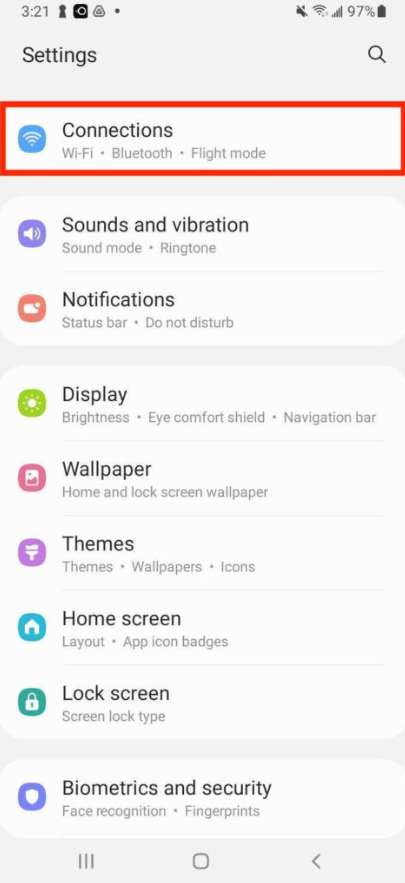
Tap Connections or Network & Internet (varies by device).
-
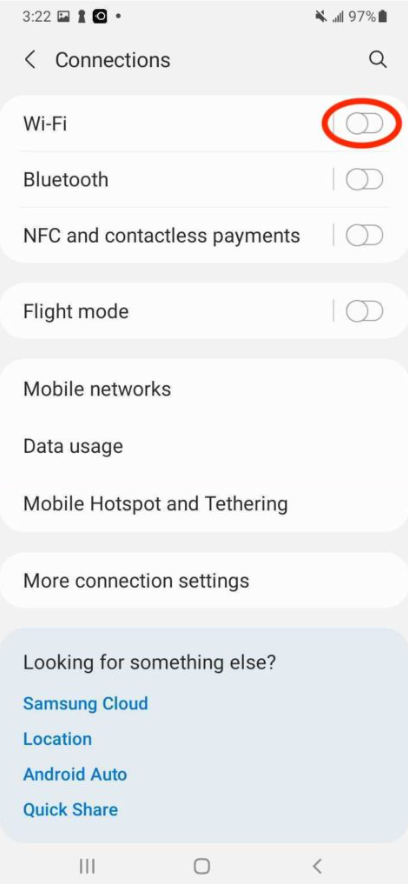
Turn Wi-Fi Off to prevent the device from connecting to weak public hotspots.
-
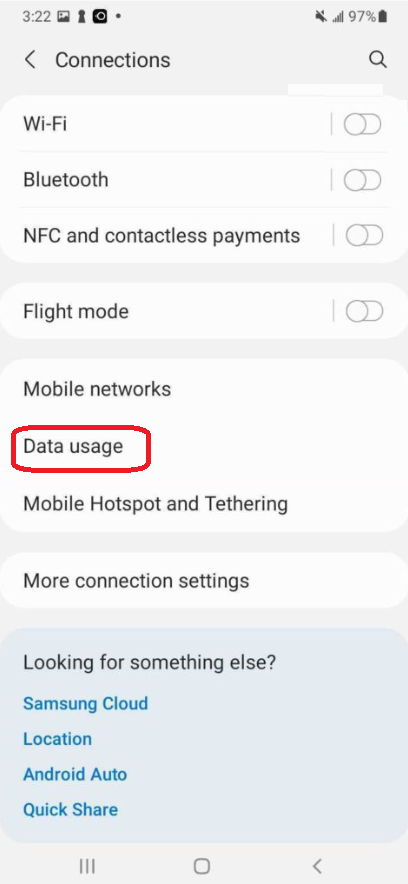
Tap Data Usage or Mobile Data and make sure it’s Enabled.
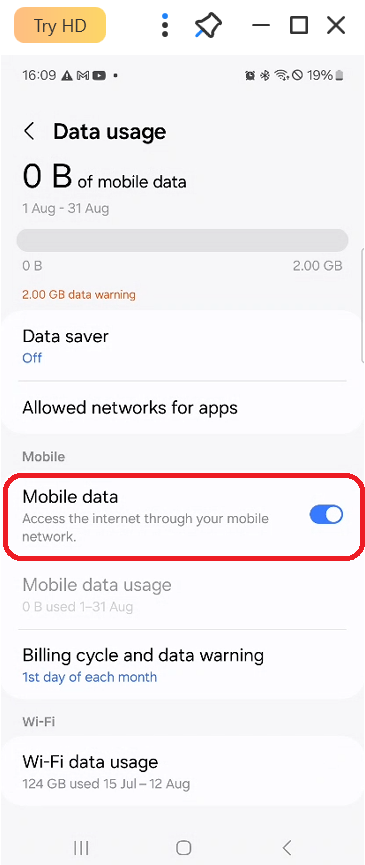
-
Open your browser, search “yetisoftware.com,” and tap the Yeti website to confirm it loads.
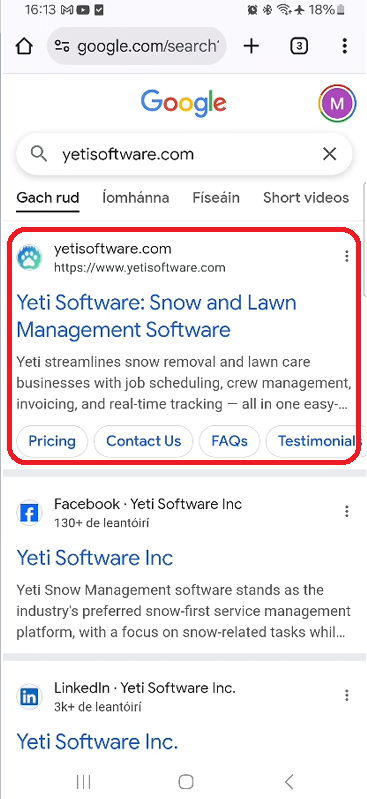
- Your mobile data is working if you can see the Yeti website.

iOS – Connection Setup
-
Go to your mobile settings.
-
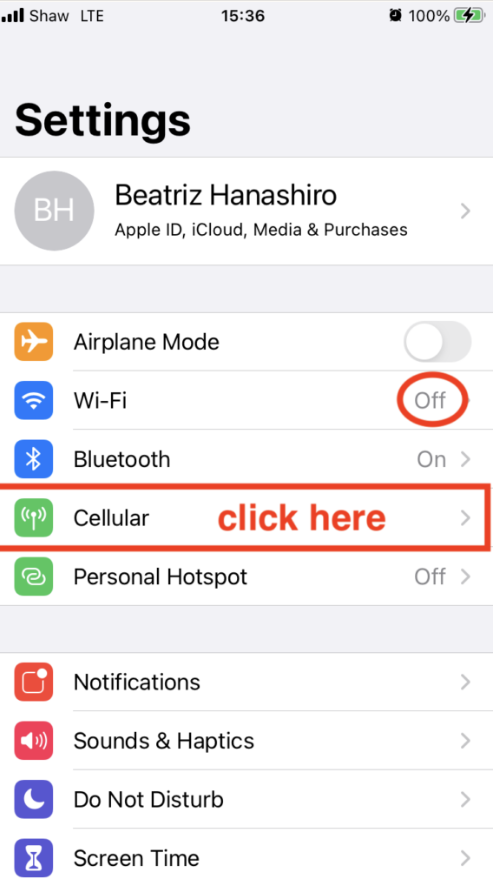
Turn Wi-Fi Off to avoid connecting to public hotspots.
-
Tap Cellular
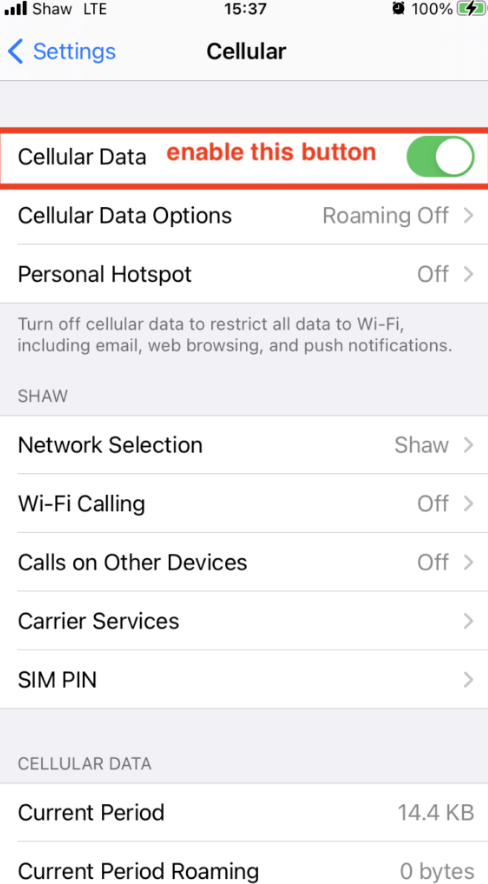
4. Make sure Cellular Data is On
5. Open Safari or another browser, search “Yetisoftware.com,” and tap the Yeti website to confirm it loads.
6. Your mobile data is working if you can see the Yeti website.