![Yeti Support.png]](https://support.yetisoftware.com/hs-fs/hubfs/Yeti%20Support.png?height=40&name=Yeti%20Support.png)
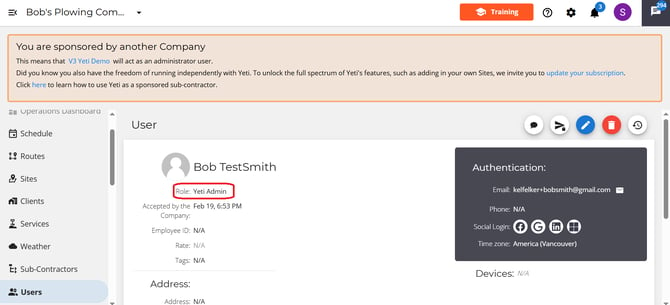
The following instructions will show you how to create a user through the contract, and which role they will have.
Client Contract
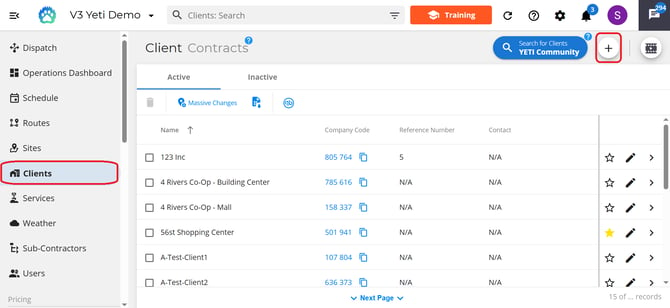
On the Clients page, click on the "add" button.
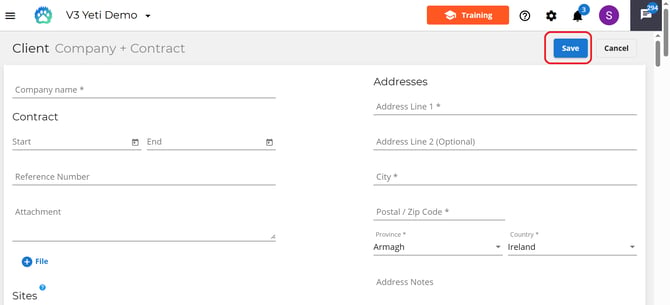
Once you have entered your Client's information, click "Save".
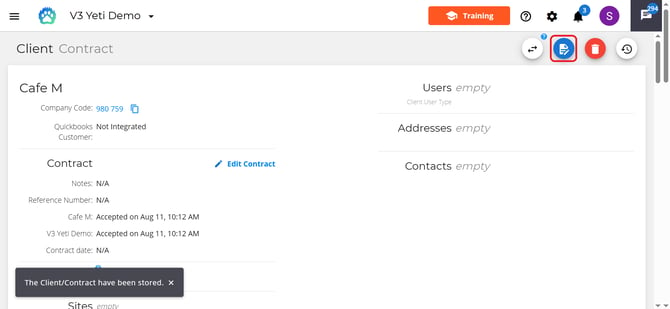
After saving, the contract is created, so click "Edit Contract" to add users.
Add users to your Client by clicking on the "Company + Contract" link.
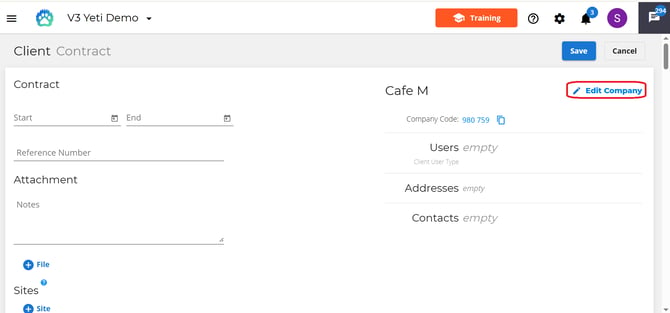
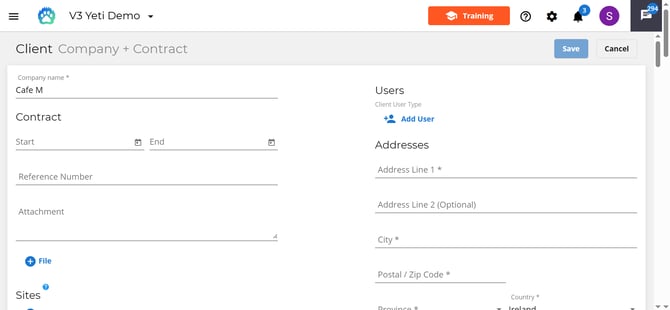
Click on "Add User".
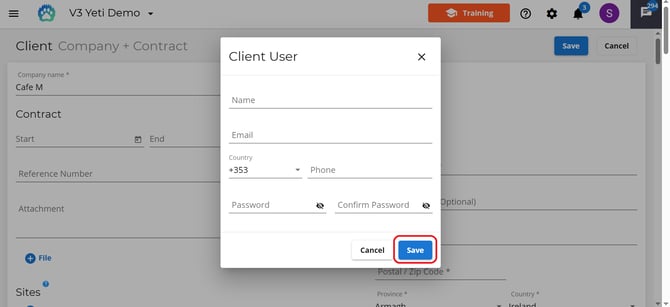
A popup window will appear asking for your Client's user information. In order to add this user, click on "save", and then click on "save" again to update the contract.
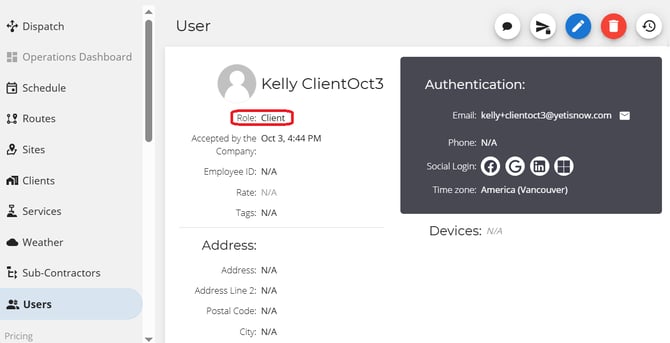
Upon creating a Client's user, this user is assigned a Client role.
Subcontractor Contract
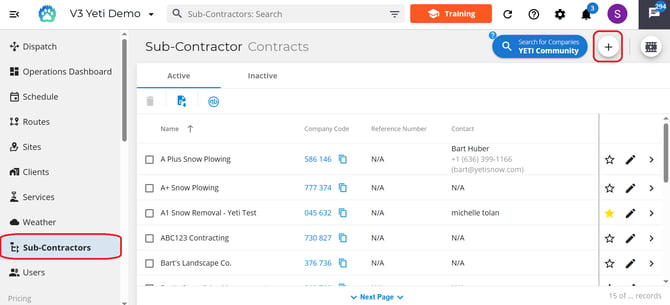
On the Subcontractors page, click on the "add" button.
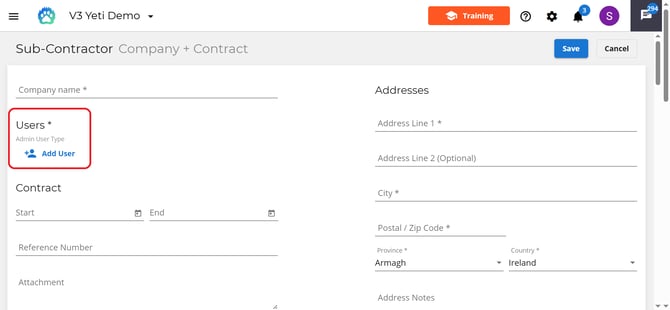
Enter in your Subcontractor's information and click on 'Add User'.
A pop-up window will appear asking for your Subcontractor's user information. Once the information has been entered, click save.
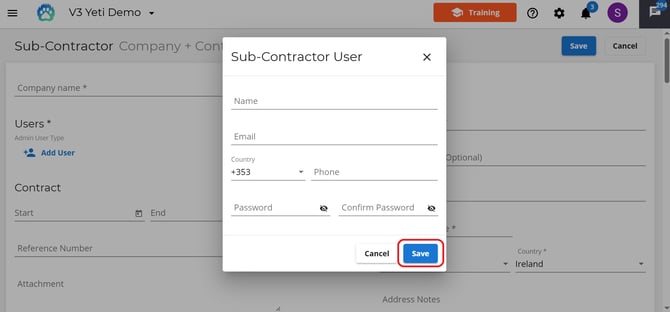
Upon creating a Subcontractor's user, this user is assigned an Admin role.