![Yeti Support.png]](https://support.yetisoftware.com/hs-fs/hubfs/Yeti%20Support.png?height=40&name=Yeti%20Support.png)
Onboard equipment
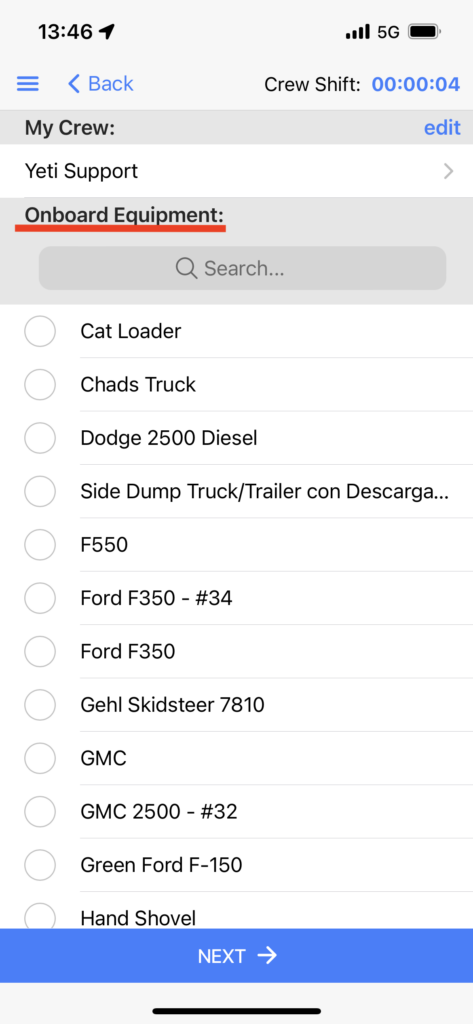
Onboard equipment is the equipment that crews take with them when they start their shift.
On the mobile app, you will see your onboard equipment listed when you start a Shift. Onboard equipment is used as a checklist.
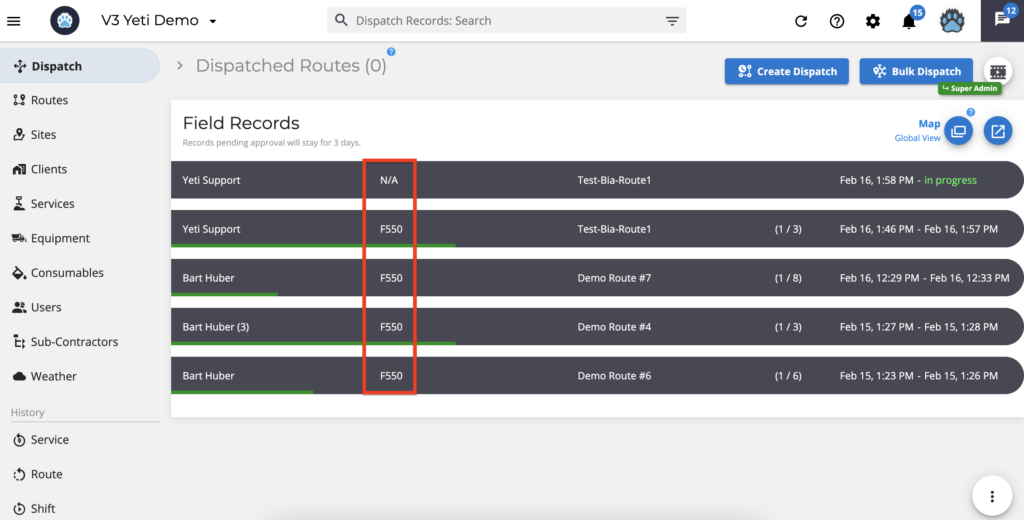
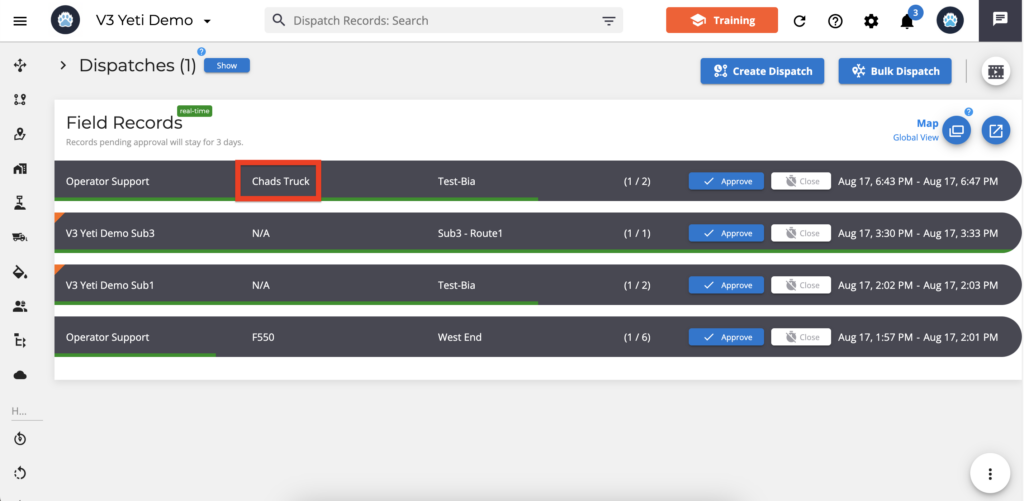
The Dispatch page shows what onboard equipment your crew selected via the mobile app.
When crew members do not select any onboard equipment, it appears as 'N/A'.
Dispatch can also be edited and the onboard equipment can be added after selecting the equipment category.
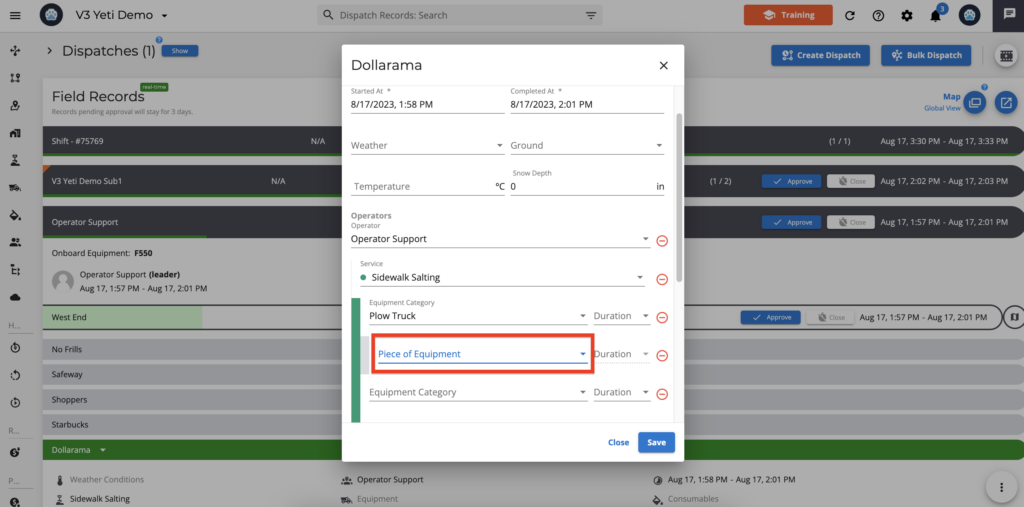
It is also possible to do this by editing the record on the Service History Report.
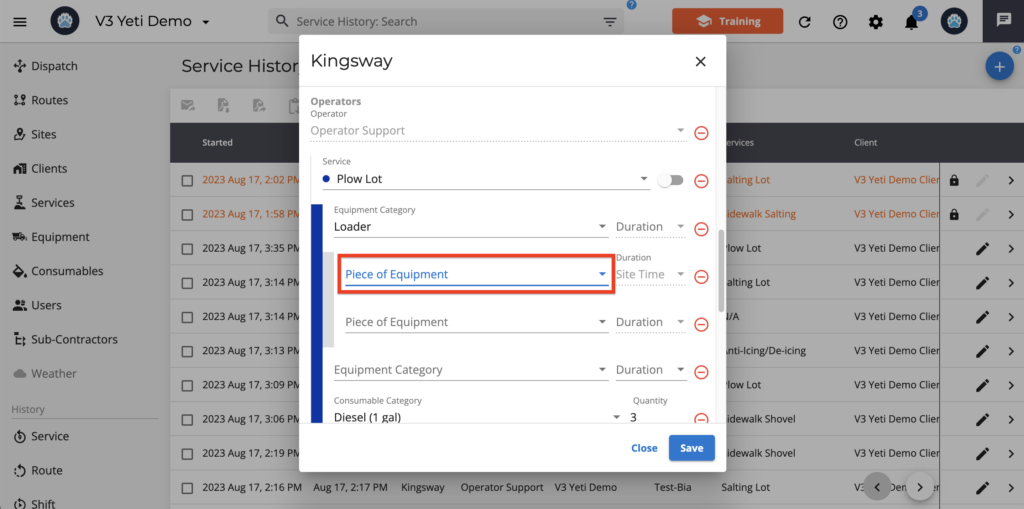
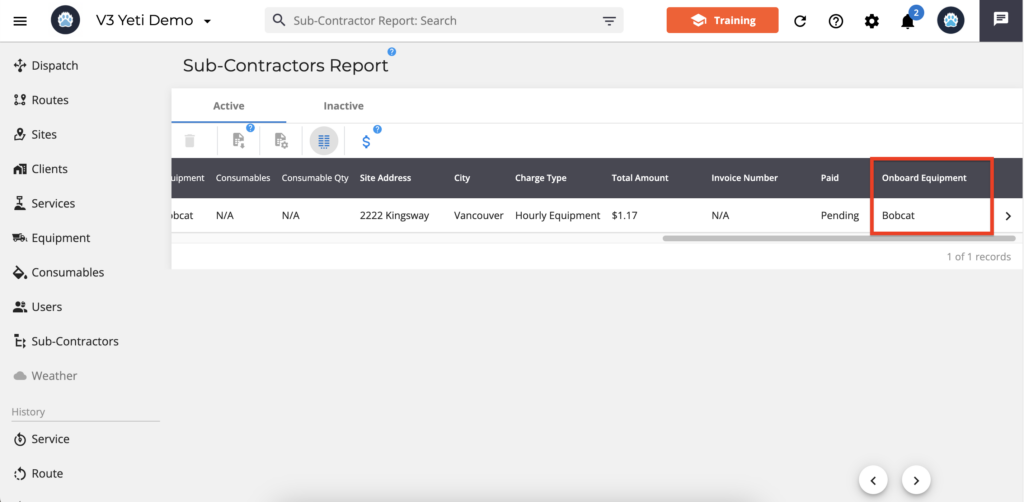
Onboarding equipment can be seen in the reports.
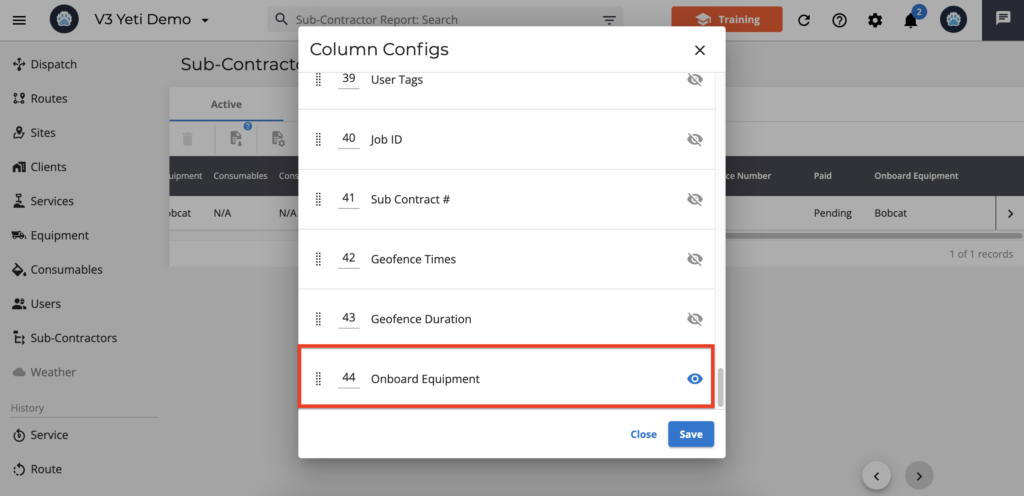
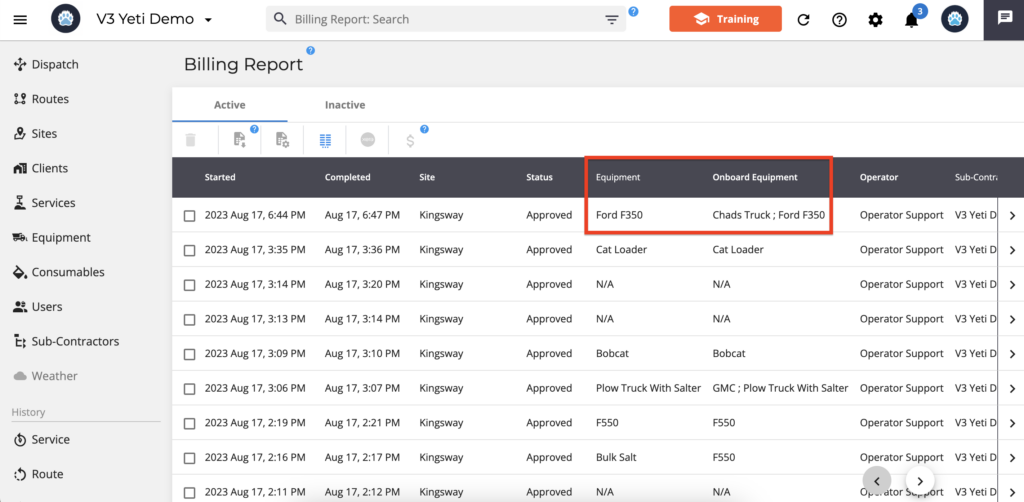
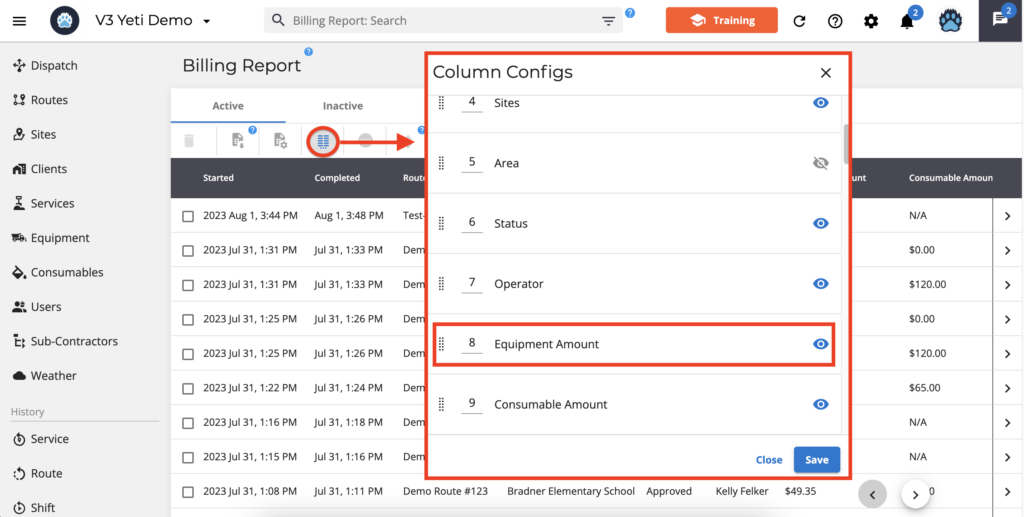
On the Billing Report and Sub-Contractor Report, enable the "Onboard Equipment" column in the column configuration.
- Billing Report
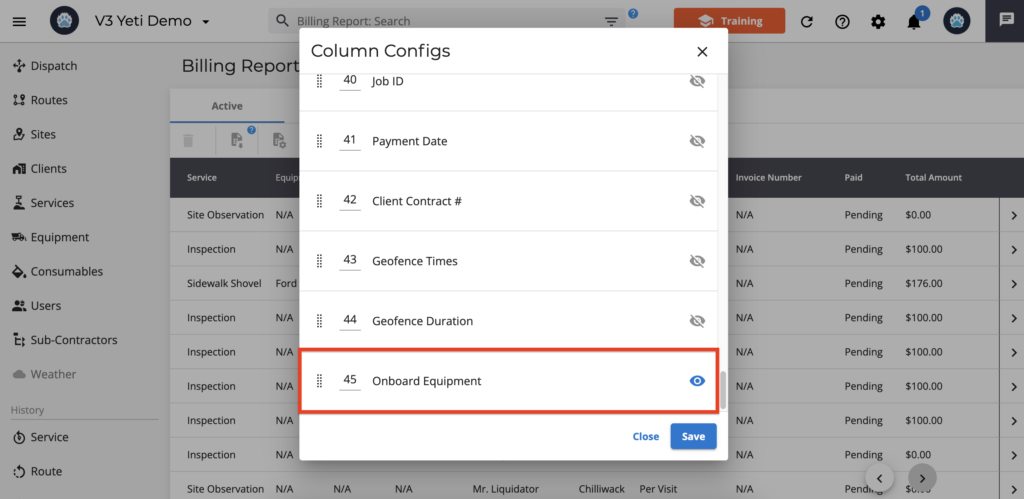
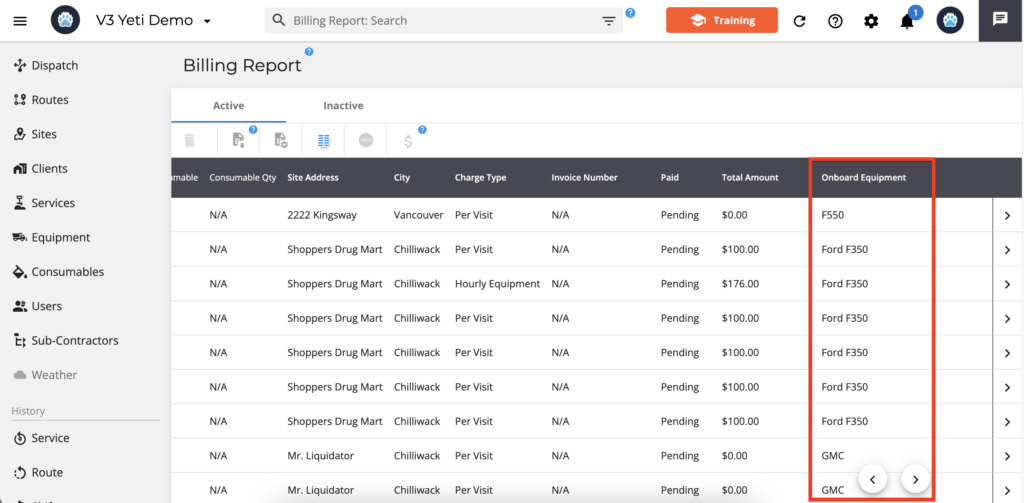
- Sub-Contractor Report
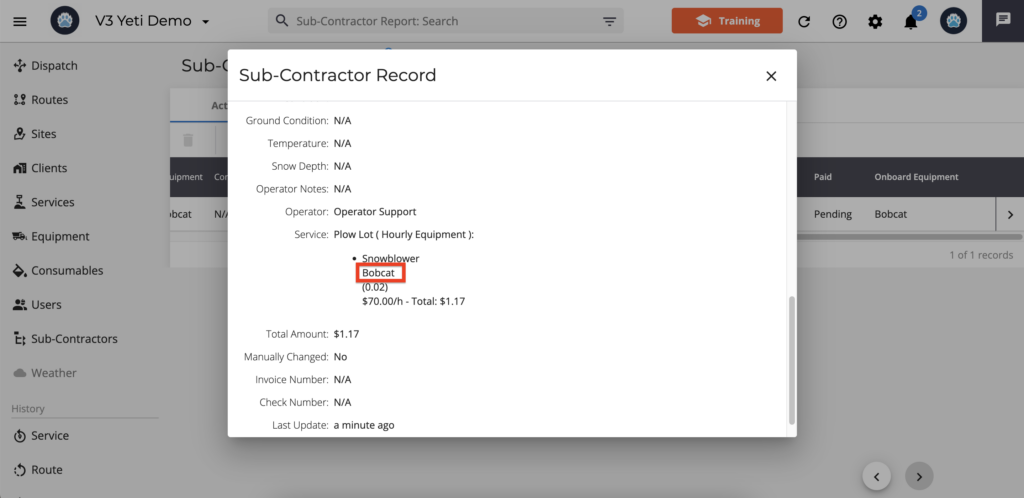
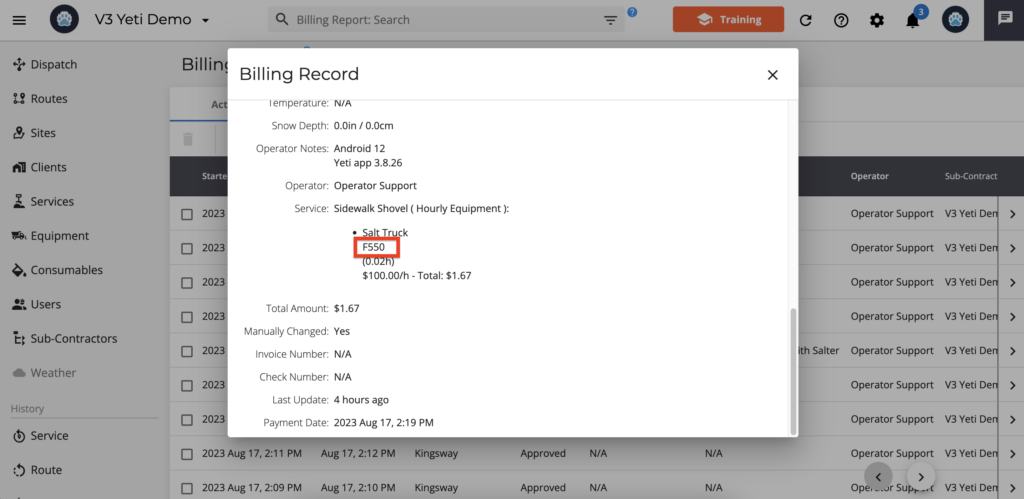
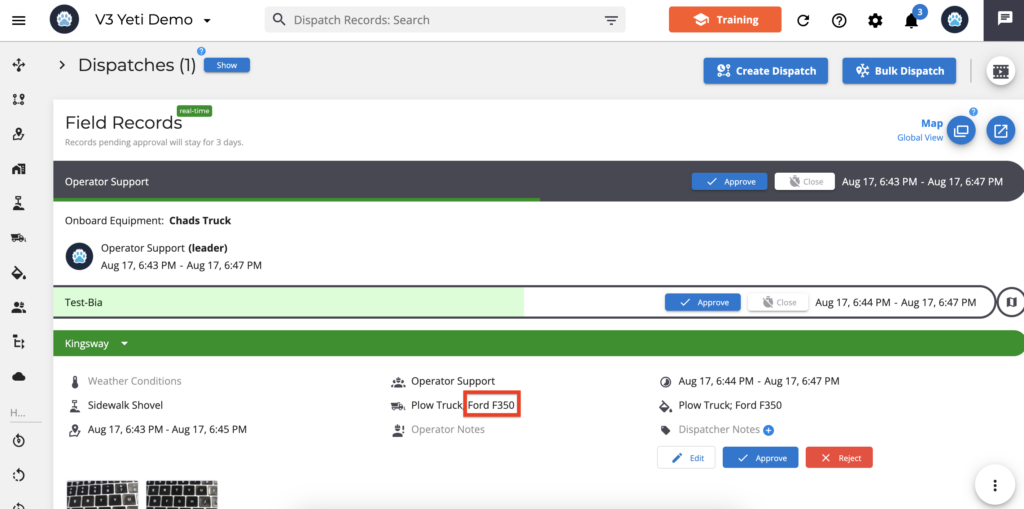
Note: In the event that the Operator picks the onboarding equipment and then changes it when they perform the site, both pieces of equipment will appear on the report. As shown in the example below, the Operator selected "Chads Truck" from the onboarding equipment. The Operator changed the piece of equipment to a "Ford F350" during the Site service.
You can see the onboarding equipment on the Dispatch page.
By clicking on the record, you can view the piece of equipment selected by the Operator when performing the Site.
You can see both Equipment on the Billing Report or Sub-Contractor Report.
How to create Onboard Equipment
Equipment Category
Equipment categories are the groups of tools and machinery that share a common function and are used to complete services. By organizing your equipment into categories, it’s easier to manage rates and track usage for billing.
When creating equipment, you must assign it a category. This is important because, for certain services performed in the mobile app, listing equipment is required. The reason is that the duration of equipment usage is used to calculate the total cost of the service.
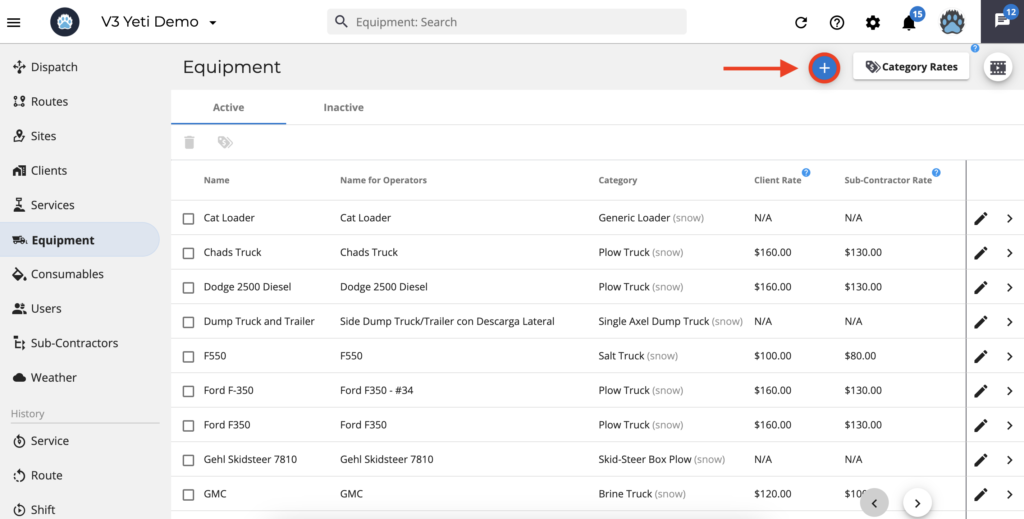
Click on the 'add' button to create your piece of Equipment
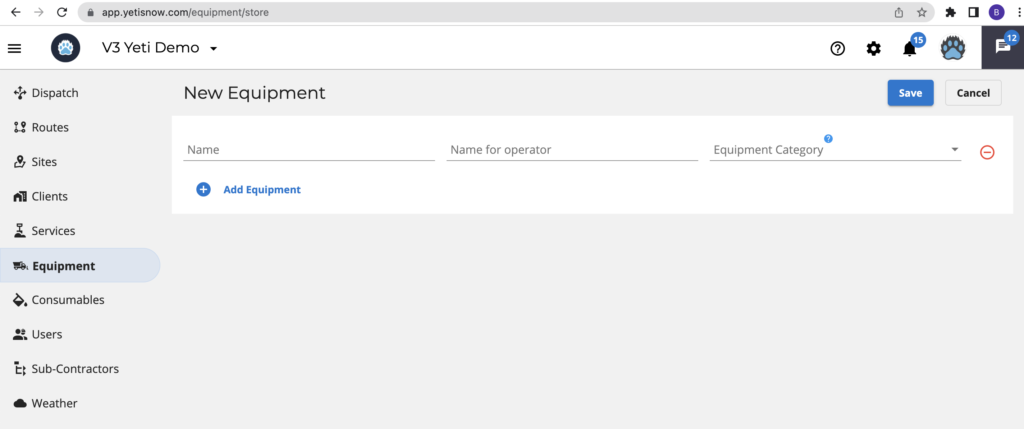
Enter the name of the Equipment and select the category. Adding more than one piece of Equipment at a time is possible by clicking 'Add Equipment'. Click save once you are done adding your equipment.
Equipment Categories are used to facilitate Contracts.
The categories allow similar equipment types to be grouped together and rates to be set accordingly.
This approach enables you to have a Client Contract for the "Bobcat hourly rate" and still enter each Bobcat separately so crews can select which Bobcat they are using and you can properly bill your Client.
Equipment categories are an internal configuration of the Yeti platform, so you cannot add or edit them.
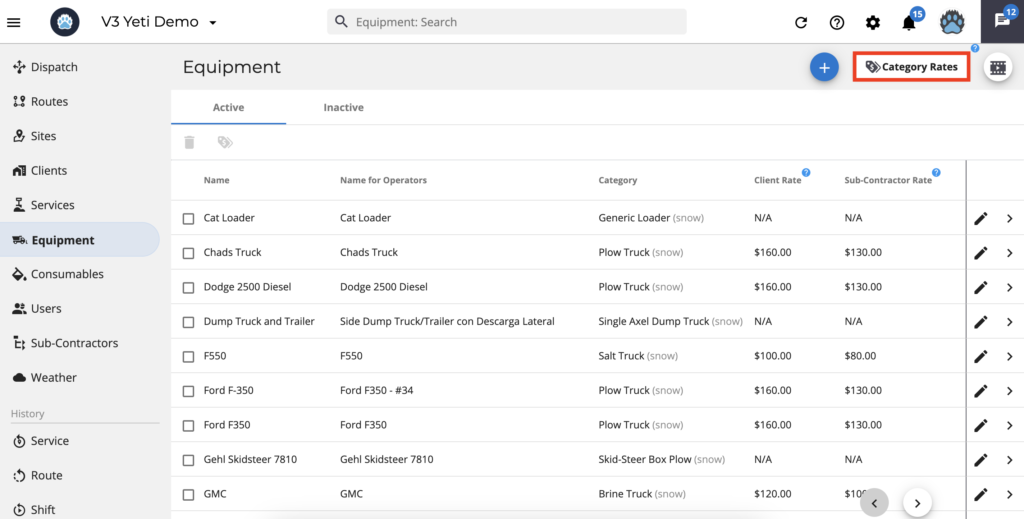
The category rates can be set by clicking the 'Category Rates' button.
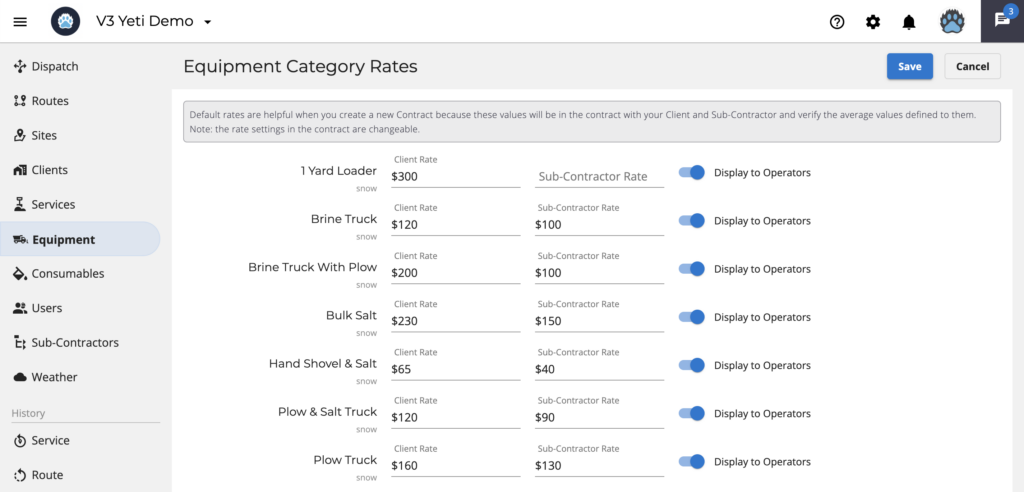
Enter the rate for your Client and Sub-Contractor and click on "Save".
Note: Only Equipment category with Client or Subcontractor rates will be displayed for Operators to select on the mobile app. In the case of not entering any rate and enabling “Display to Operators” and clicking “Save”, the system will automatically set the rate to zero, “$0”, and your Operator will be able to see it on the mobile app.
*** Important Information ***
Changing the rates on this page will not affect the prices on your Client's or Sub-Contractor's existing contract. However, if you create or add a new Client or Sub-Contractor, the prices will appear according to this page, and you can edit the contract if necessary.
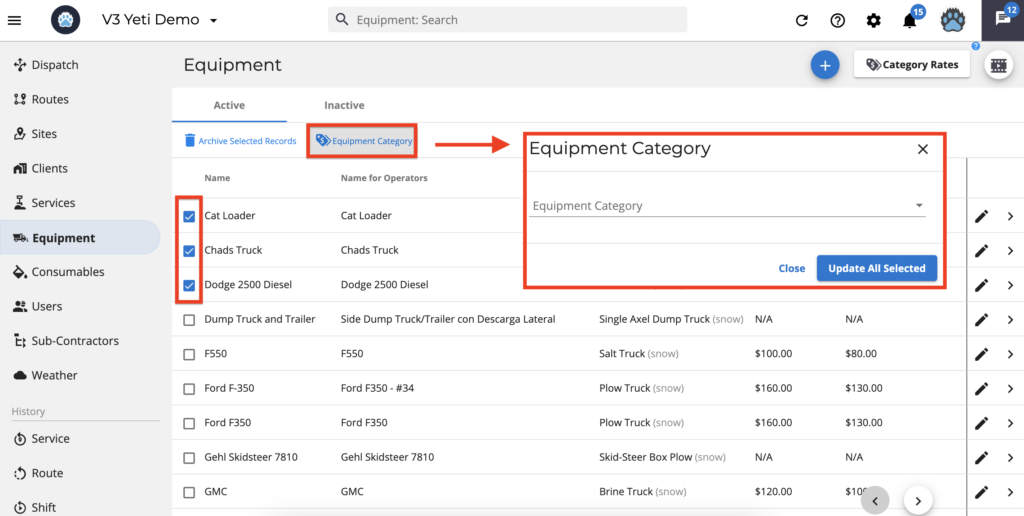
If you want to select the same category for many pieces of equipment, select the records and click 'Equipment Category'. You will see a pop-up window, so select the category and click 'Update All Selected'.
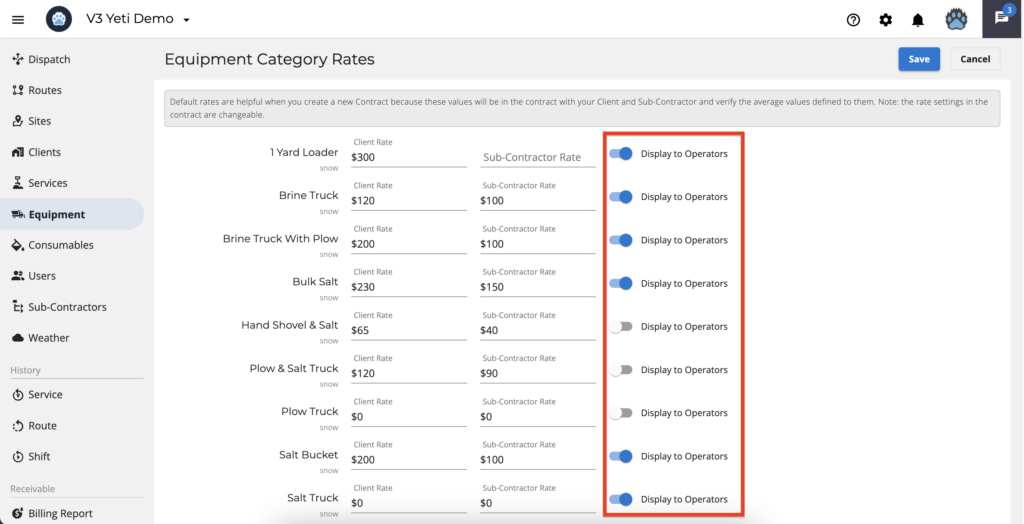
Enable/disable the piece of equipment to show on the mobile app
To make a piece of equipment appear on the mobile app first make sure that the Display to Operator toogle is turned on in the Equipment Category. Next, enter in a rate for both Client and Sub-contractor. If you do not want your Client or Sub-Contractor to be charged for the use of equipment then set the rate to "$0".
In the mobile app, for equipment to be selectable when servicing a particular site, it will also need to be listed in the Client contract. Please check your client contract to make sure that the needed equipment is listed.
Find out why some Services display as "Equipment Required"
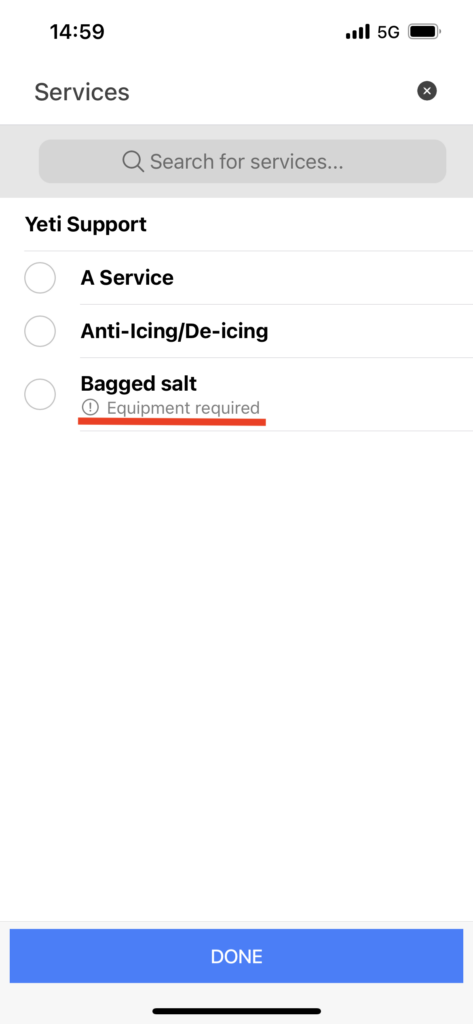
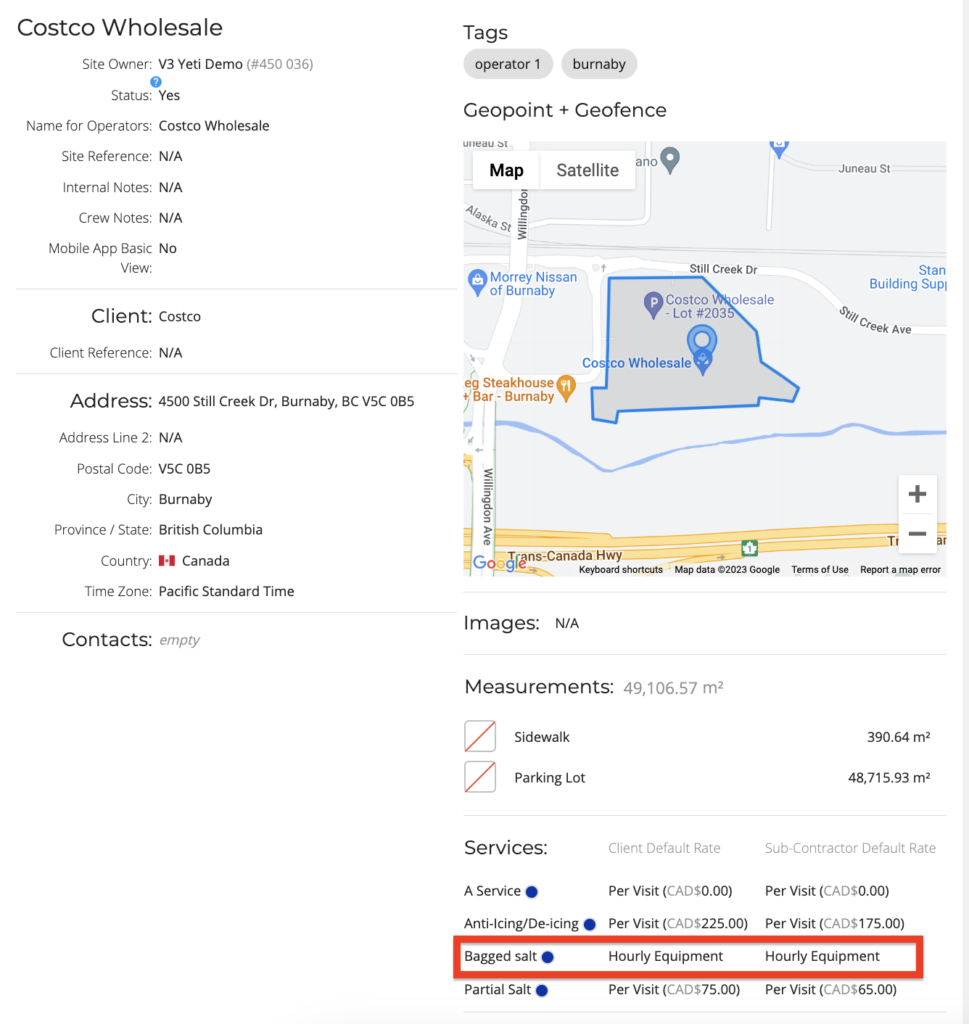
In the mobile app, some Services have the text 'Equipment required' beside them. This means you need to select equipment for this Service. This service is billed based on the duration of equipment usage.
On the Site page, you define the charge type and rate for each Service.
Check for the Equipment amount
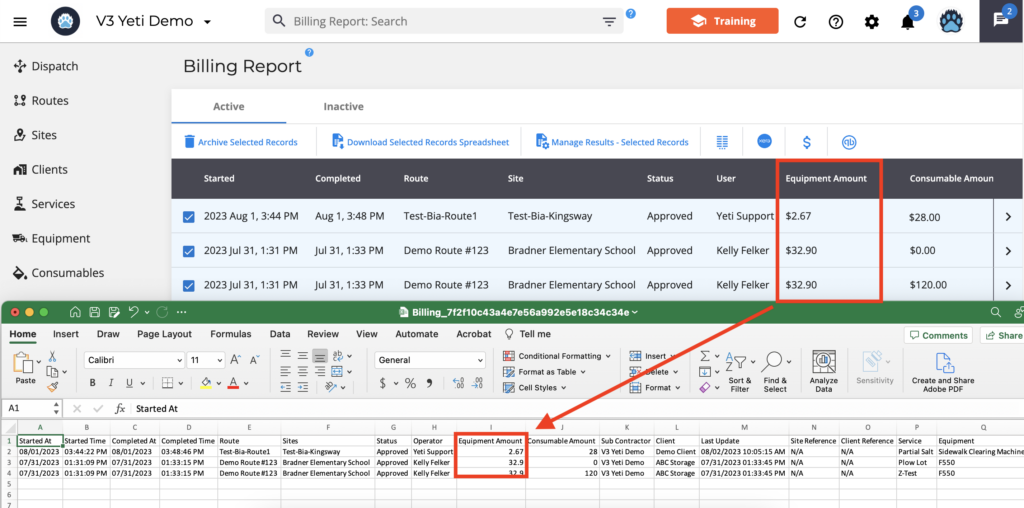
In the Billing and Subcontractor report, it is possible to see the amount of equipment the Operator used on the Site.
On the column configuration, enable the Equipment amount field.
Use the search field or select the record to export your data.