![Yeti Support.png]](https://support.yetisoftware.com/hs-fs/hubfs/Yeti%20Support.png?height=40&name=Yeti%20Support.png)
Edit a Service History Record
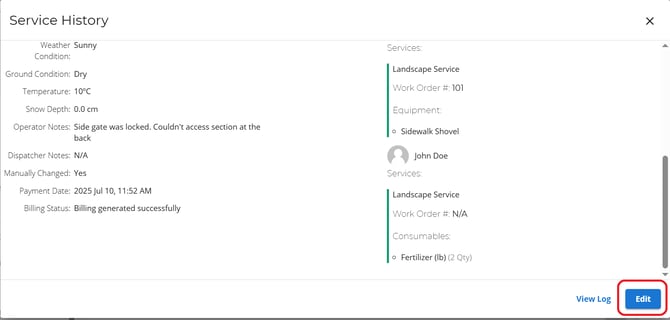
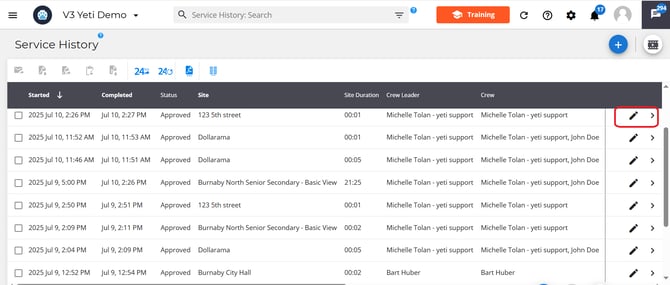
You can edit a record by either:
- Selecting the edit button in the pop-up
- Selecting the pencil icon at the end of a record.
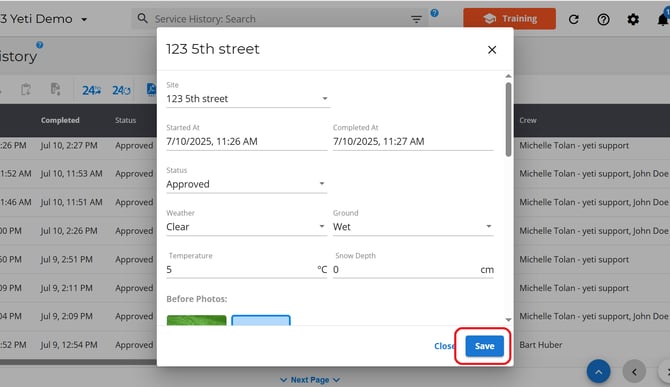
Once you have finished updating the record, click save.
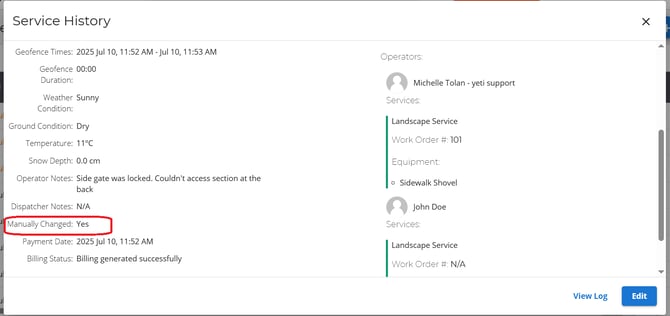
The record will note that a manual change has been made.
Create a Manual Record
If an operator forgets to service a site on the mobile app, you can create a manual record.
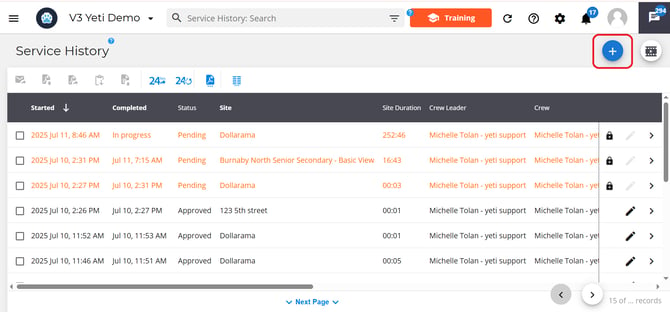
Select the blue (+) Button.
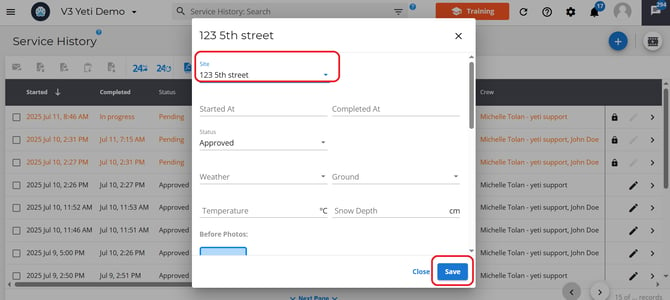
Select a site and enter in any needed information. Hit save once you are done.
The record will mention it has been manually created.
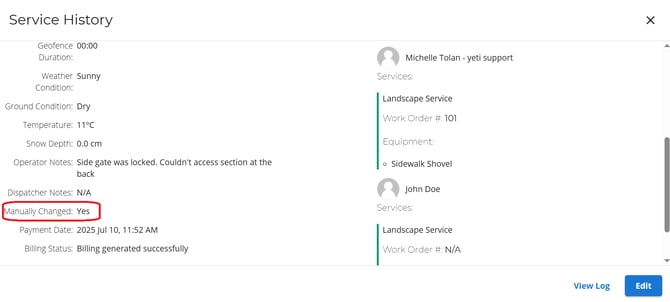
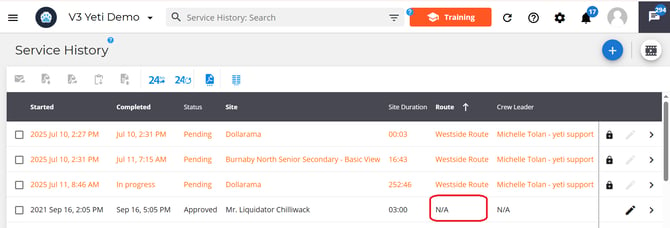
It will show Route as ‘N/A’,
Viewing Your Log
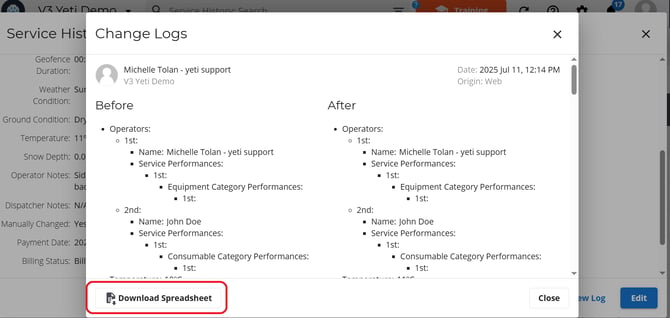
To view the log for a record, click on the record and then select ‘View Log’.
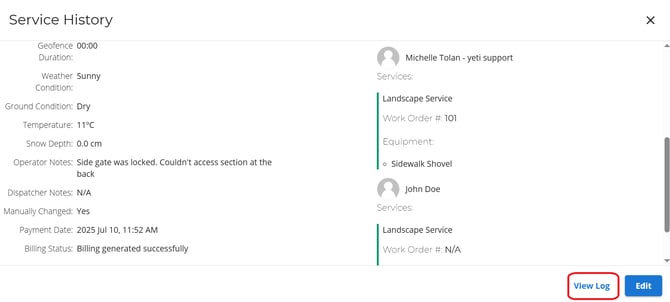
The View Log option allows you to see:
-
Who made changes
-
When the changes were made
-
What information was changed
Select the Download Spreadsheet to export the log data.