![Yeti Support.png]](https://support.yetisoftware.com/hs-fs/hubfs/Yeti%20Support.png?height=40&name=Yeti%20Support.png)
To download multiple photos at once instead of saving them one by one, you can use the bulk export tool in your Service History.
- Open Service History: Go to Reports & History > Services (or click the Services button near the bottom of your navigation bar).
- Choose which records you need by manually selecting them or by filtering your results: see instructions below.
- Customize your export (Optional): If you only want the photos without the extra service data, click Online & PDF Export Fields. Uncheck all boxes except for Photos and click Save.
- Export:

If you are exporting a large number of files, we recommend to export using the "Send Selected Records Online" option.
You can choose what records you want to export by either:
- Selecting the checkbox beside the record.
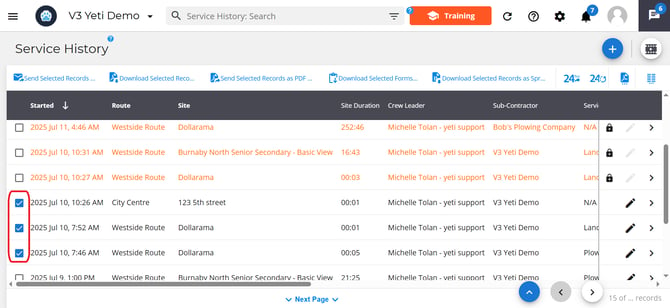
- Use the search filter to group records together based on certain criteria.
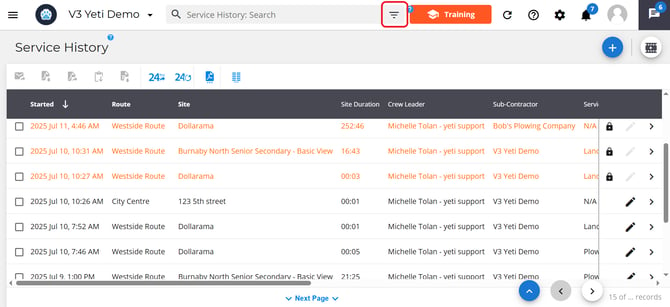
Using Search Filters
You can use the search filter to find specific records or group records by certain criteria.
To filter your data:
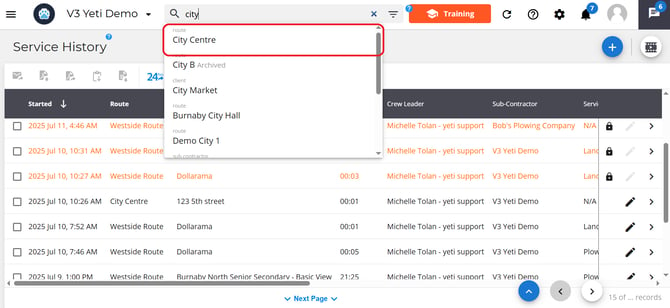
- Type directly into the search bar, or
- Click the search filter icon at the end of the search bar.
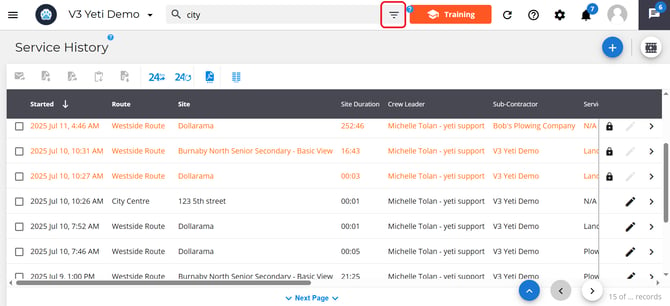
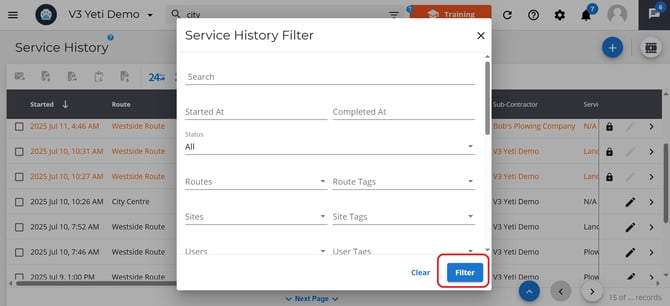
A pop-up will appear with a list of fields you can filter by (such as site, route, or user).
Note: All records shown after applying a filter can be exported at once, even though the check boxes are not selected.