![Yeti Support.png]](https://support.yetisoftware.com/hs-fs/hubfs/Yeti%20Support.png?height=40&name=Yeti%20Support.png)
Table of Contents:
Service History Report Page
To access the service history page, select Service at the end of the navigation bar.
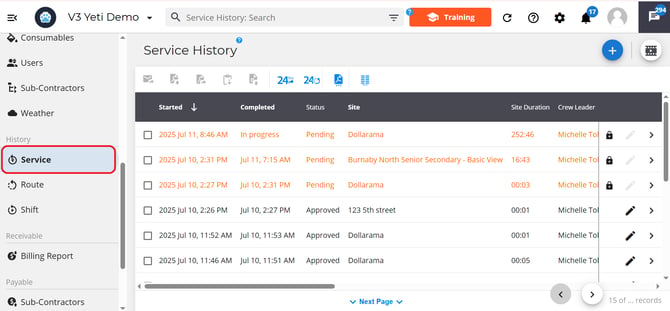
Export Options
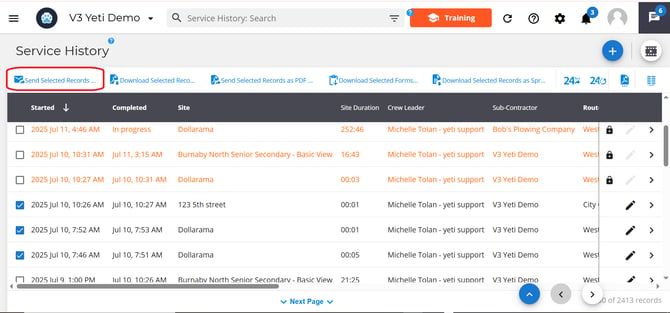
There are five ways to export your service history data:
-
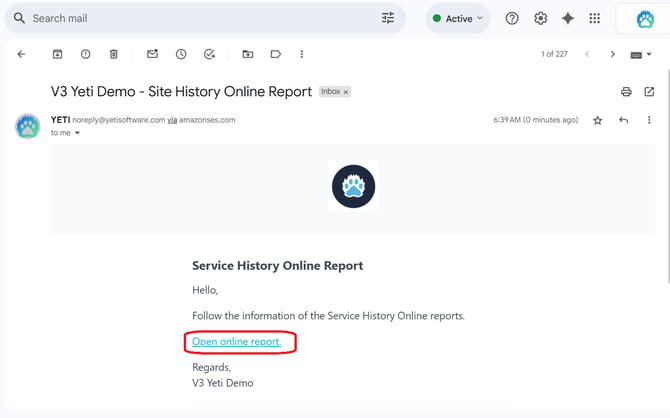
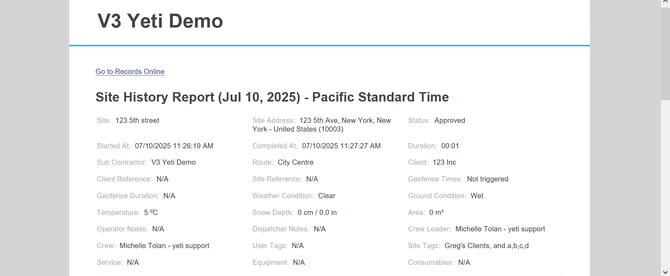
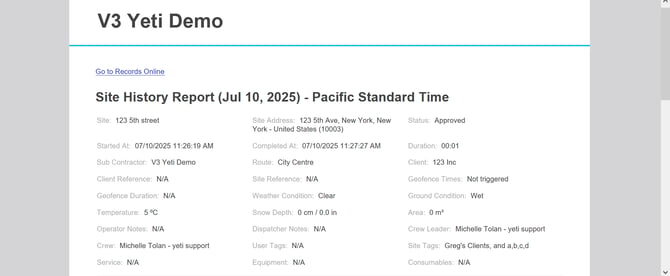
Send Selected Records as an Online Report – Generates an email with a link that displays the records in a browser. Online Report is the only way to export maps and their elements such as geofences and breadcrumbs operators.
Tip: For reports containing a large number of service records, exporting the report may take longer to generate and result in large file sizes. When working with a high volume of records, we recommend using the Send All Online option instead. This provides access to the report through a shareable online link and helps avoid download timeouts or file size limitations.
-
-
Download Selected Records as a PDF – Downloads each record as an individual PDF in a compressed ZIP file.
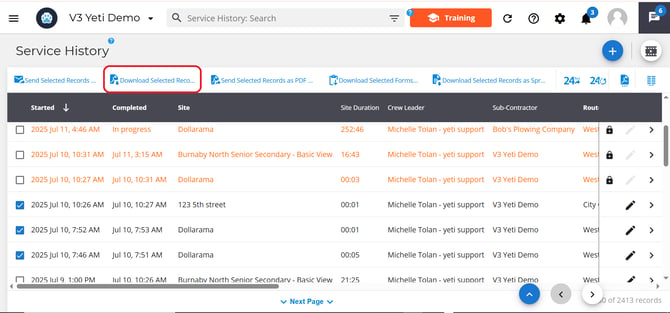
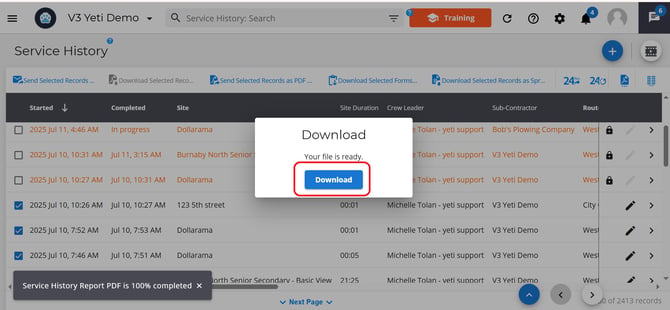
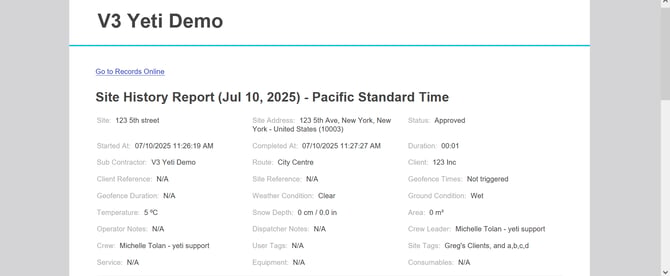
-
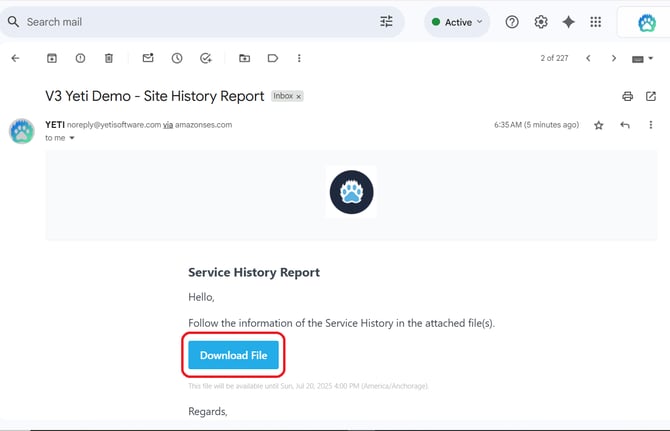
Send Selected Records as a PDF – Sends a link via email to download the PDFs as a compressed ZIP file.
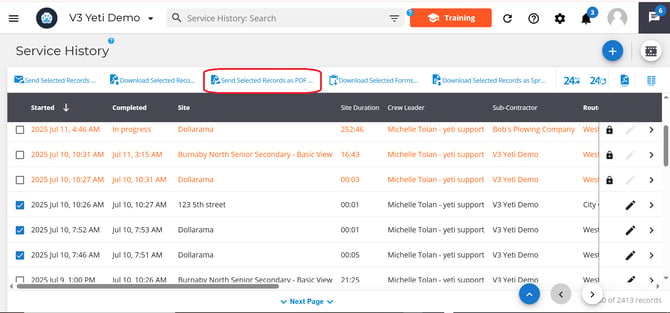
-
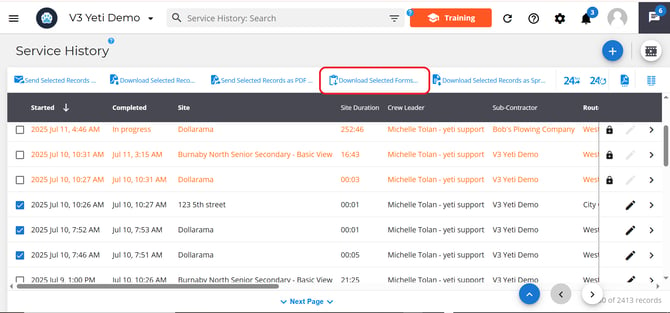
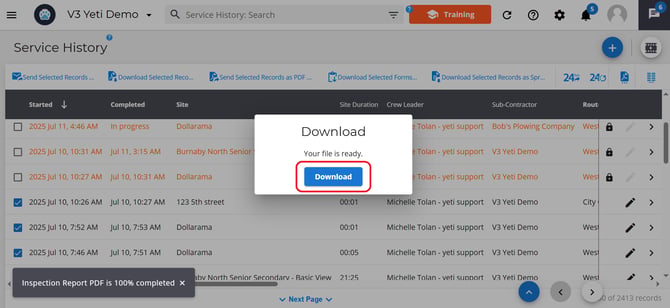
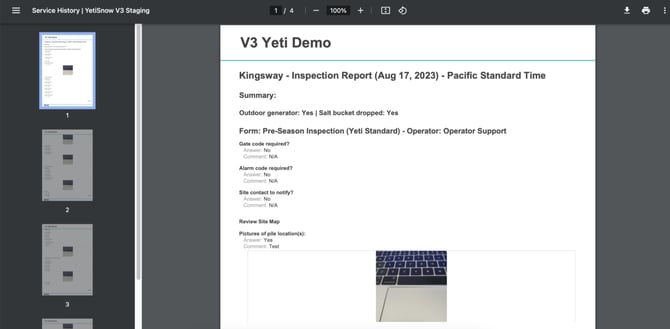
Download Selected Record Forms as a PDF – Downloads associated forms from records (e.g., Pre-Season Inspection) as PDFs. The PDF will show “No inspection forms found” if the record does not have any “Pre-Season Inspection Form”.
-
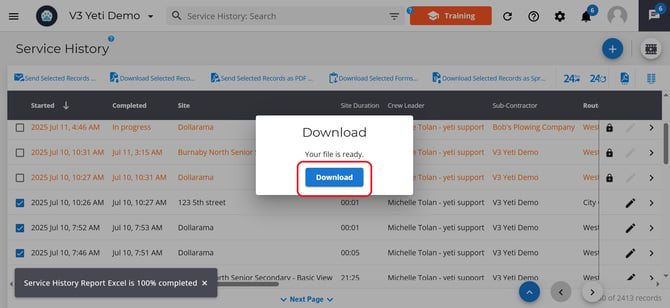
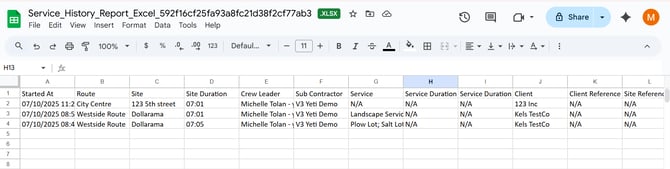
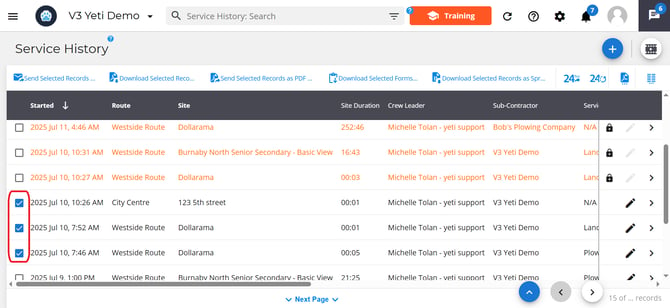
Download Selected Records as a Spreadsheet – Exports selected data to a spreadsheet (.xlsx) file.
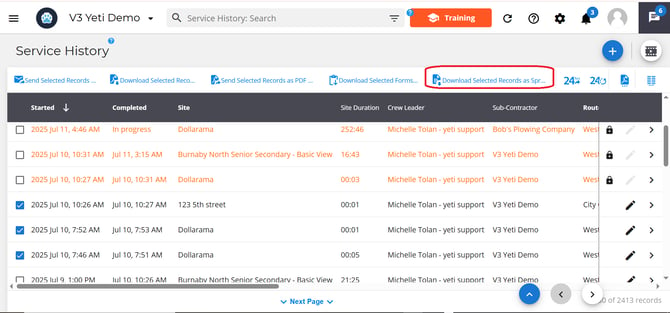
You can choose what records you want to export by either:
- Selecting the checkbox beside the record.
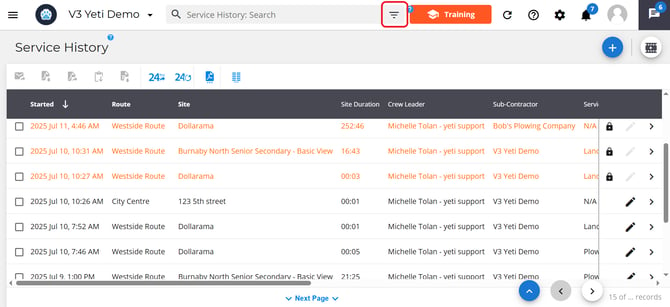
- Use the search filter to group records together based on certain criteria.
Using Search Filters
You can use the search filter to find specific records or group records by certain criteria.
To filter your data:
-
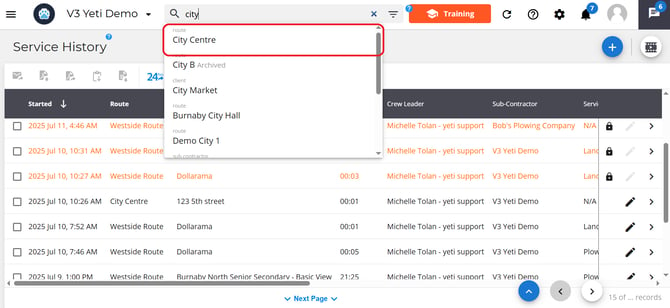
Type directly into the search bar, or
-
Click the search filter icon at the end of the search bar.
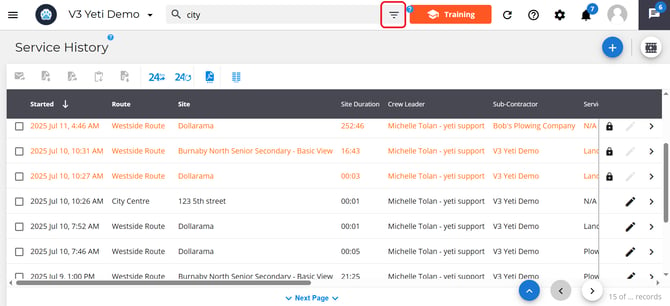
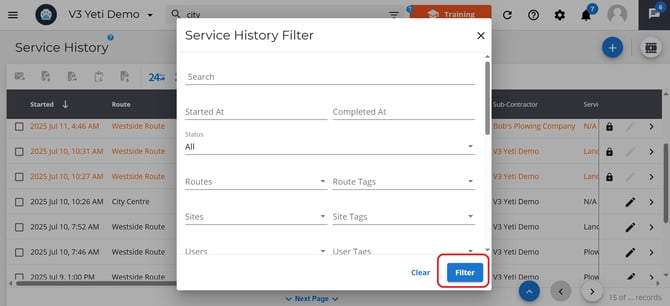
A pop-up will appear with a list of fields you can filter by (such as site, route, or user).
Note: All records shown after applying a filter can be exported at once.