![Yeti Support.png]](https://support.yetisoftware.com/hs-fs/hubfs/Yeti%20Support.png?height=40&name=Yeti%20Support.png)
You can generate a Service History Report (SHR) directly from the Service History page in Yeti.
Generate and view service history records
- Navigate to Service History from the main navigation.
- Each record represents a serviced site.
- Click a record to view detailed information, including site details, operators, crew leader, services completed, billing, and more.
Customize your report view
- Use the Column Configuration button to add or remove fields (such as crew leader or crew).

- Save your configuration to apply it to both the on-screen view and spreadsheet exports.
Customize PDF reports
- Click the PDF Configuration button.

- Enable the fields you want included (such as Crew Leader and Crew).
- Save your changes to apply them to PDF exports.
Export or send reports
- Export service history records based on your preference.

- Send reports directly to site contacts, if needed.
Bulk select records
When using the filter function, all matching records are automatically selected, even ifthough the checkboxes are not checked. Once your filters are applied, the export options at the top of the page will turn blue and can be used to export the filtered records.
Create a custom SHR manually
The search filter is located at the top of most pages in Yeti. It is designed to help you quickly find what you’re looking for, whether it’s records, contracts, sites, etc.
How to use the search filter
Select the icon at the end of the search bar, and the search filter will open up.

The fields that are presented depend on what page you are on. Below is an example of the filter for the service history page. Here you can search through results based on information such as dates, users, tags and more.
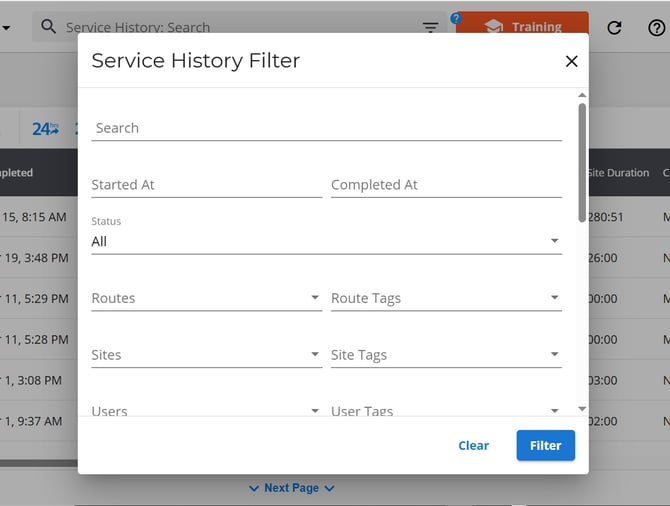
Once you have entered in your information, select the filter button.
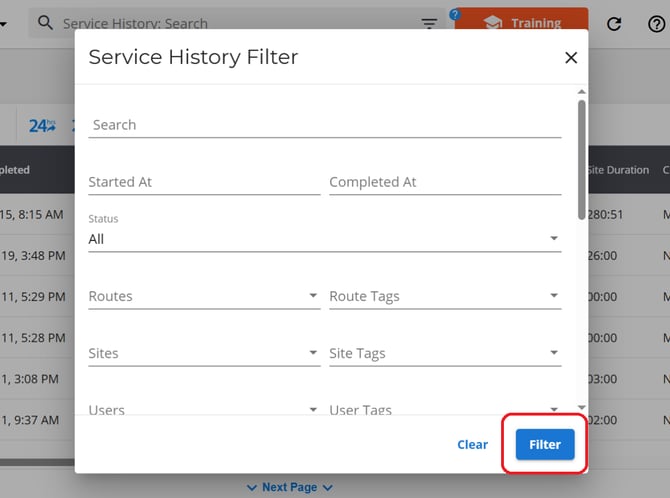
This action will pull up all records that fit that specific criteria.
Create a manual Service History Report
If you need to create a Service History Report from scratch:
- Go to the Service History page.
- Click the blue “+” button in the top-right corner.
- Save the record.
After saving, Yeti will automatically create:
- A new Service History Record
- A corresponding Billing Record
- An Employee Timesheet