![Yeti Support.png]](https://support.yetisoftware.com/hs-fs/hubfs/Yeti%20Support.png?height=40&name=Yeti%20Support.png)
Some menus are created with sample data added to them. This data allows new users and subscribers to test the functionality of the Yeti mobile app immediately. The mobile app was designed to be very intuitive and easy to use, so very little instruction will be required. This data can be archived (made ‘Inactive’) once training has been completed, or testing is no longer required.
For detailed description on each Yeti menus purpose, please click here.
Yeti Menus
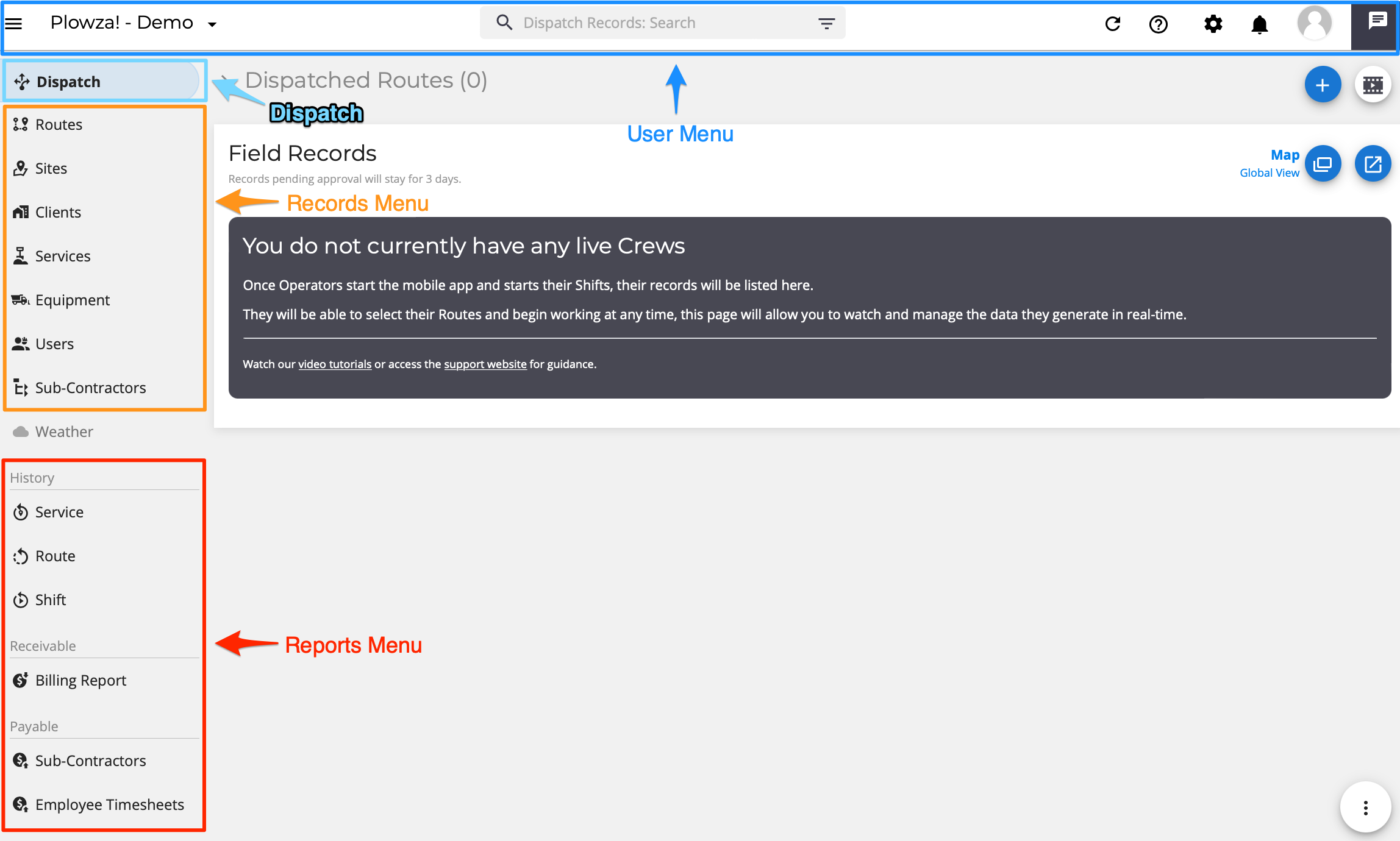 Yeti Menus
 Dispatch - no activity or all routes approved
 Dispatch - example of current and completed activities
For more detailed information on Dispatch, please click here.
 Initial Routes records view
 Initial Sites records view
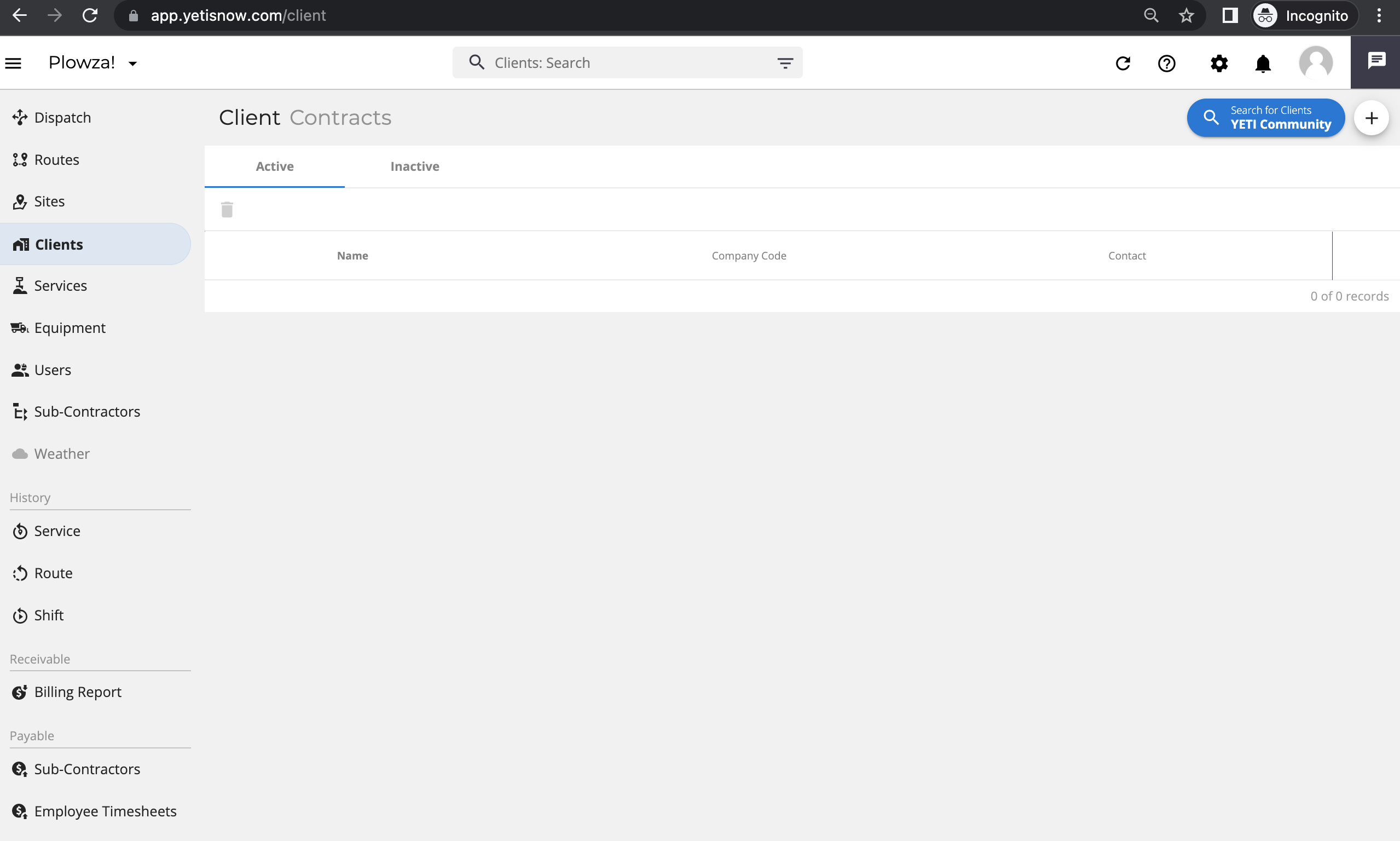 Initial Clients records view
 Clients view with example records
 Initial Services records view
 Initial Equipment records view
 Initial Users records view
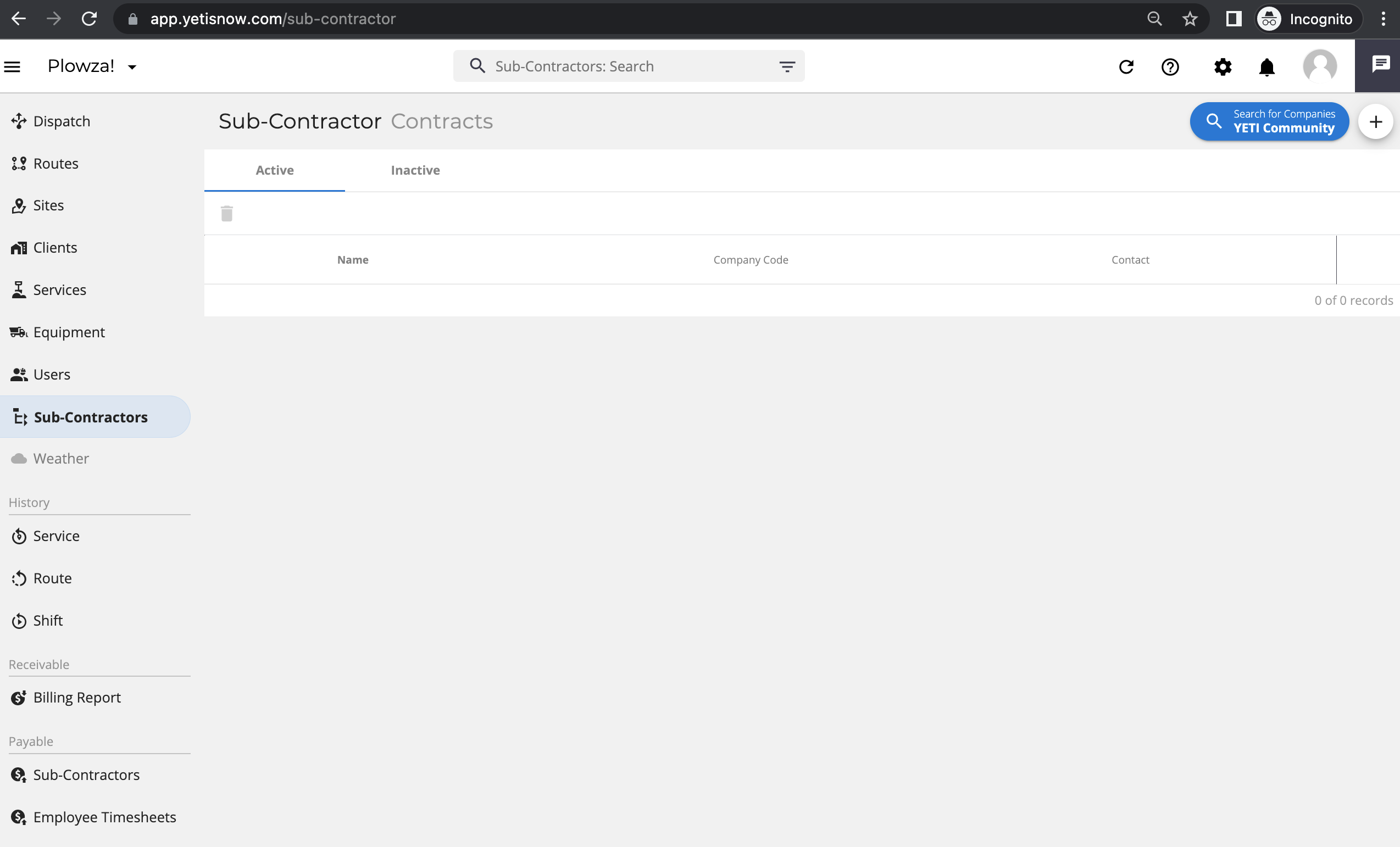 Initial Sub-Contractors records view
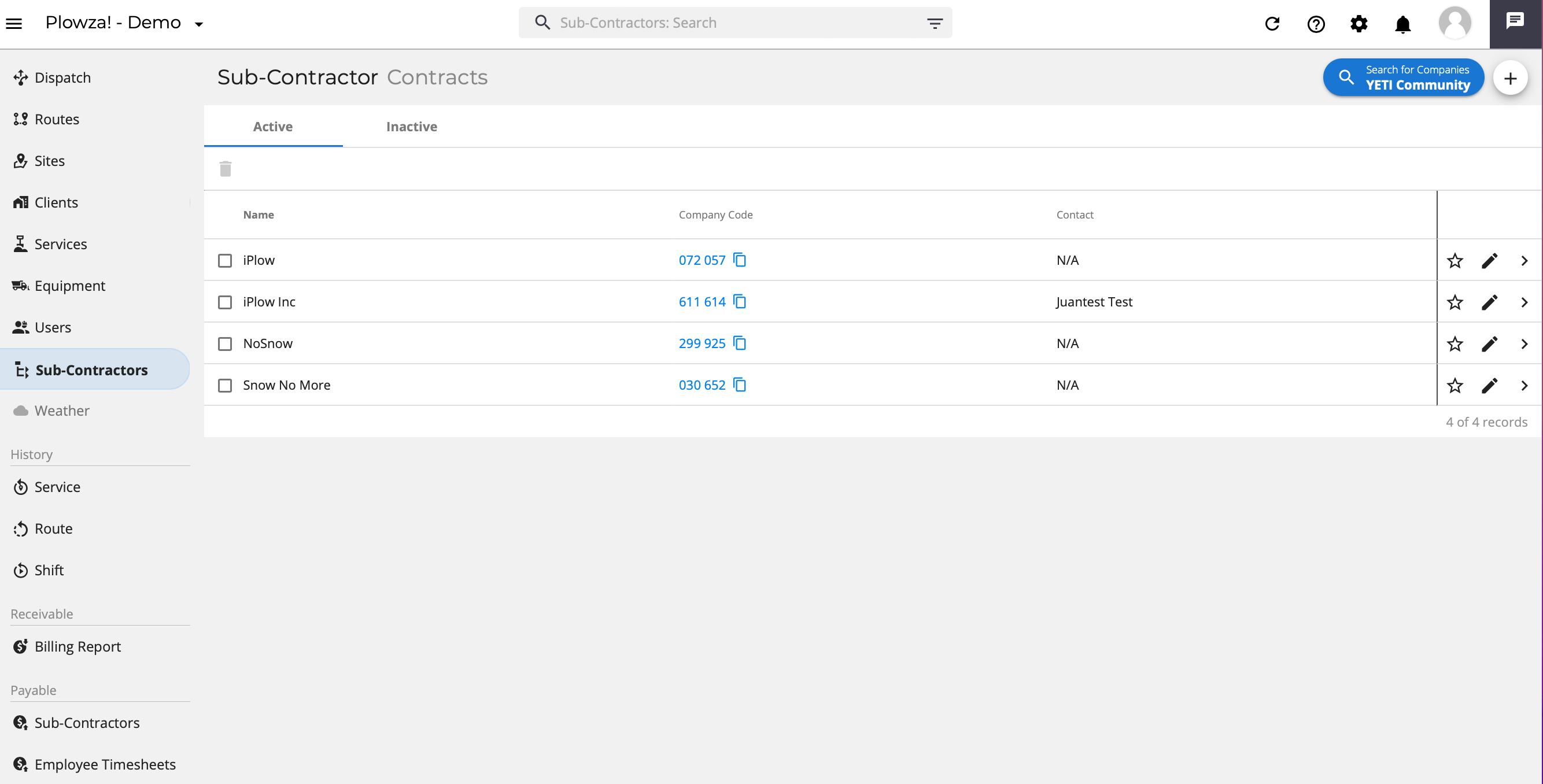 Sub-Contractors view with example records
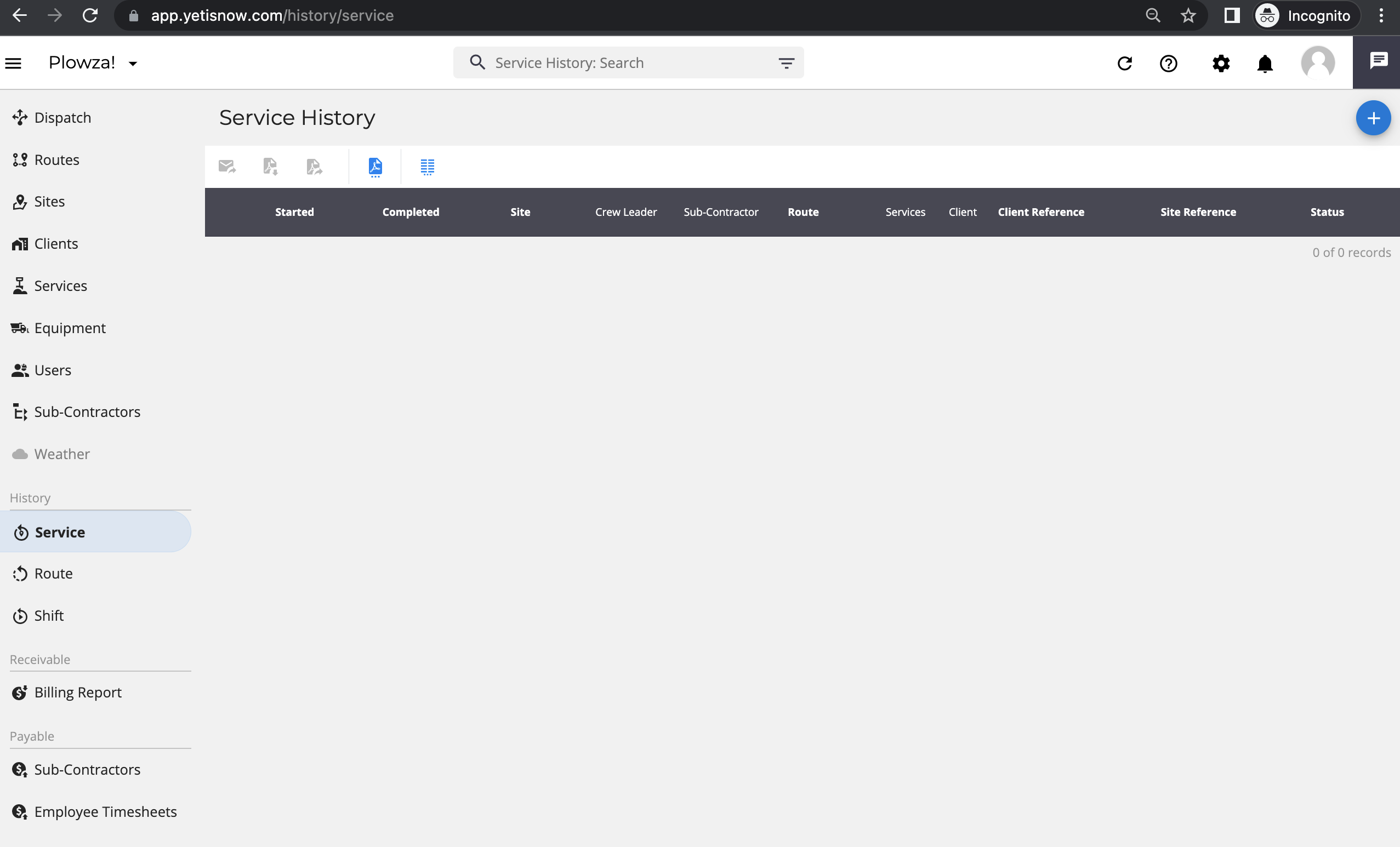 Initial Service History reports view
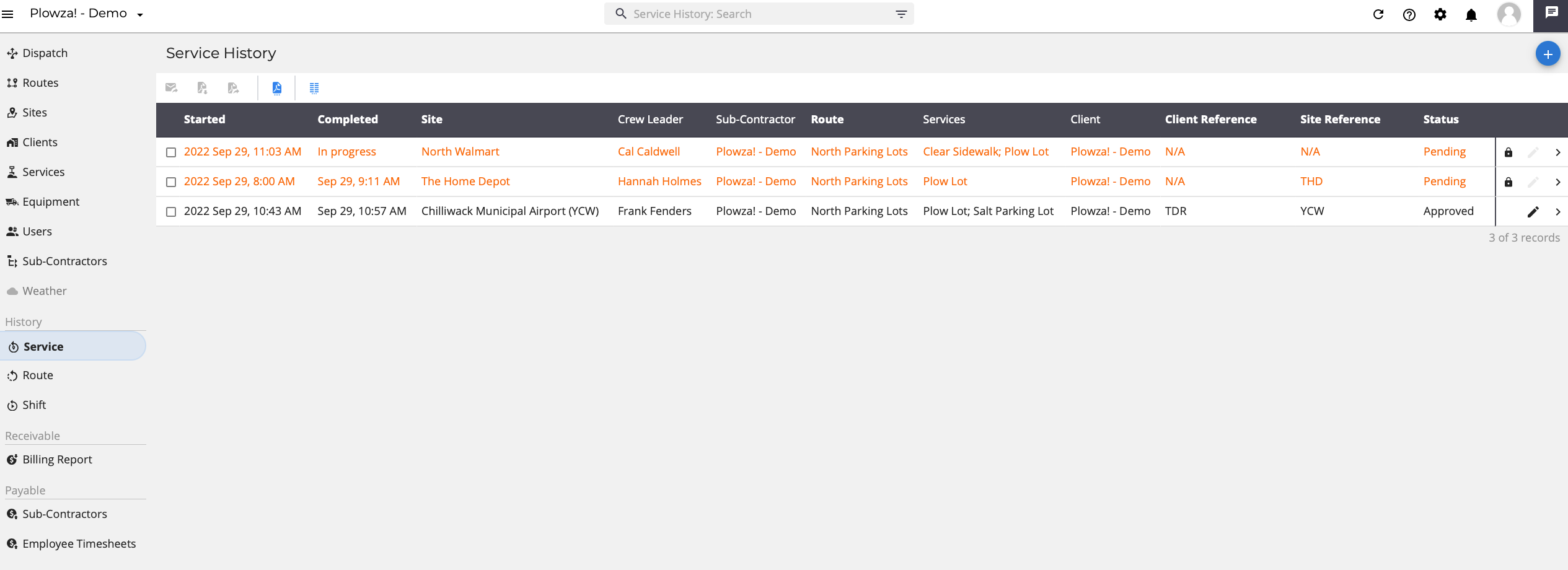 Service History reports examples
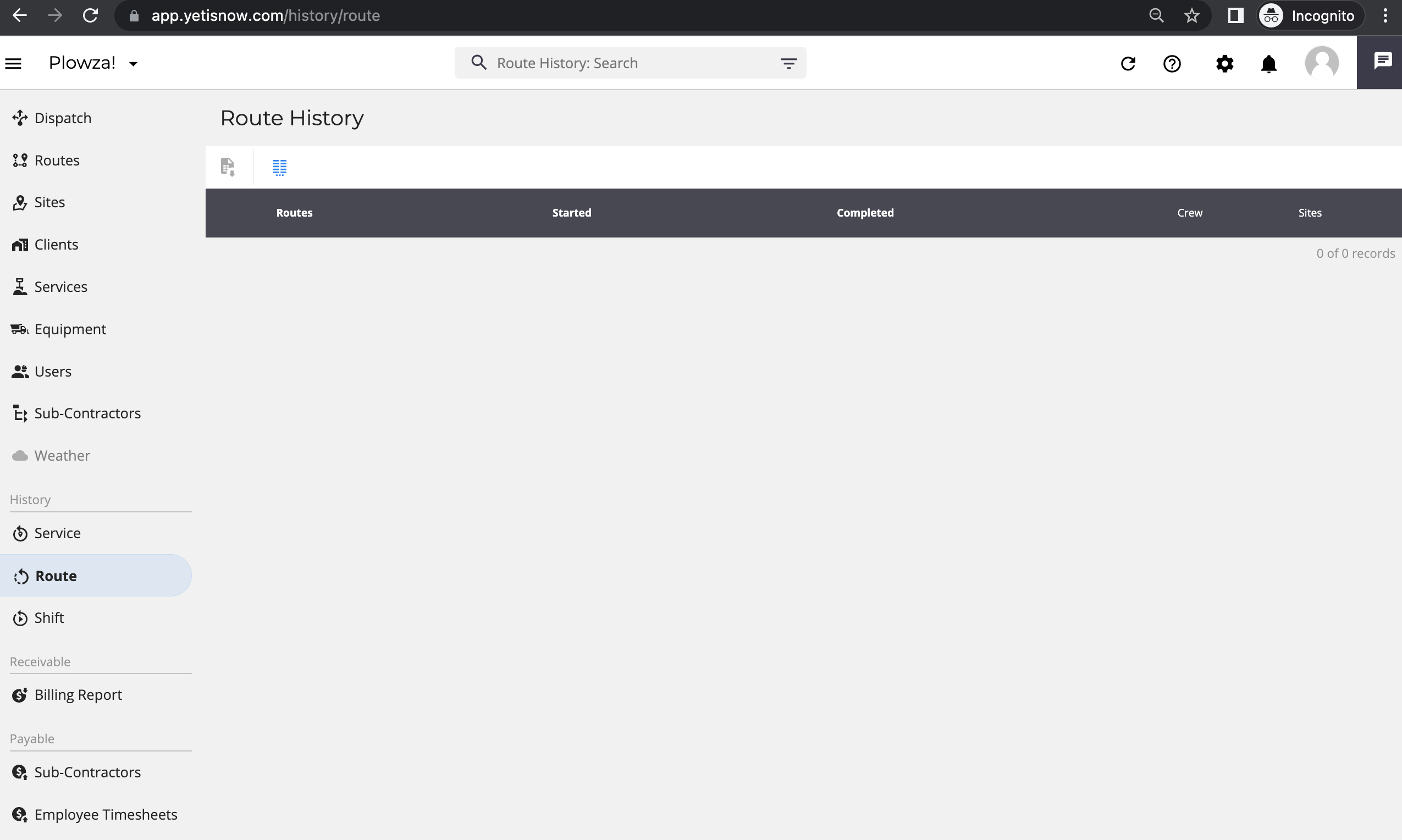 Initial Route History reports view
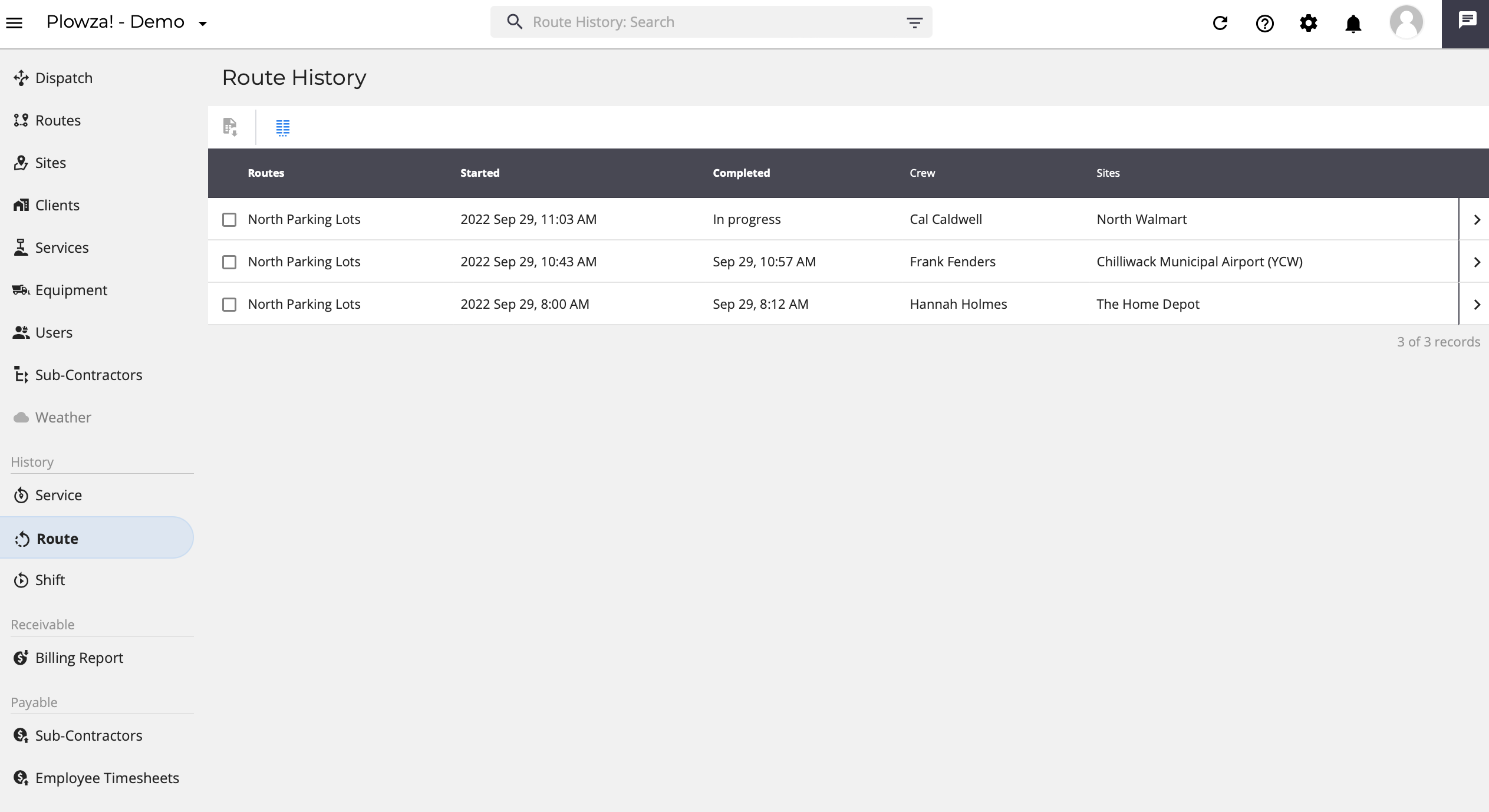 Route History reports examples
 Initial Shift History reports view
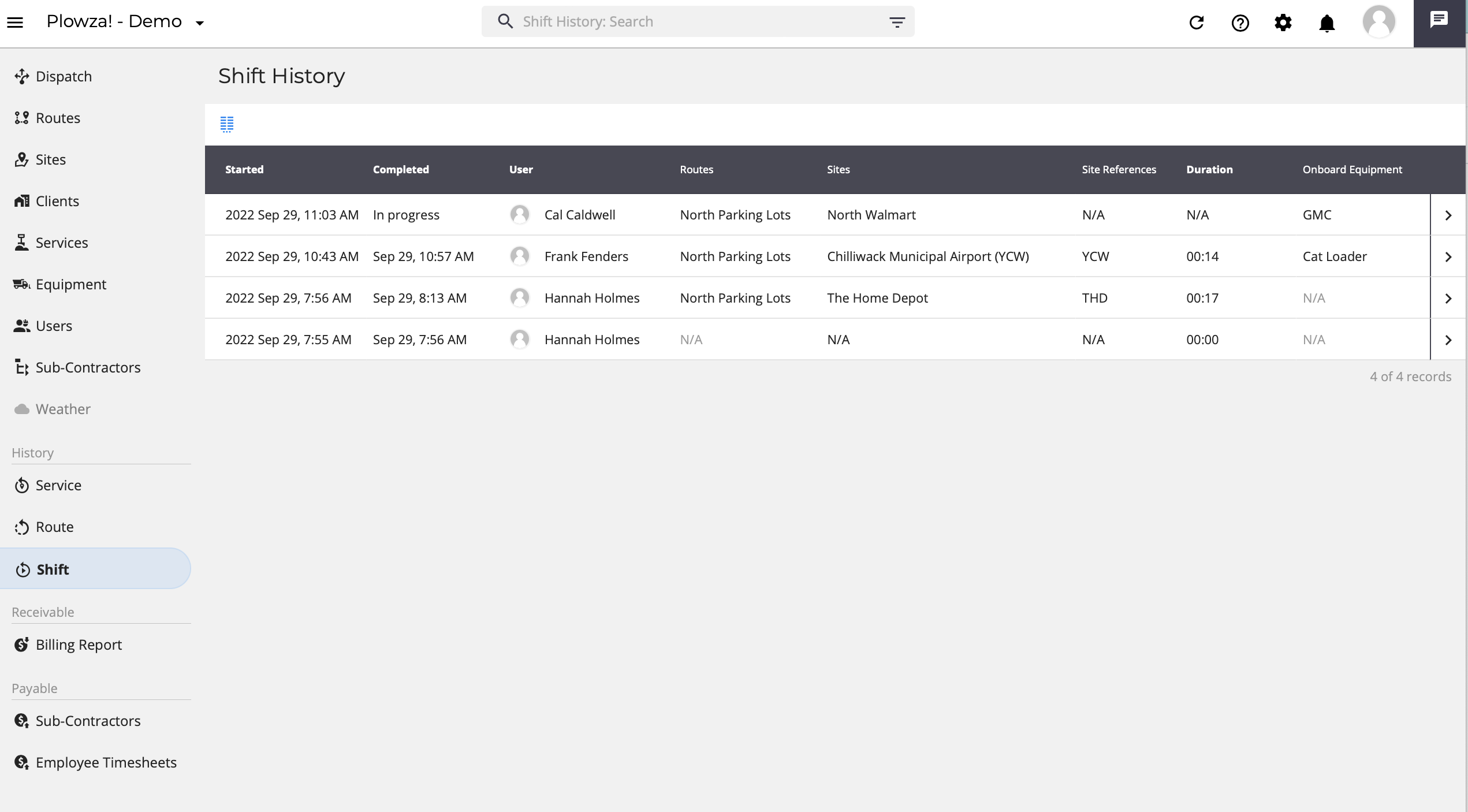 Shift History reports examples
 Initial Billing Report view
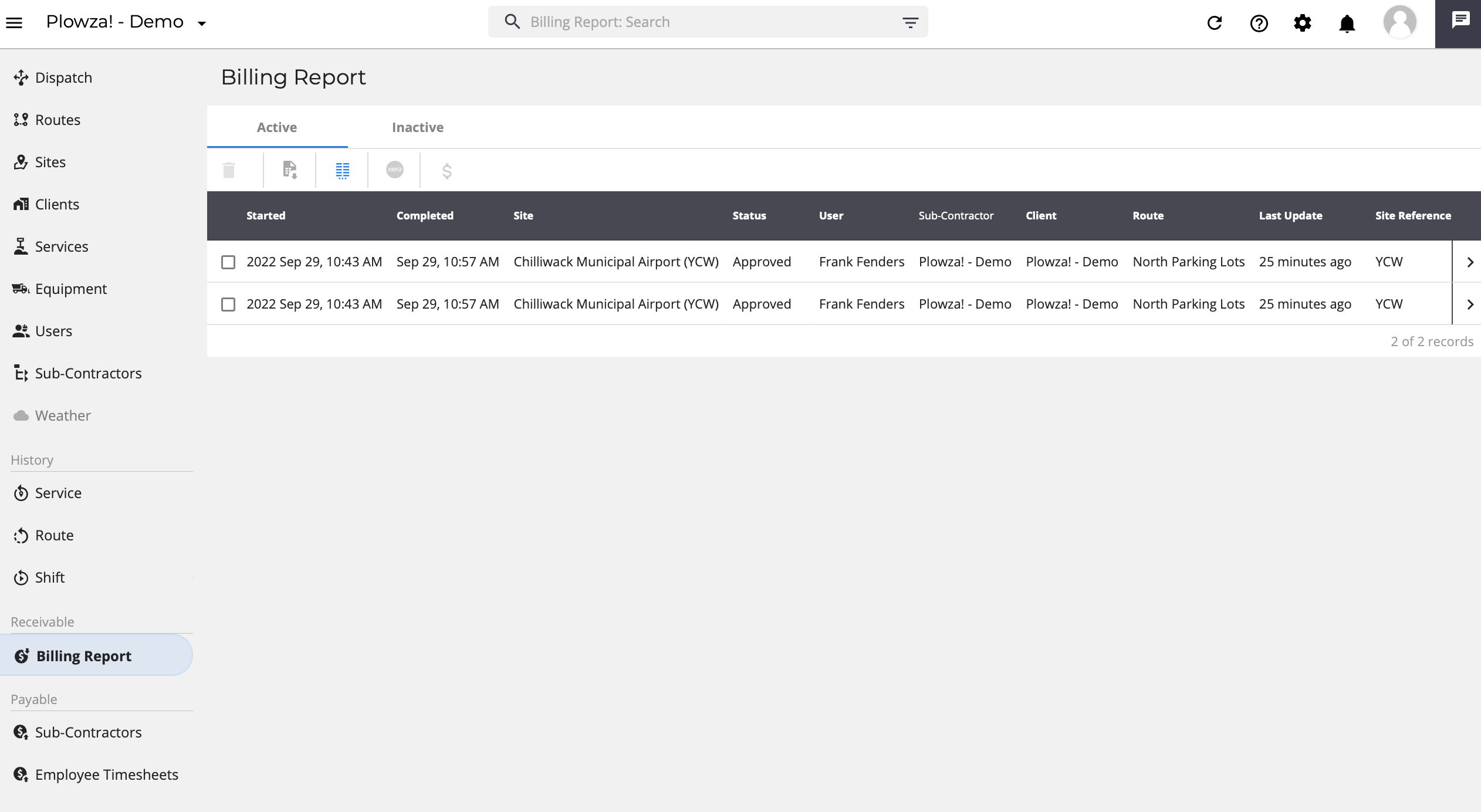 Billing Report history examples
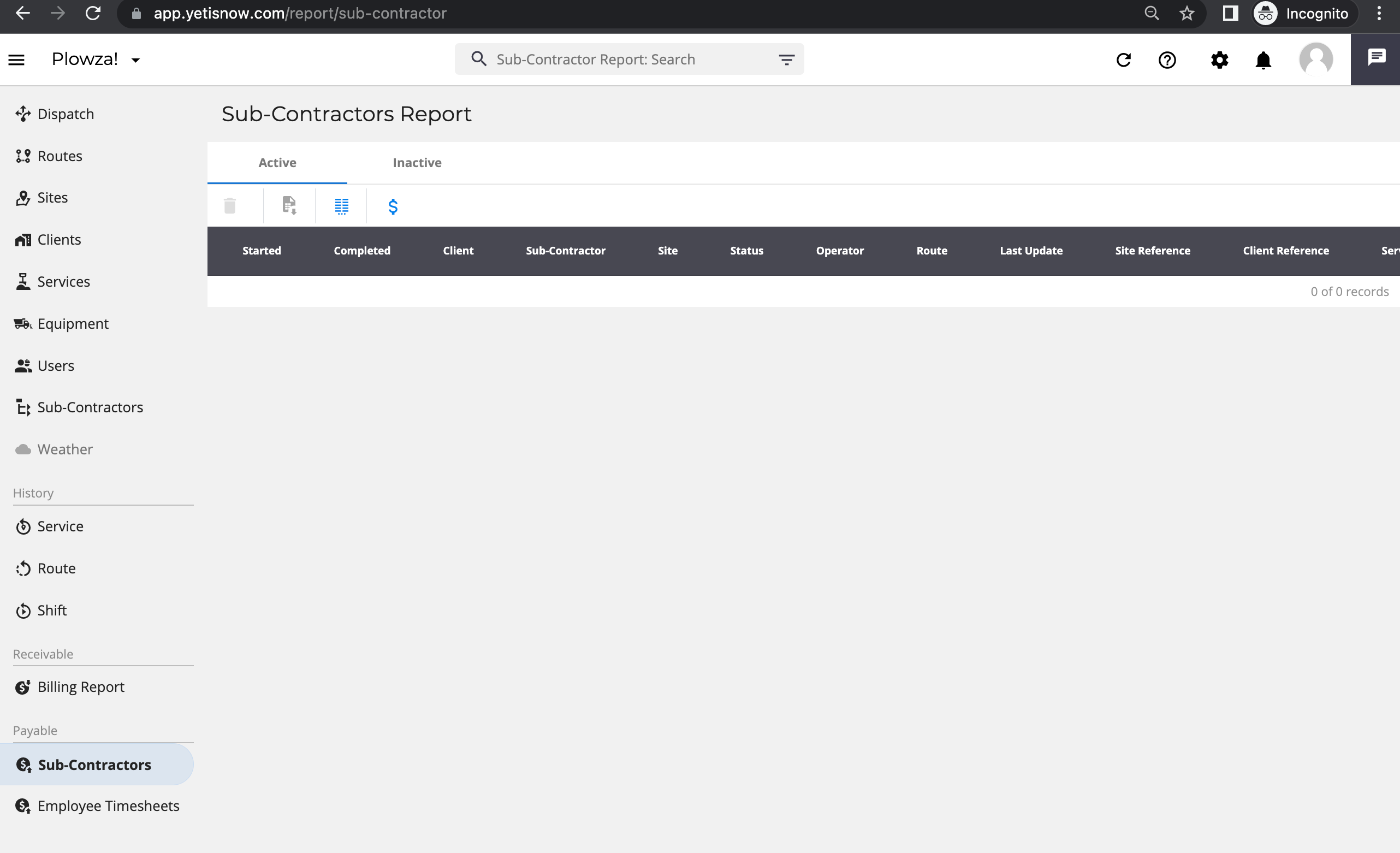 Initial Sub-Contractors Report view
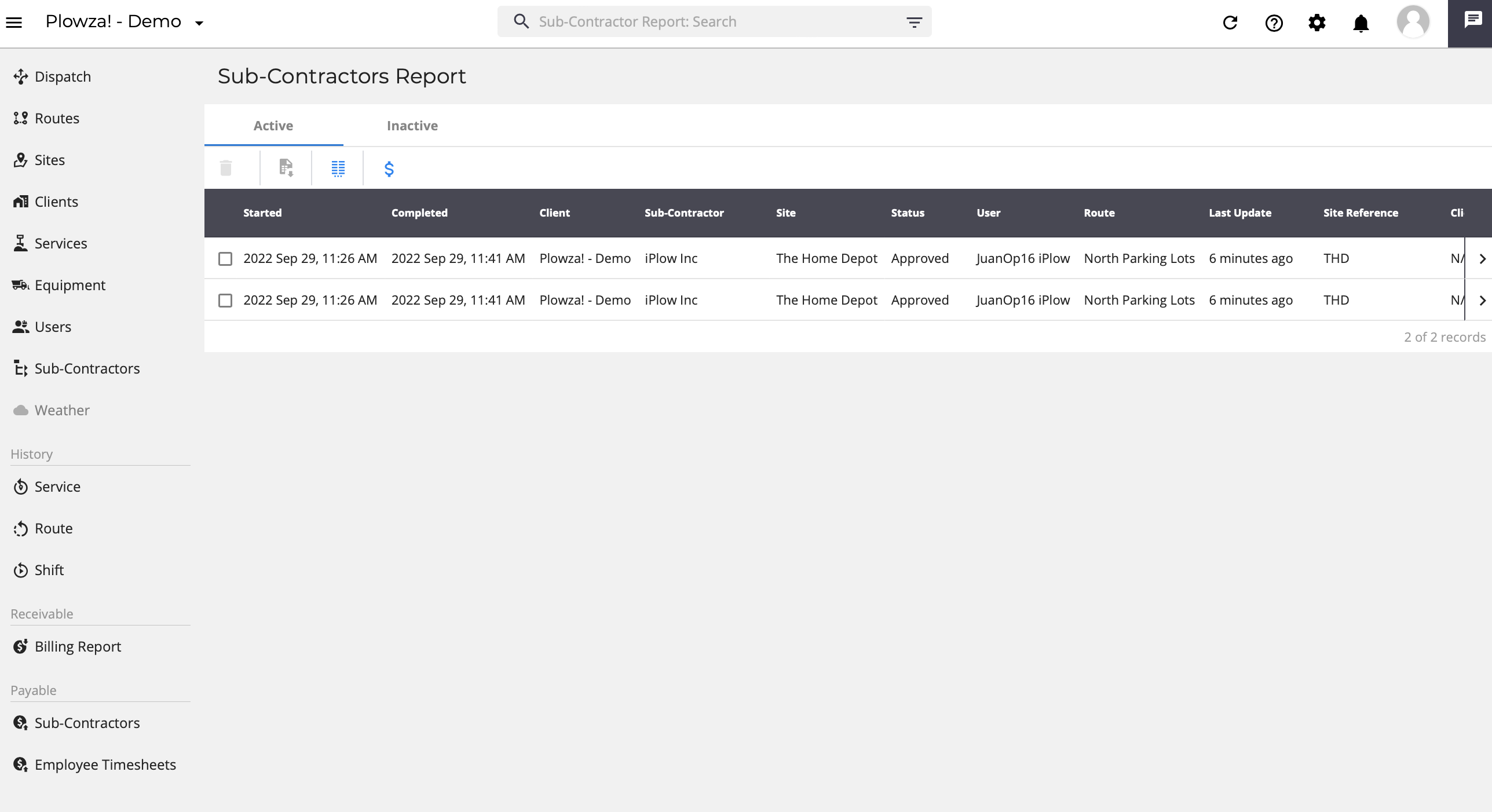 Sub-Contractors Reports examples
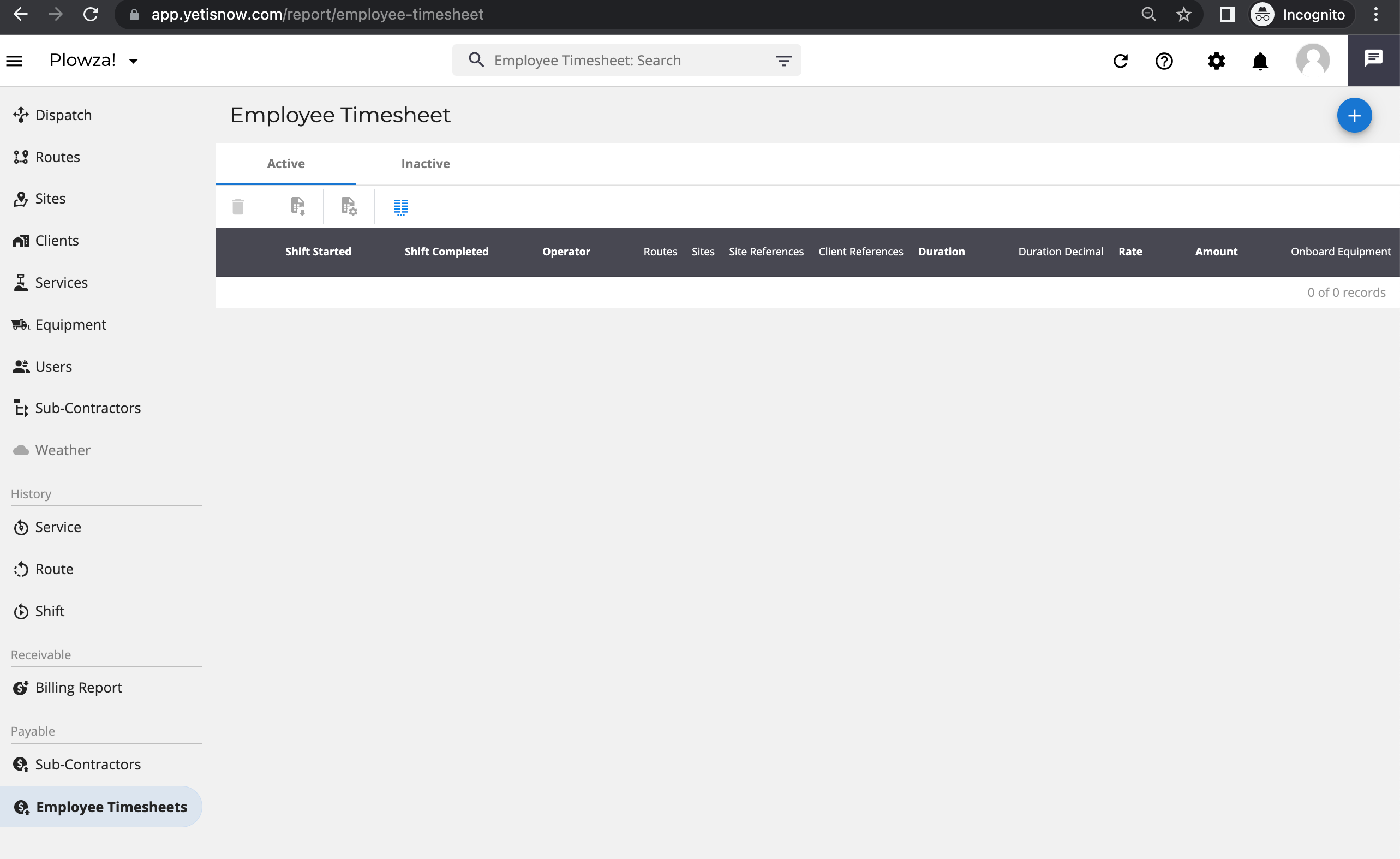 Initial Employee Timesheets Report view
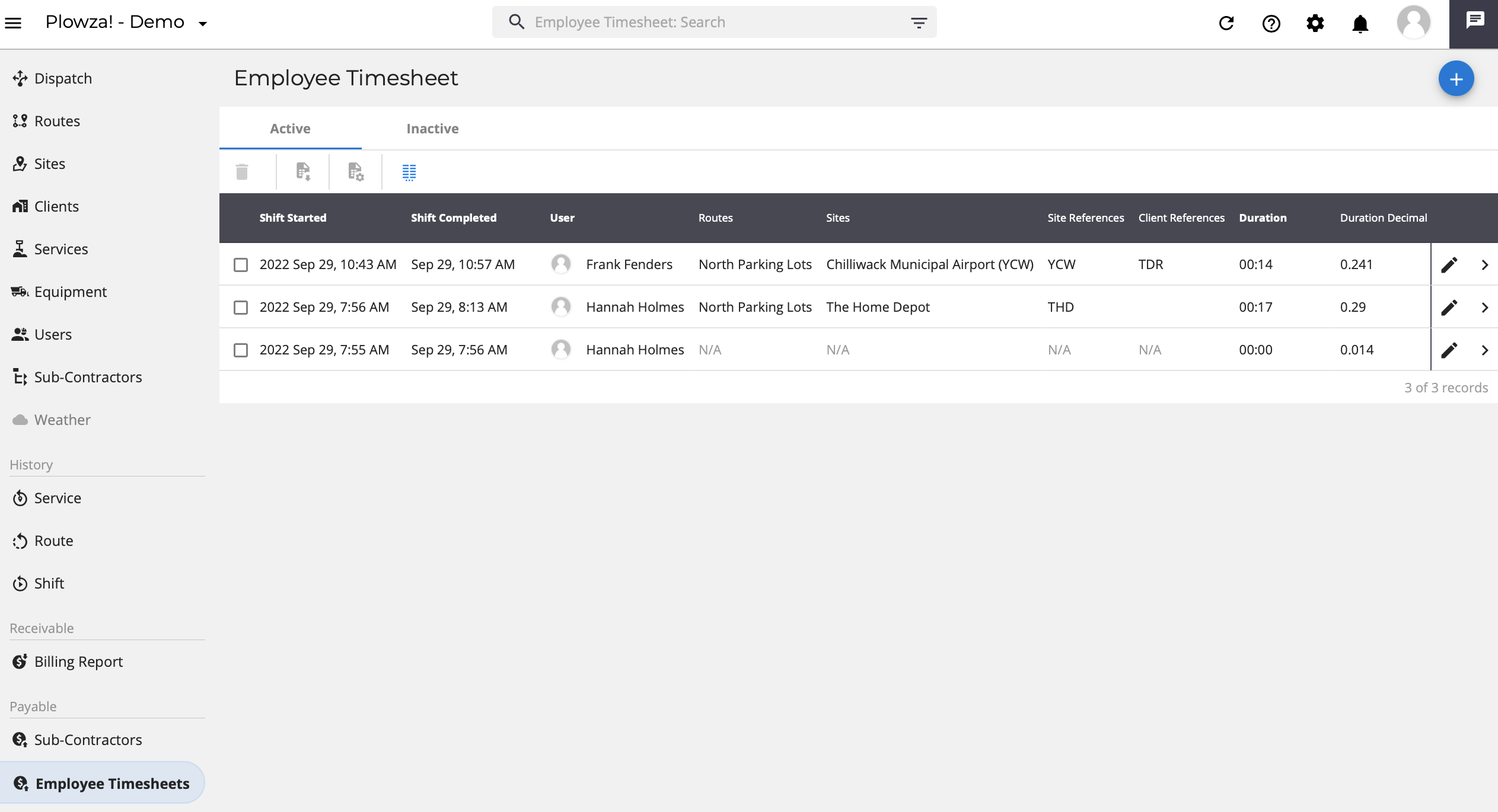 Employee Timesheets reports examples
 User menu
Clicking the [x_icon type="bars"] menu toggle allows the left menu to be collapsed to allow for a larger viewing area of the selected screen. Clicking the icon again will re-display the left menu.
This collapse\display toggle appears for every Records and Reports Menu item.
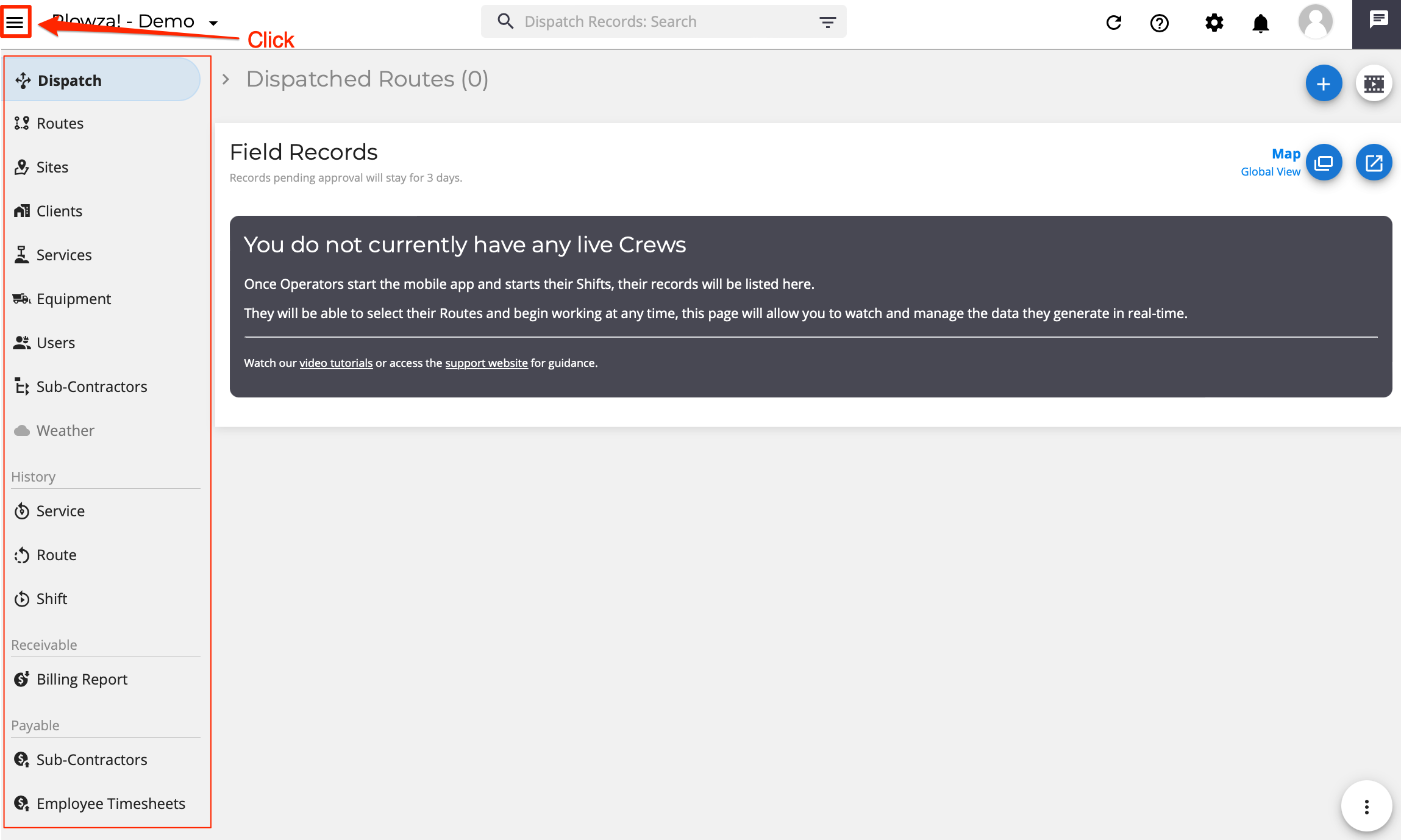 Displayed menu view
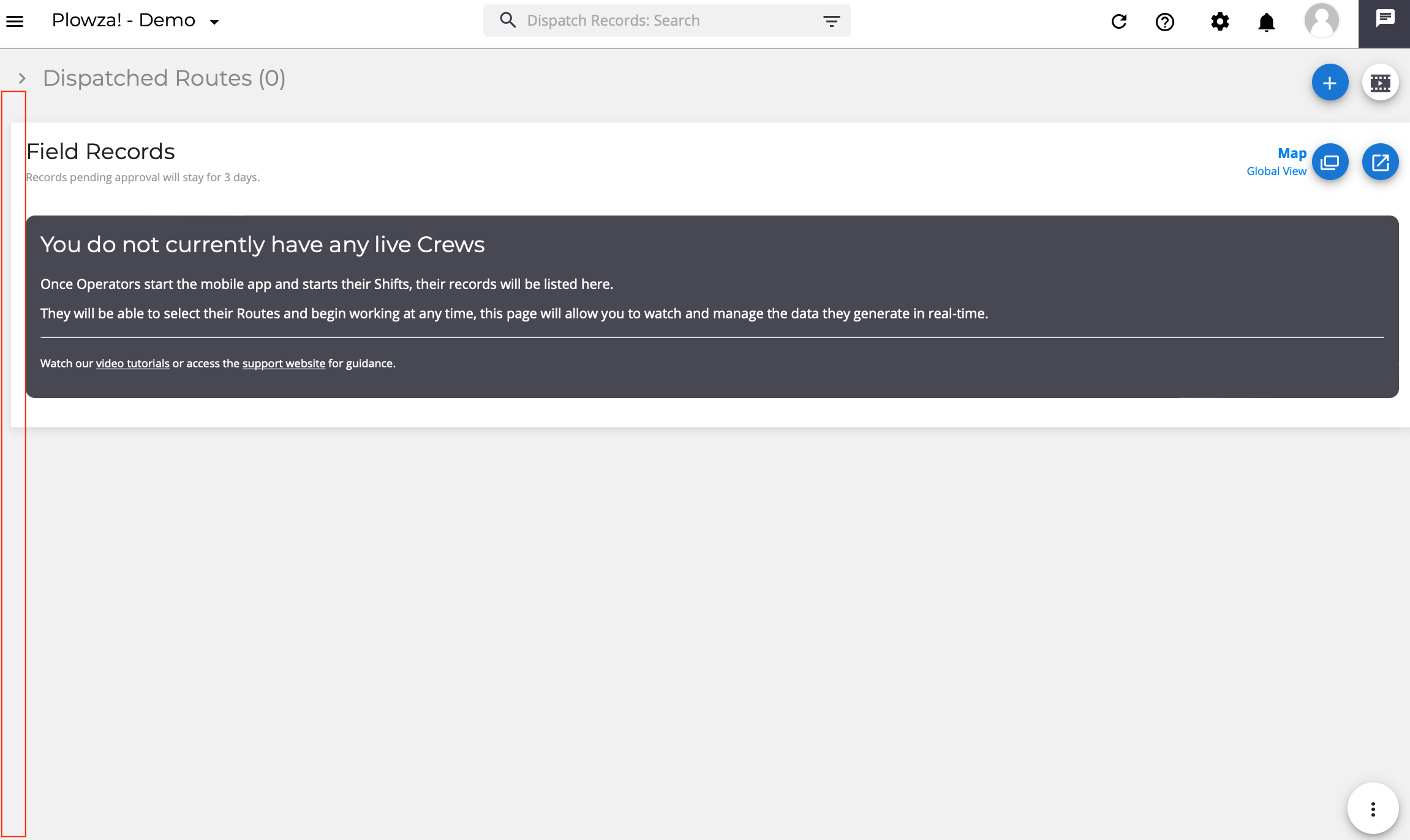 Collapsed menu view
Favorite Companies acts a 'short cuts', company picker screen. Each user is able to set and select their most commonly used Clients and\or Sub-Contractors for quick viewing.
For more information on how to set your Favorite Companies click here.
 Initial Favorite Companies view
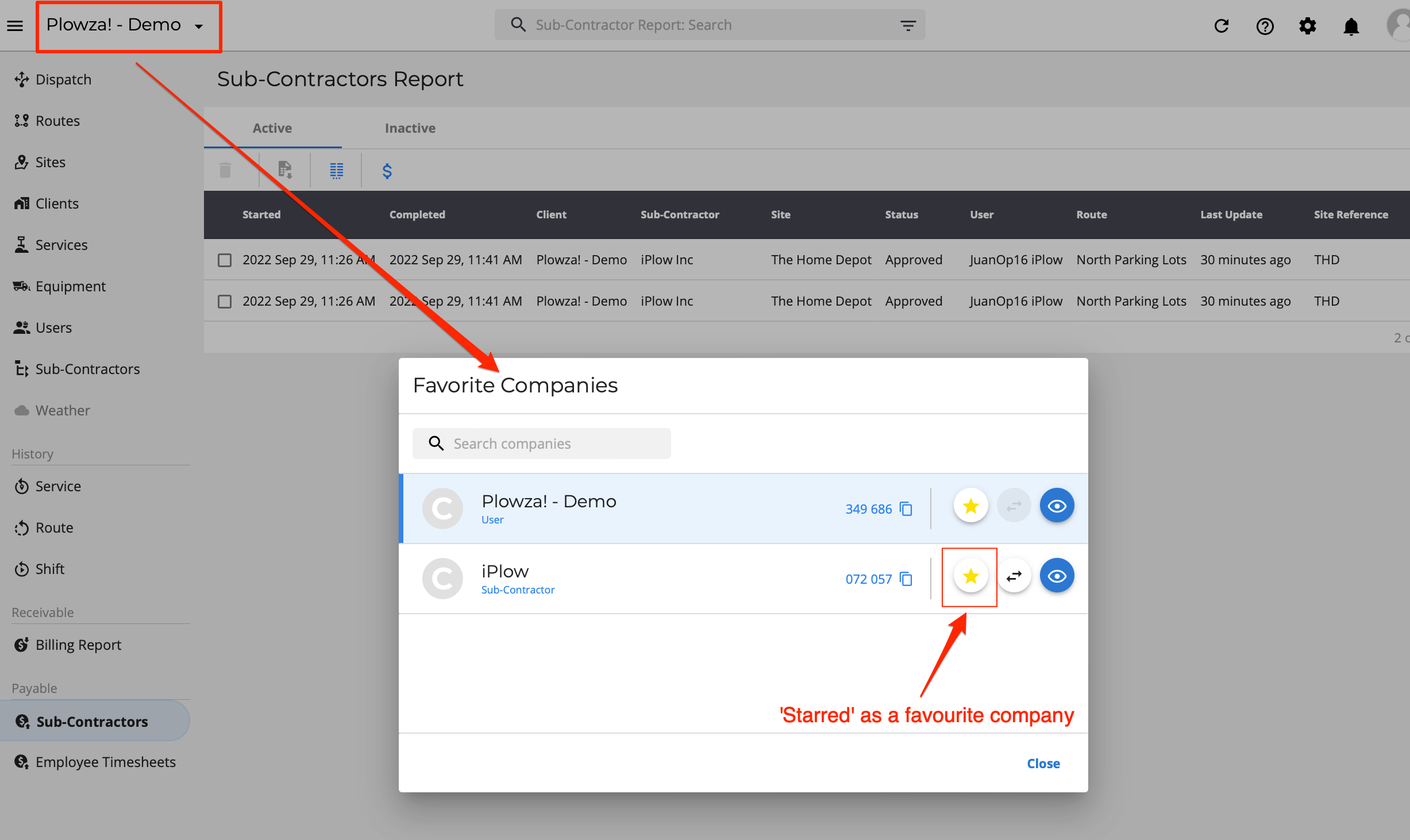 Favorite Companies addition example
Instead of viewing all records, the Search and Filter functions allows users to specify which records\reports to display.
Isolating the records in a view is useful for:
- viewing a specific group of records
- making bulk changes to a group of records
- targeting the records desired for a data export
- potentially increasing the speed of Yeti functionality by not displaying every existing Yeti record.
'Search' is the quicker method of segregating records. Just type keywords into the search field and hit enter.
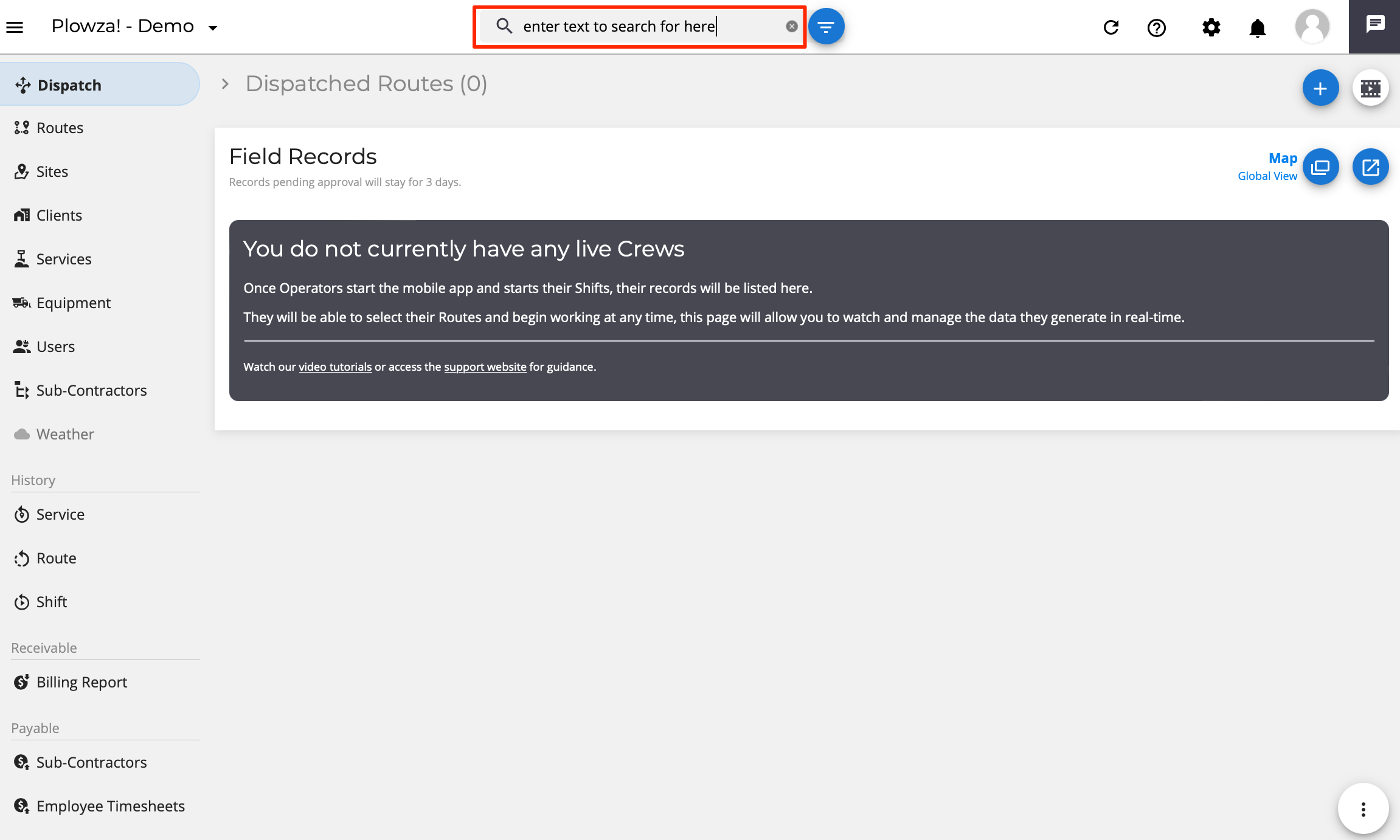 Search feature
'Filter' is an advanced search function and allows for multiple search criteria.
Filter options will vary depending on the Yeti menu viewed.
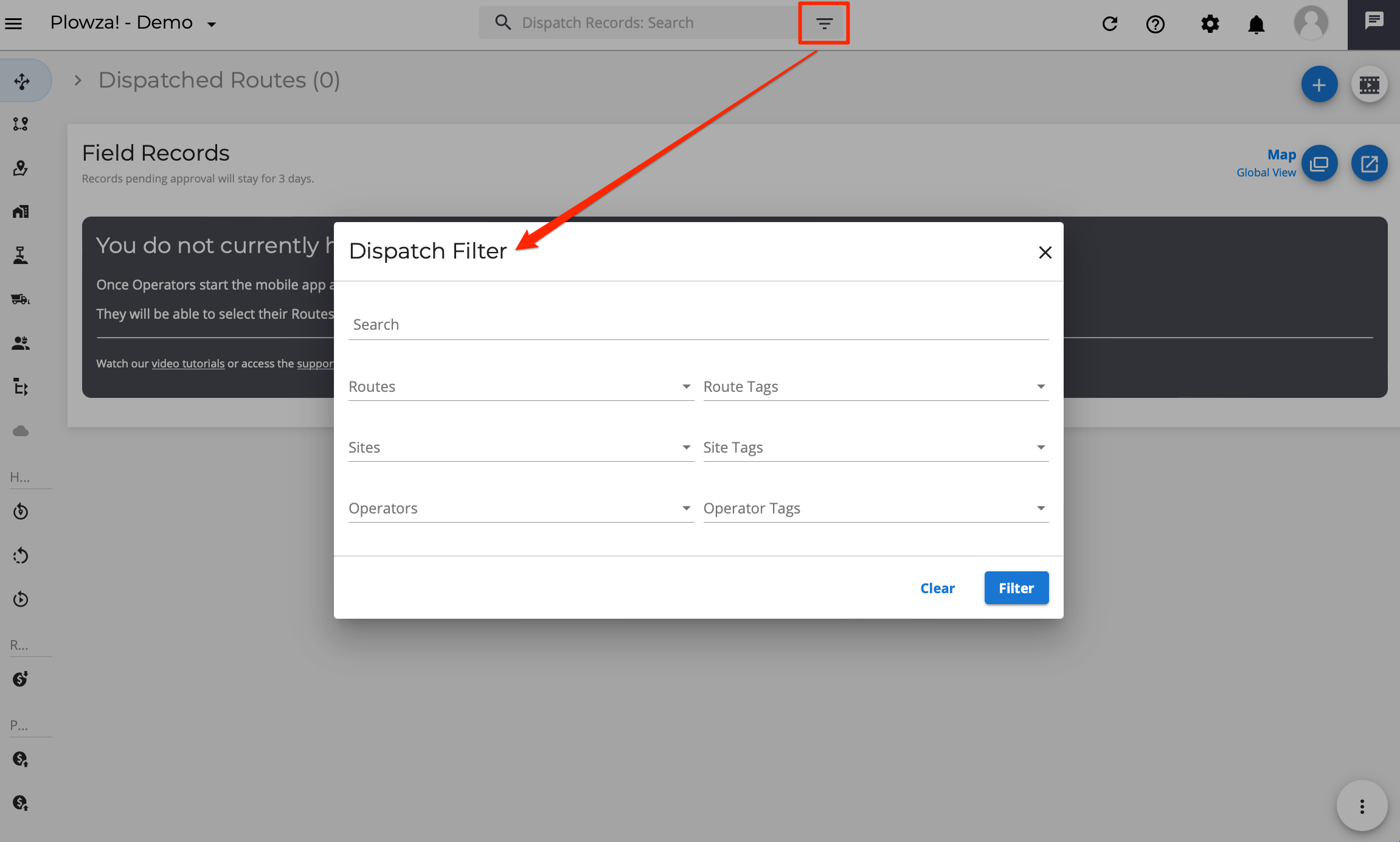 Filter feature
 When both Search and Filter features are 'Off'
 When Search feature is 'On'
NOTE: Both the Search and Filter functions can be in use at the same time. This image could indicate the Search function is in use, or both Search and Filter functions are.
 When Filter feature is 'On'
- For Search, remove text from the field
 Delete search text
- For Filter, click the 'Filter' button and then click on the 'Clear' button.
 Click Clear
==> Coming Soon!
An option to clear filter settings with 'one-click' is coming. Keep an eye out for this listing in the 'What's New' web postings.
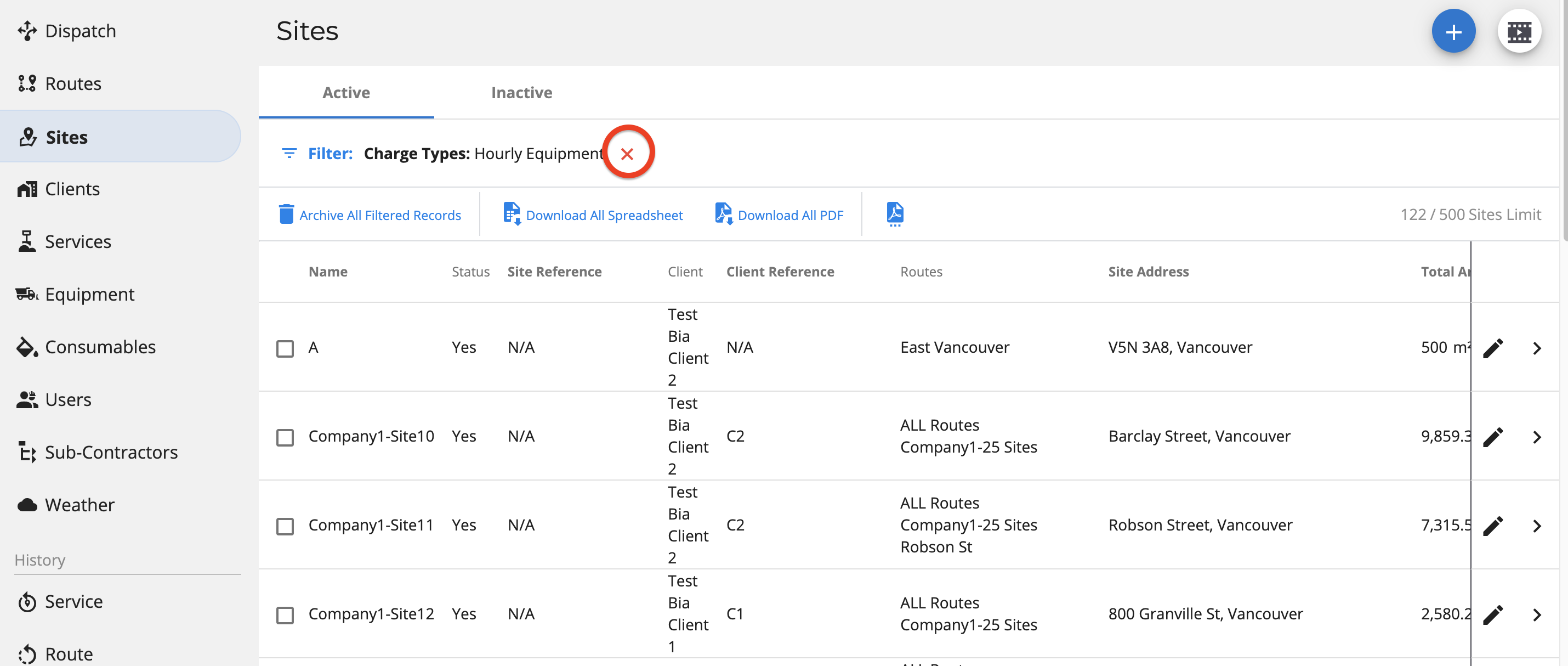 'One Click' clear option coming soon!
Clicking '[x_icon type="redo"]' will reload the page you are currently viewing.
Reloading the page may be required in situations where there's a notification of a Yeti software update, or if an expected change does not appear on the screen.
'[x_icon type="question-circle"]' leads to Yeti's Support website, which has:
- announcements of features added to Yeti environments
- an extensive collection of instructional and reference documents on using Yeti Snow Management Software
- Links to request assistance via email or for one-on-one meetings
 Link to Yeti's Support website
NOTE: This link will be updated in the near future to include links to webinars and self-directed training.
'[x_icon type="cog"]' contains the menus related to global (Yeti wide) settings and configurations, and account (payment) settings.
 Options under Settings
'Company' lists the company's billing contact(s) and the address to be used for billing.
The Yeti 'Company Code' is also located on this page. This code is used:
- to identify the company for self-registration of its users
- for initiating work contracts with other companies and with clients
- for inquiries to Yeti administration regarding billing
- for requesting assistance from the Yeti Support team
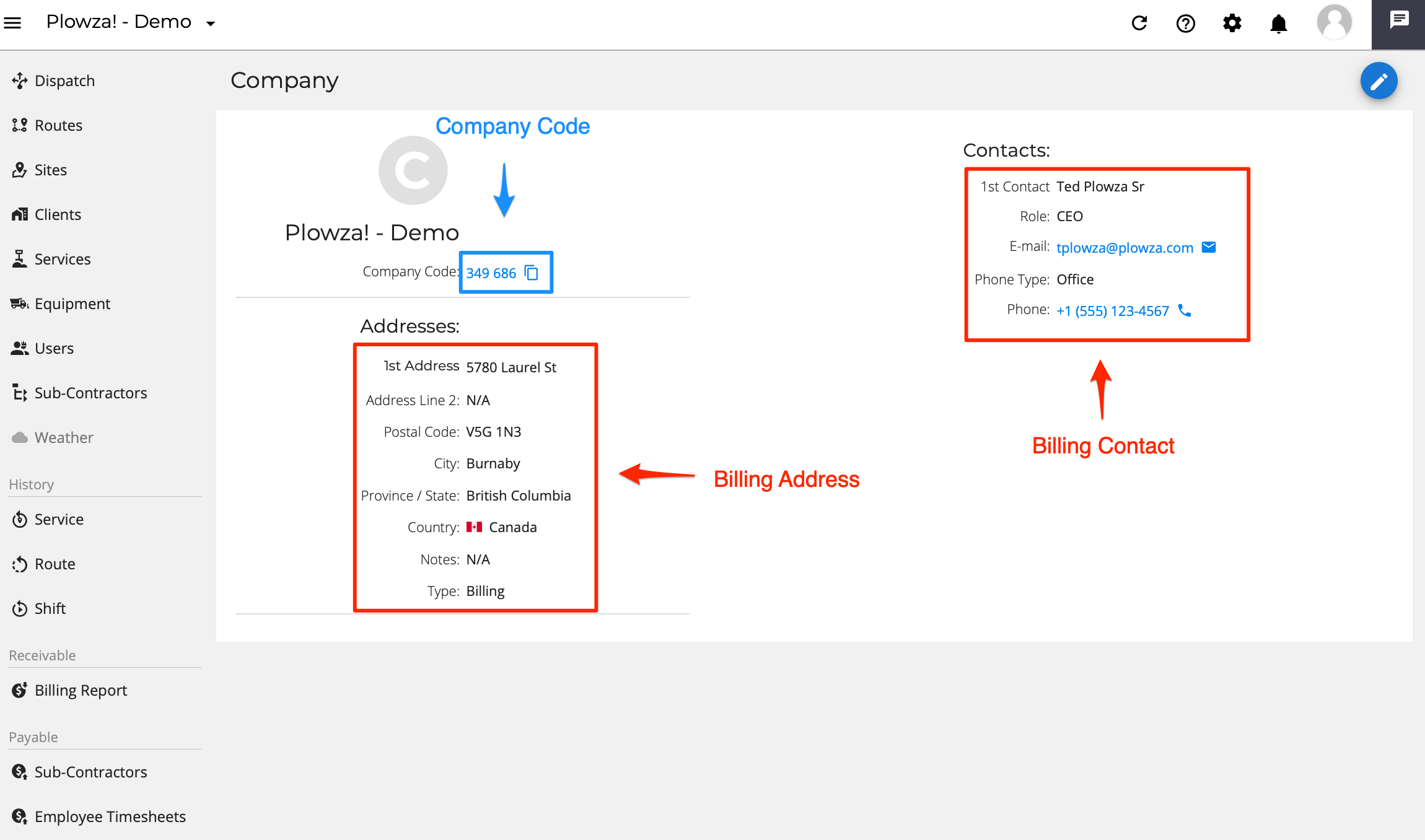 Company code and billing information
The Subscription page lists everything related the company's subscription.
- Subscription type (annual\monthy)
- Subscription cost
- Invoice Date
- Billing history
- Subscription options
- Credit Card information
- If on a High Performance, monthly subscription, there is also an option to put the account into 'off-season' mode (click here for more information).
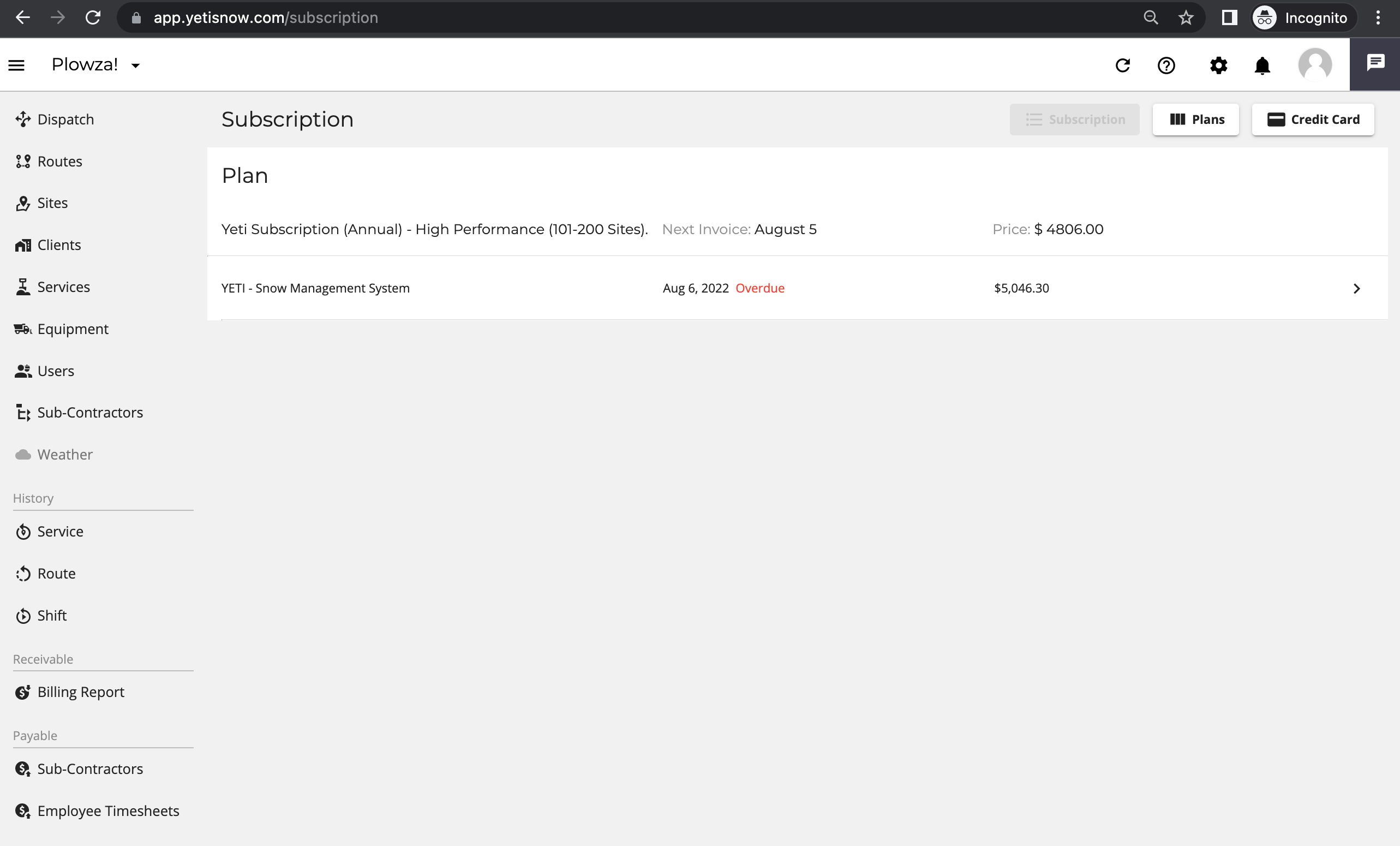 Subscription information
'General Settings' contains the following information which can be set:
- Set units of measurements for Length, Area, Temperature and Currency
- Set Seasons
- Set whether you receive update notifications (for more information on this feature, click here)
- Set Environment colours
- Top and left menu backgrounds and header texts
- Set Sub-Contractors edit restriction by setting expiry period (for more information on this feature, click here)
- Accounting software configuration
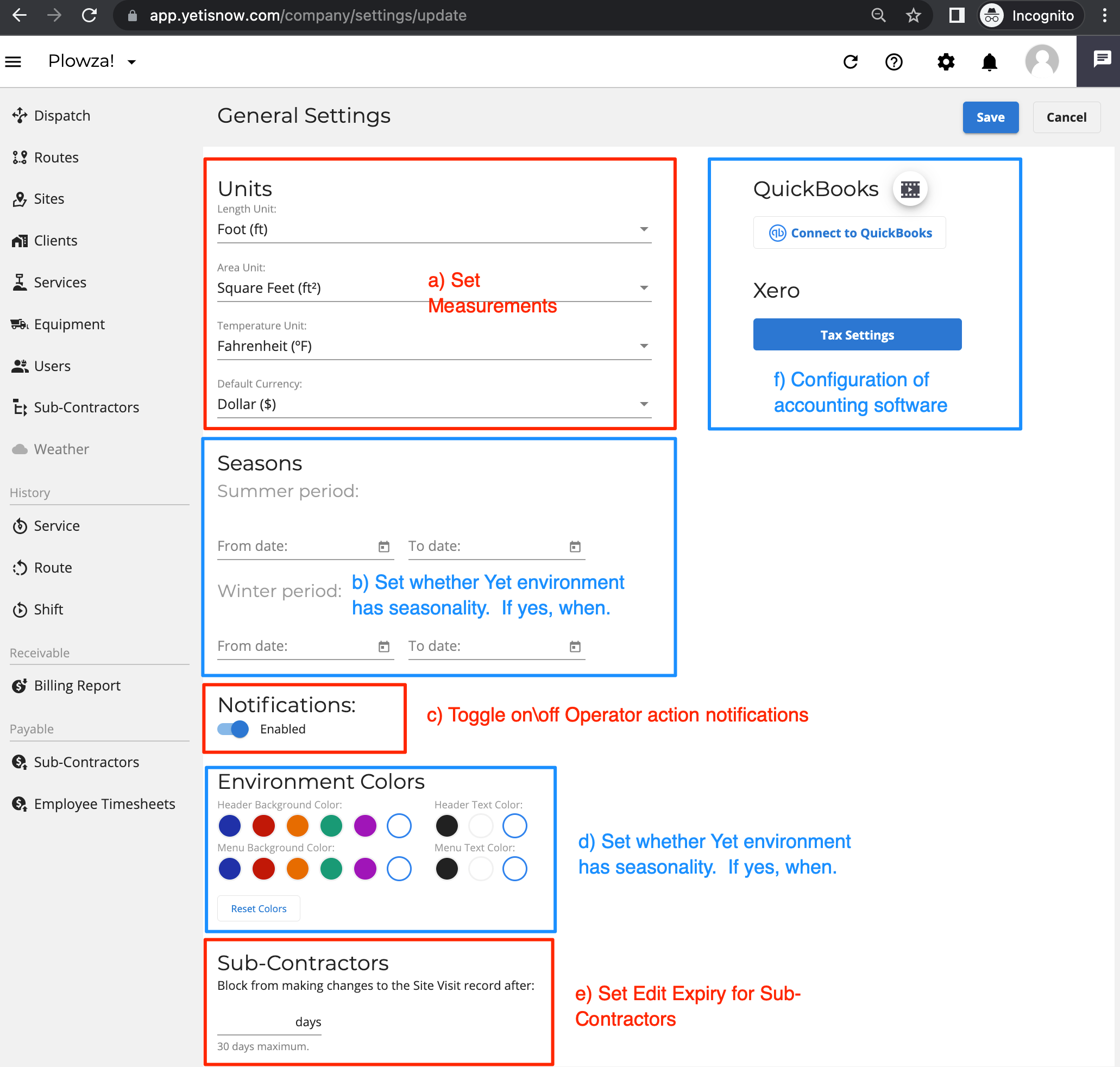 Yeti configurations available under 'General Settings'
API tokens are a secure way for two or more computer programs to communicate (ie transfer data) with each other. For detailed information on API Tokens, please click here.
The integration of Yeti with Salesforce is an example of the use of API Tokens. To view our documentation on this integration, please click here.
 No API Token set
 Example of a API Token
The notifications tab displays notices of Yeti events. Notices expire after 7 days.
List of Yeti event notification types:
- Subscription issues
- Subscription payment updates
- User request to join Yeti to Approve or Deny
- Notification of exported reports ready to be downloaded
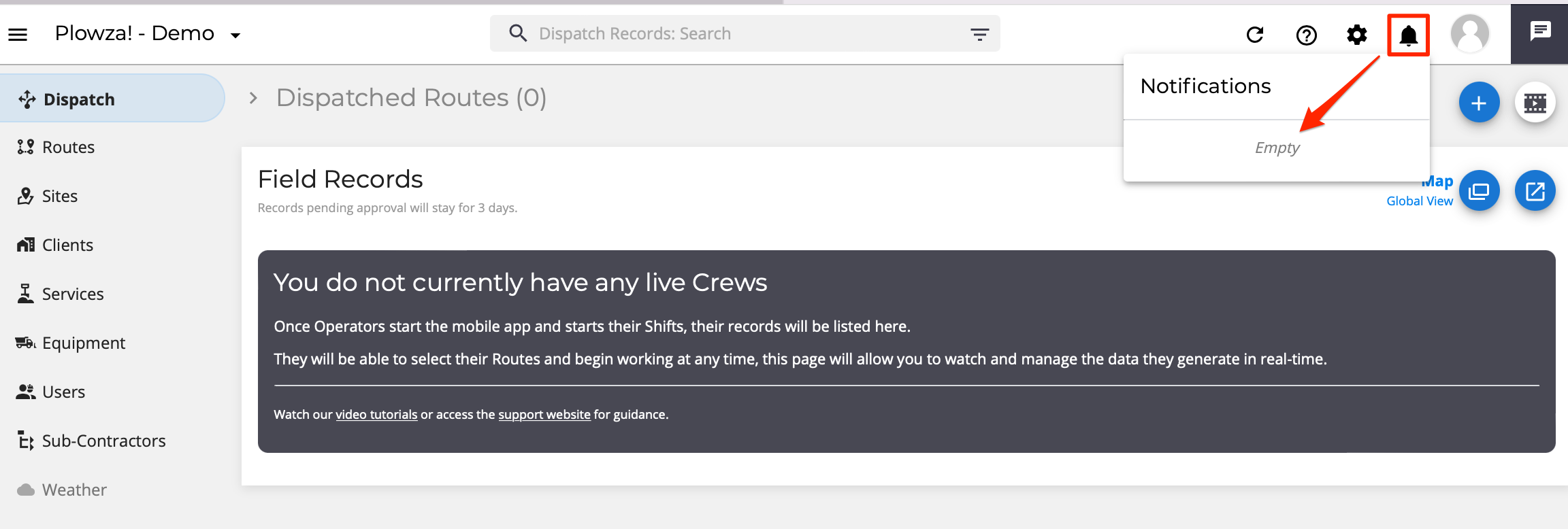 Yeti notifications
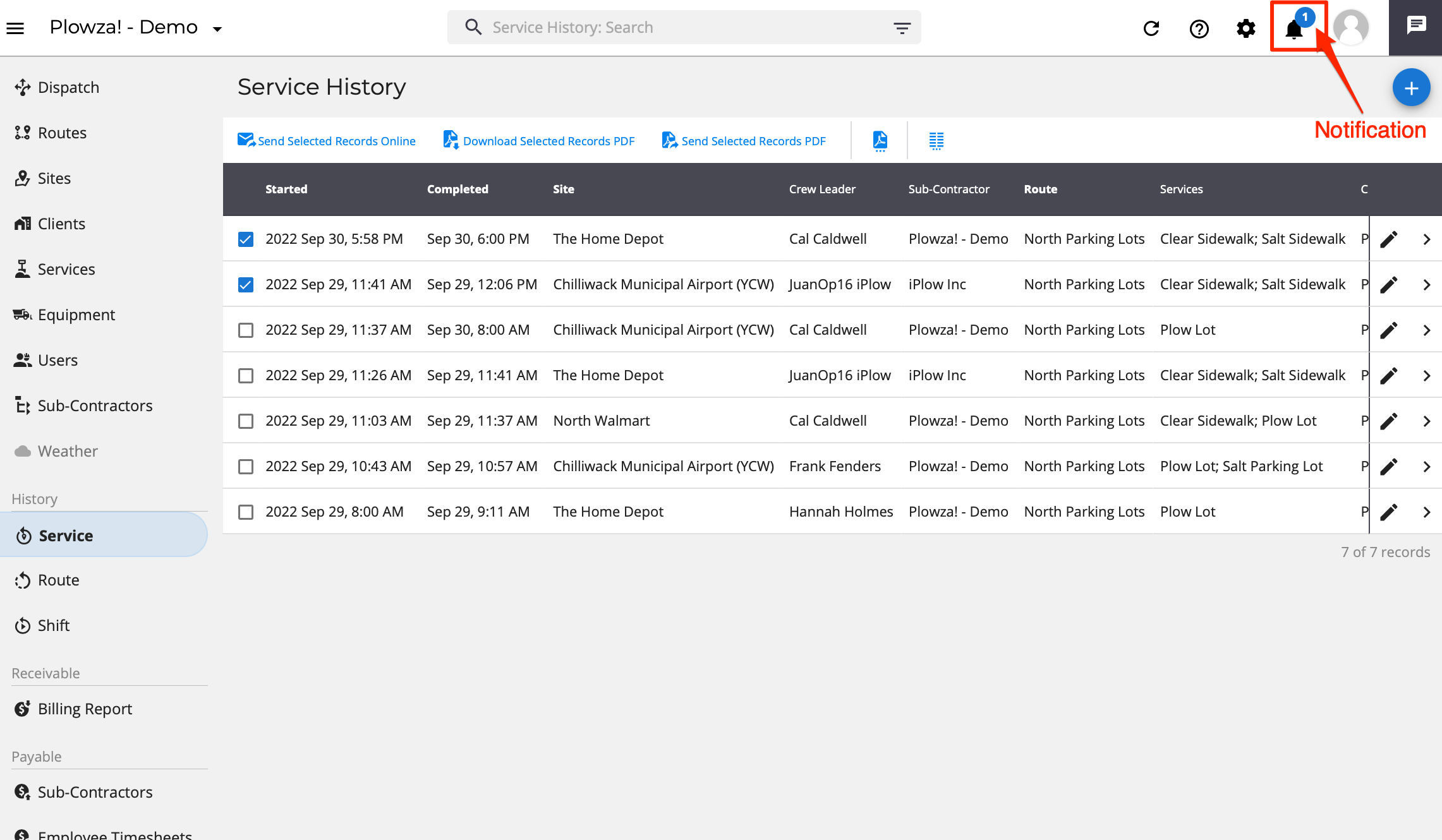 Example: 1) Yeti notification
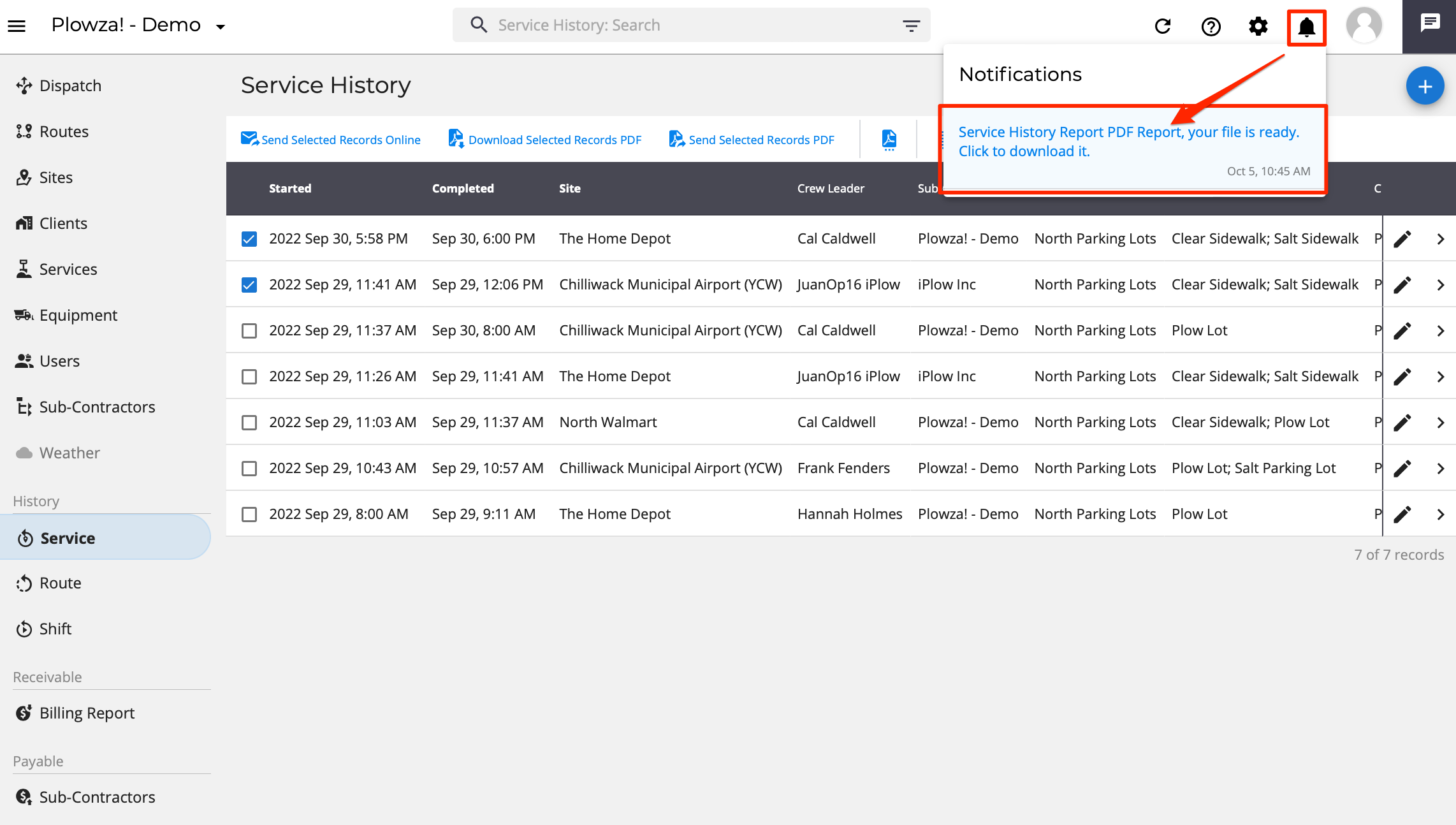 Example: 2) Yeti message
The User Profile menu allows individual Yeti users to:
- Update Account
- The information which can be updated are:
- Name
- Country code and phone number
- Timezone
- The information which can be updated are:
- Change Password
- View Yeti's Privacy Policy (Privacy and Terms)
- To review the policy, please click here.
- Logout
 Profile options
Yeti Messaging provides a tools to message\chat with members of your own company, either individually or creating a group.
You can see when a crew member has read your message and also, be alerted via notifications when you receive messages from operators.
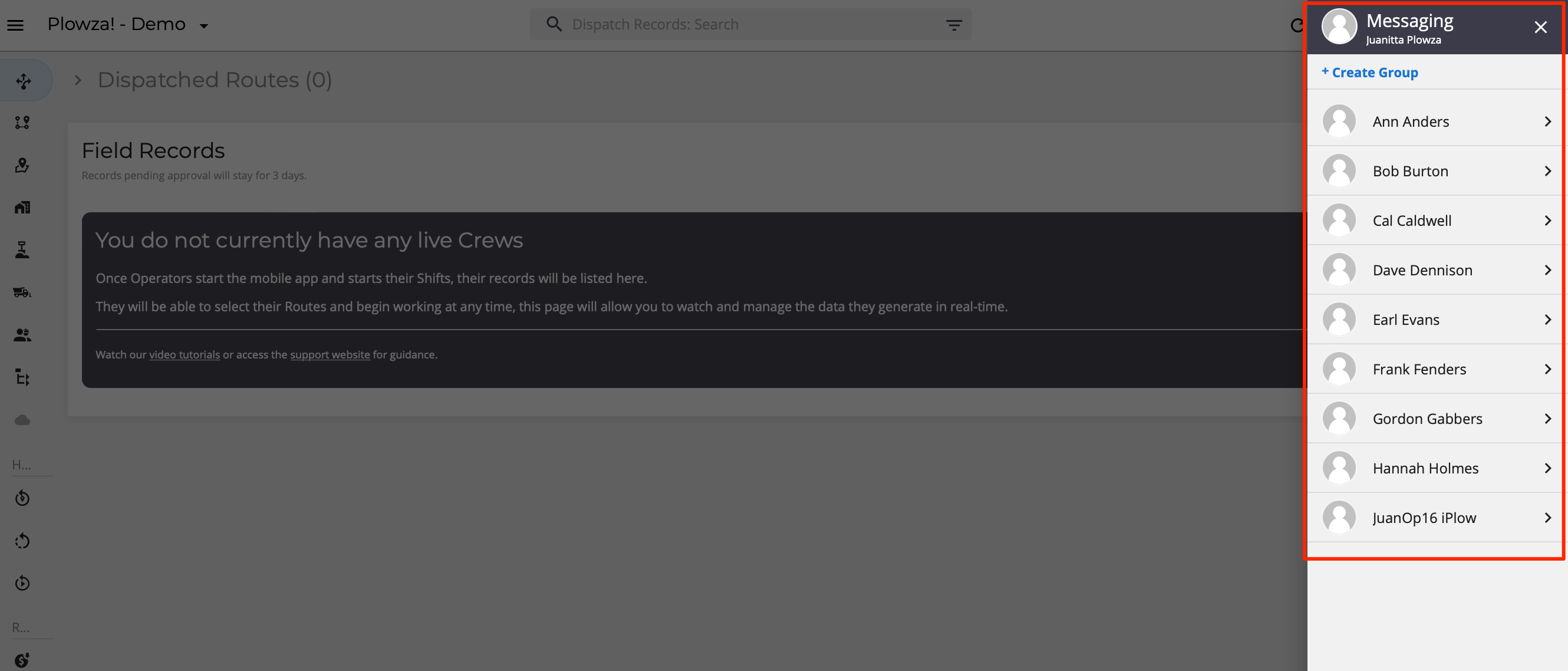 Yeti's Messaging Screen example
 Example: 1) Un-read message notification
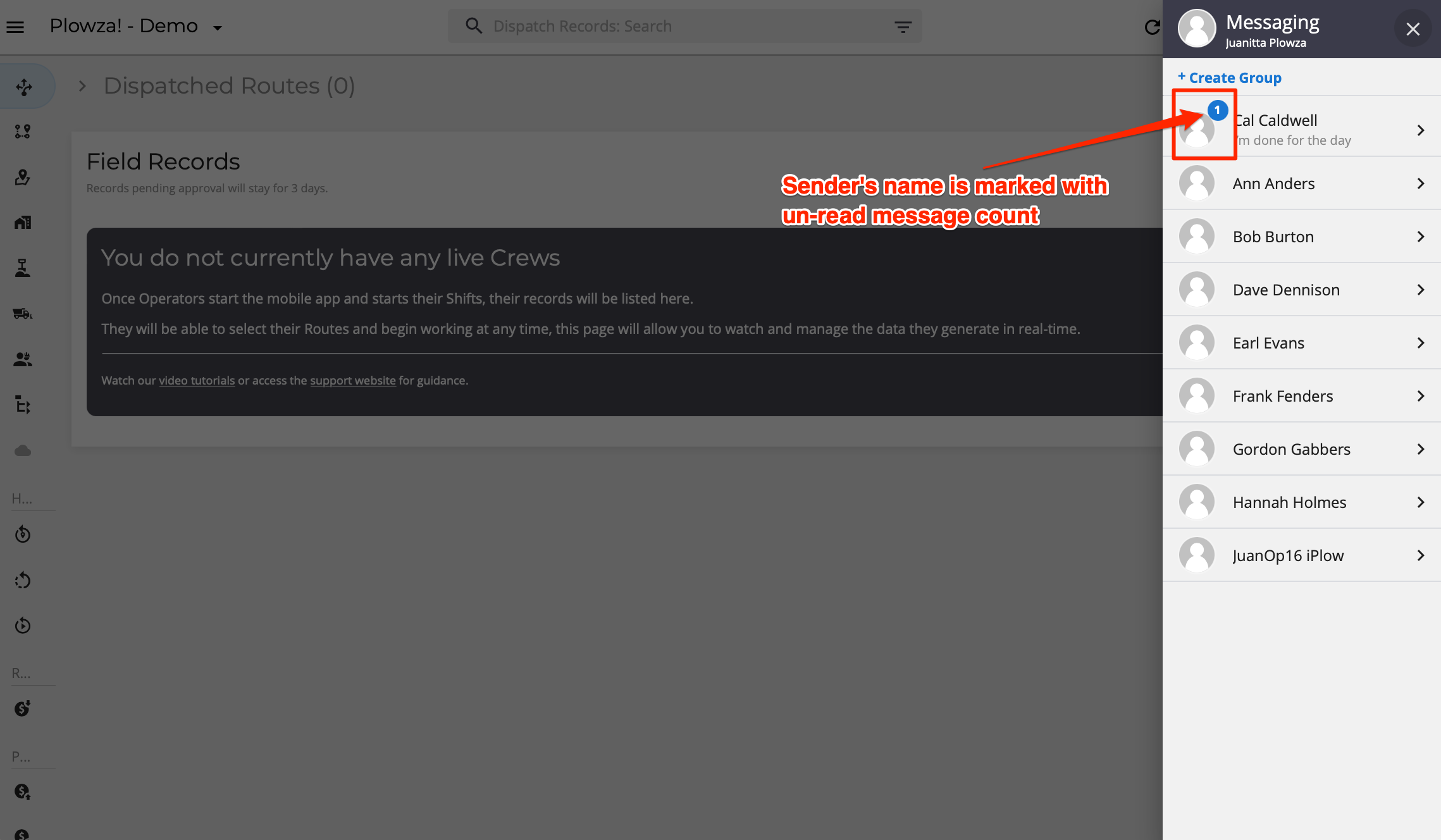 Example: 2) Un-read message notification
 Example: 3) Messages
If there are any questions, please contact Yeti Support (support@yetisnow.com).