![Yeti Support.png]](https://support.yetisoftware.com/hs-fs/hubfs/Yeti%20Support.png?height=40&name=Yeti%20Support.png)
You can use the Service History Report in Yeti to review service records for a specific client or site and quickly identify records that do not have photos attached.
Step 1: Navigate to Service History ReportsFrom the Yeti Web Dashboard, navigate to Reports → Service History.
Step 2: Filter the Service Records
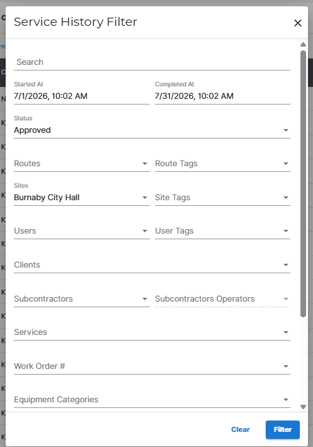
Using the filters, select:
- The Client or Site you would like to review
- The Date Range you would like to include
Once you've selected your criteria, click Filter.
Note: Filtering the report also acts as a Select All, selecting the service records returned by your search.
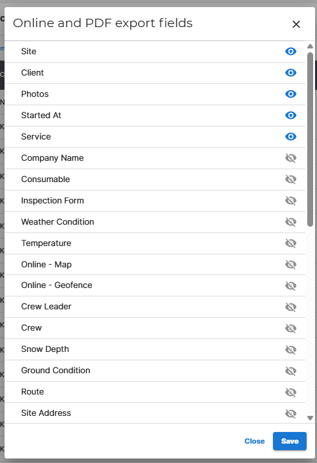
Click Online & PDF Fields Configuration.

From here, you can turn off any information you don't need to include in the report.
If the sole purpose of the report is to identify service records without photos, we recommend keeping only the necessary fields, such as:
- Site or Client
- Photos
Once you've selected the information you want to include, click Save.
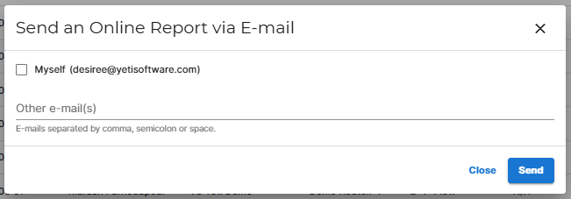
Click Send All Online.

Enter the email address where you would like the report sent and send the report.
Step 5: Open the Report
The report should arrive by email fairly quickly, although larger reports with many service records may take a little longer to generate.
Open the Online Report from the email.
The report will display the service information you selected along with any photos associated with each service record.
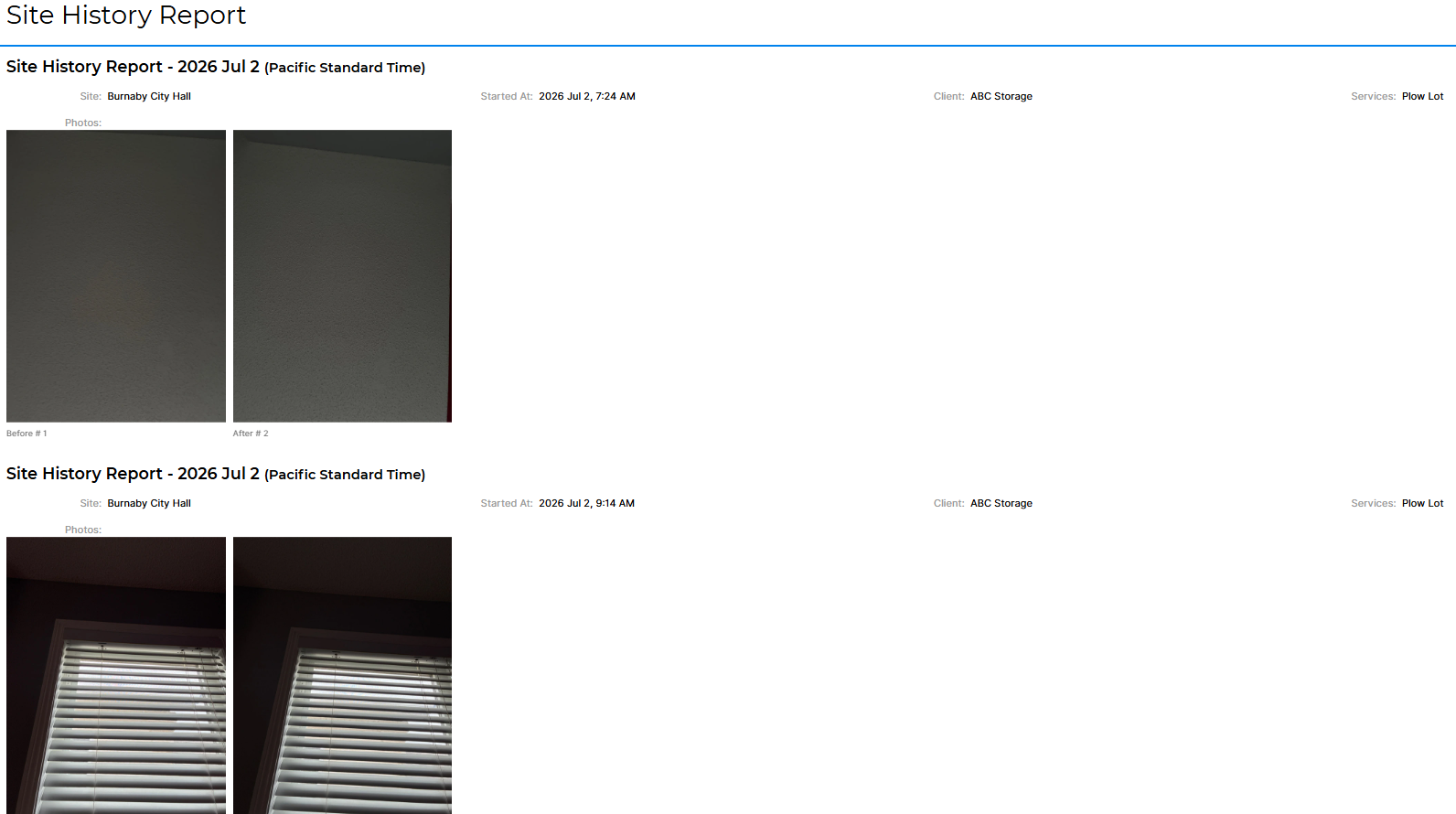
Review the report and look for service records where no photos are displayed.
This allows you to quickly identify which services for the selected client or site do not have photo documentation attached.
Tip: Keeping the report fields to a minimum makes it much easier to scan through a large number of service records and spot those that are missing photos.