
If you want to display a Google Meeting screen in another meeting, please follow the following steps:
Step one
Create a Google meeting for the internal team.
Give it the title “Internal Team” to avoid confusion.
Share with team members.
Step two
Join the Google meeting for the internal team.
Join the Google meeting for the client’s demo.
Step three
When both meetings are open on screen go to the internal team meeting.
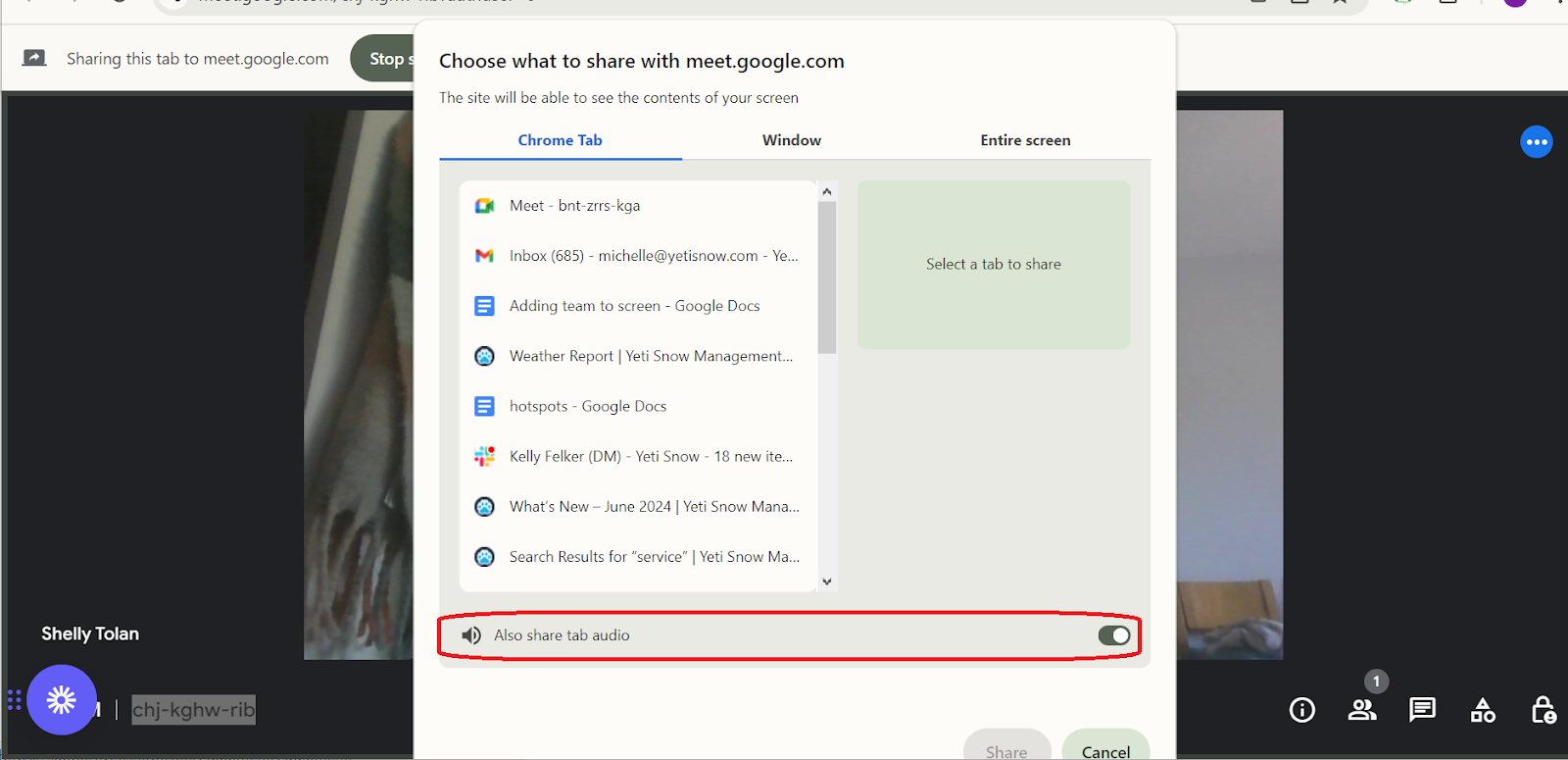
Click present now and select the tab displaying the Client Demo
Turn on the toggle shared Auido. (seen in diagram)
Select share.
Step Four
Head back to the client demo and select present now
Select the tab displaying the Yeti web app
Select share.
This should only take a minute or two to set up but I’d advise doing it 5 minutes before the client demo starts. This is to confirm that the internal team can hear the audio correctly.