
Table of Contents:
Accessing the Knowledge Base
-
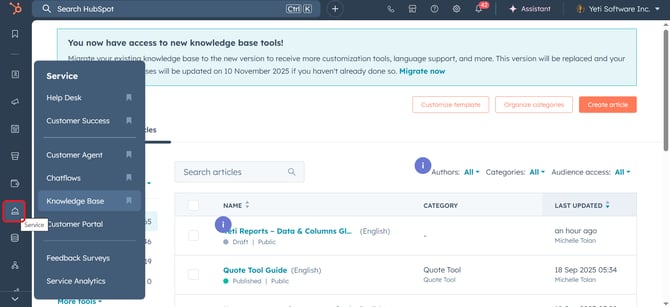
From the left navigation bar, click Service
-
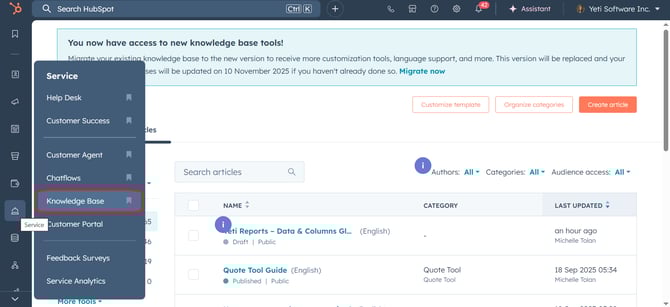
In the dropdown, select Knowledge Base.
2. Creating a New Article
-
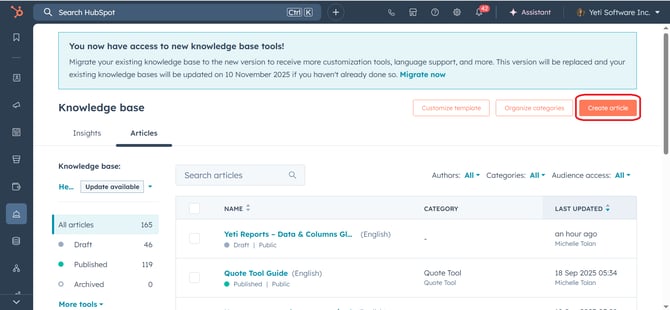
In the Knowledge Base dashboard, click the Create article button.
-
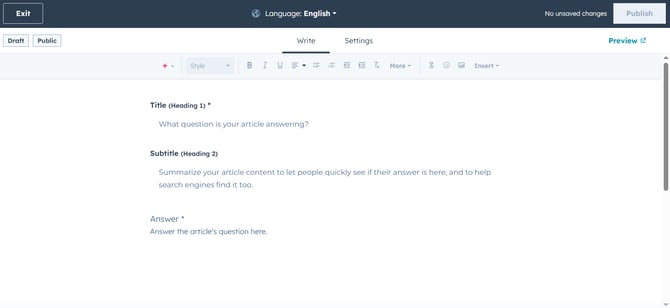
Enter the following:
-
Title: A clear, descriptive name.
-
Subtitle:
-
Answer: Write the body of the article using the text editor. You can format text, add images, videos, or links.
-
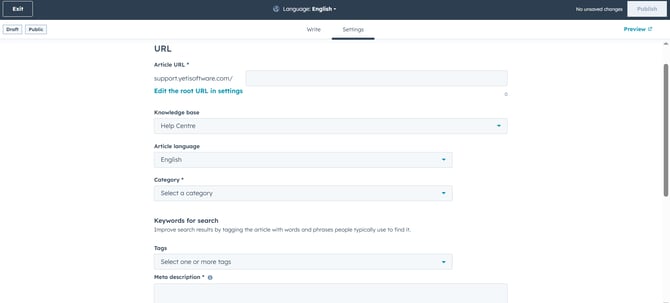
- Then select Settings. Here, you can set:
- URL
- Knowledge Base
- Language
- Category
- Subcategory
-
When ready, click Publish.
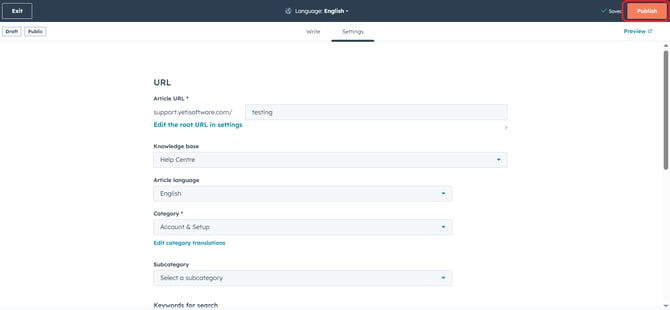
- You don't have to worry about saving a draft. Once you start to put information into the article, it will automatically save as a draft.
3. Updating an Existing Article
-
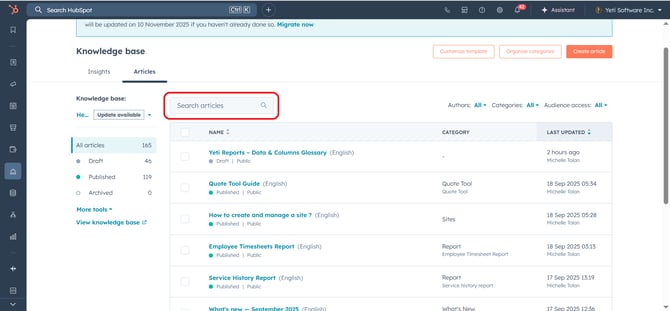
From the Knowledge Base dashboard, use the search bar or browse the list to find the article you want to update.
-
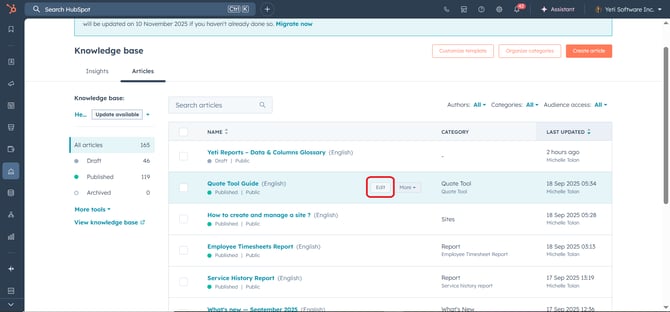
Hover over the article and click edit to open it.
-
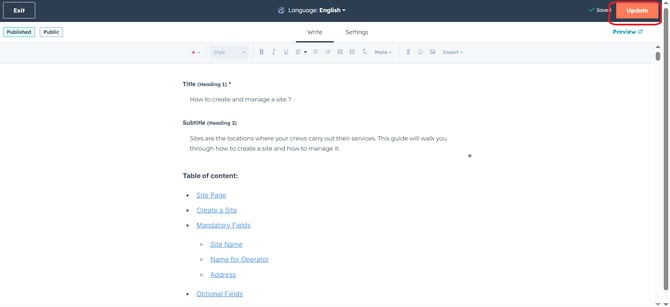
Make changes in the editor:
-
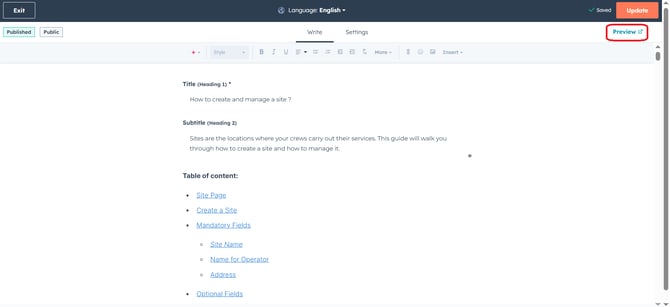
If you want to see what those changes look like when published, select the preview button. This will give you a preview in a new window.
-
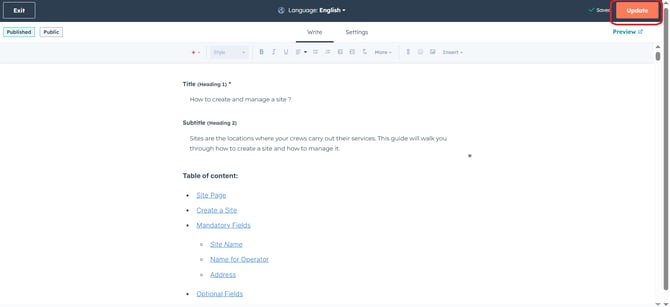
Click Update to save your changes.
4. Important Note
-
Please let Michelle know of any changes to the document. This is so the chat can be tested and ensure that it will give the correct answers to our customers
- Here is the link to the HubSpot support doc: Create and customize knowledge base articles