
Logging into Advantage Voice for the first time
If you’re a new Advantage Voice customer, please follow the steps below prior to activating Cisco Webex.
Step 1: Update Your Temporary Password
Before getting started, make sure you log into the Advantage Voice online portal to activate your account and change your temporary password. These credentials can be found in the Welcome email from Rogers Business. You will need your Advantage Voice credentials to start using Webex (as seen below).
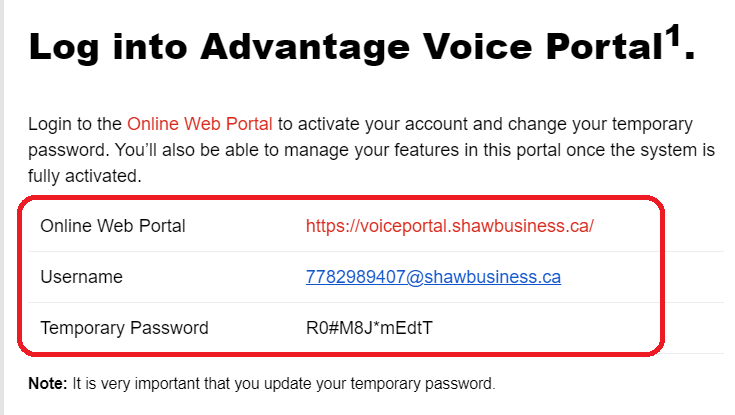
Screenshot from email
How to update your password:
- Go to voiceportal.shawbusiness.ca and log in using your credentials. (Username and Temp password listed in email)
- Navigate to Profile icon beside your name and number.
- Scroll down to Password reset section.
- Enter your old password and create a new password.
- Select Save.
Once you have your Advantage Voice password updated, you will then need to activate and download the Cisco Webex for desktop, mobile and tablet applications.
Step 1: Setting Up & Logging In With Your Advantage Voice Credentials
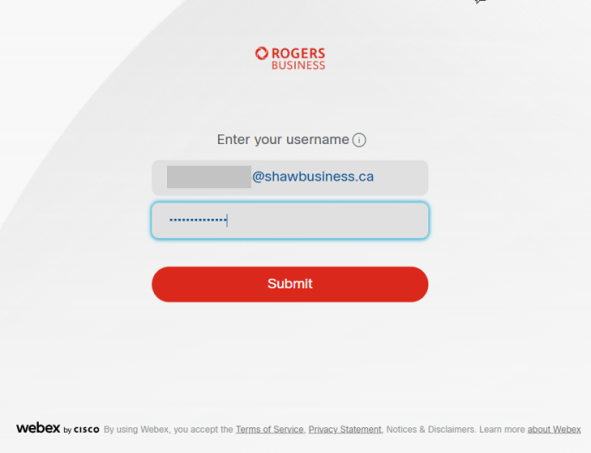
- Go to the Rogers Business Webex portal
- Log in with your Advantage Voice credentials (this is the shaw email and the new password you set up).
Step 2: Enter Email Address & Validate
- Next enter in your Yeti email address. This email will then be linked to your Webex account. You will use the same password as your Advantage Voice portal credentials when logging into Webex.
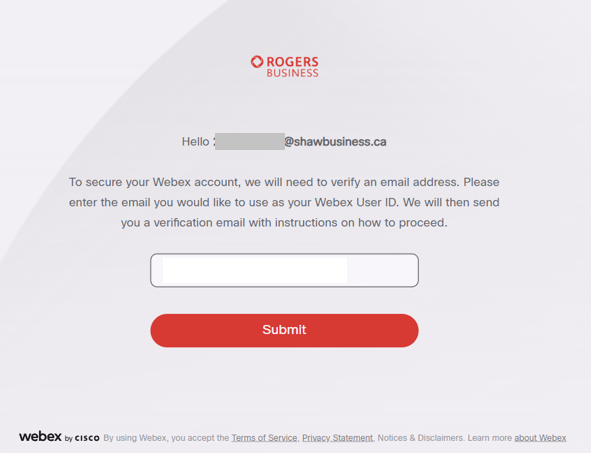
- Check for the activation email sent to the work email address you entered.
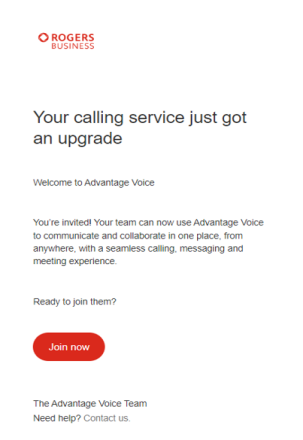
- Select the Join Now button in the email.
Step 4: Download Cisco Webex App
After email validation is complete you will be directed to the Cisco website to download the Webex app for either desktop or mobile.
Launching Cisco Webex
Once Webex is installed on your device follow these steps to sign in: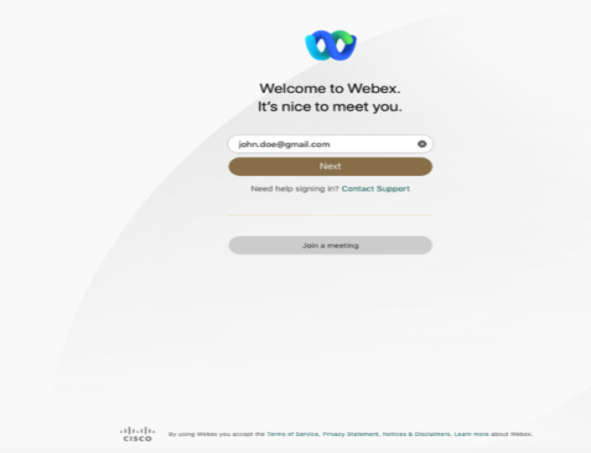
- Enter the email address associated with your Cisco Webex credentials (this will be your regular work email address that you entered in Step 2 in the section Activate Cisco Webex.
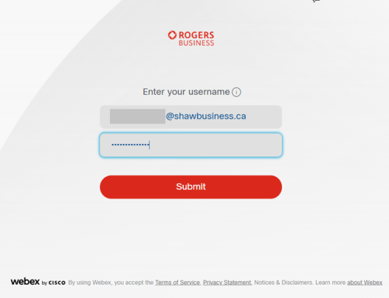
- Enter your Advantage Voice credentials. (This is your Advantage Voice username and password that you set up when you first logged into your Advantage Voice service.
Once that is completed, feel free to explore through the user guide and tutorials
To set up voicemail, call *98 from your WebEx application
You will be asked for your passcode. All new employee passcodes will be 123789.
You will then be asked to enter a new passcode.