![Yeti Support.png]](https://support.yetisoftware.com/hs-fs/hubfs/Yeti%20Support.png?height=40&name=Yeti%20Support.png)
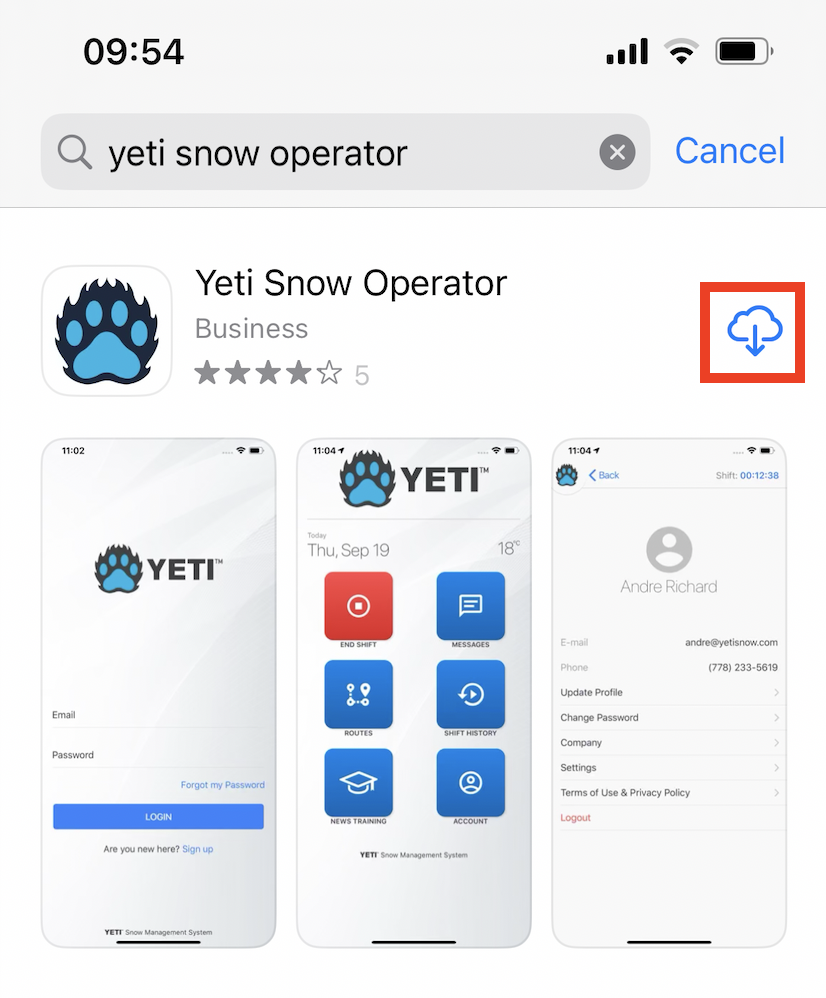
1. Download the Yeti app
You can find it in Google Play Store or in Apple Store by searching "YETI Snow Operator".
Click to install the app
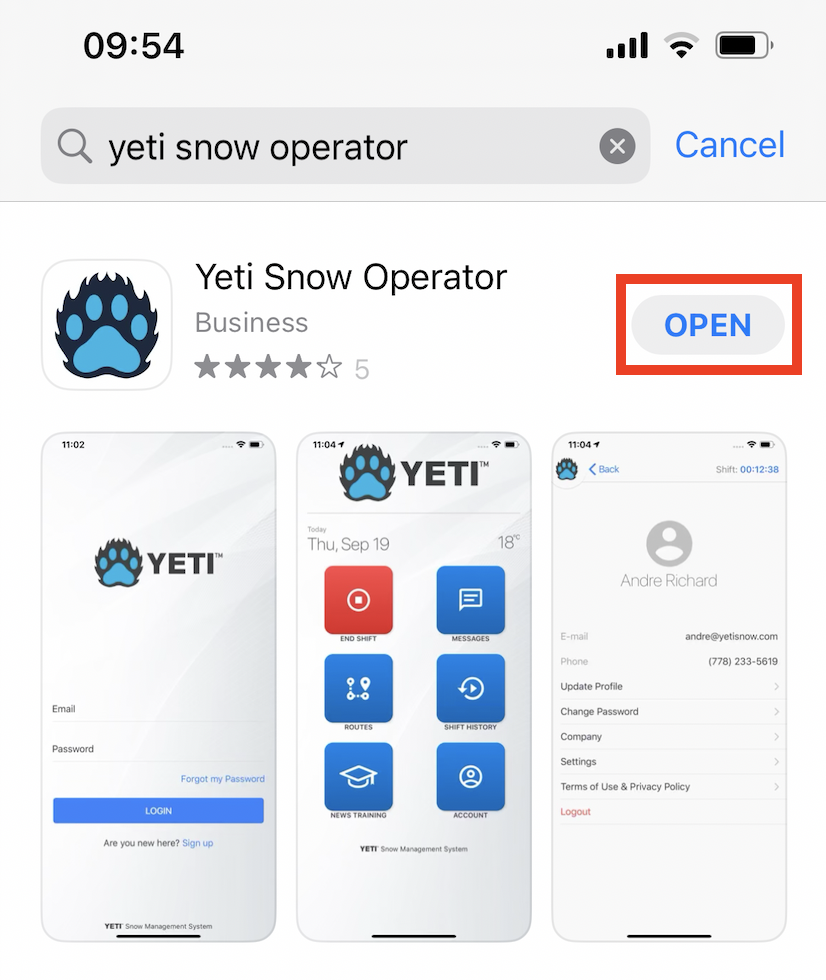
Click to open the app
If you are unable to download the app, check the instructions here.
2. Set your Yeti app
You can self-register as a user or log in if you had already registered in Yeti.
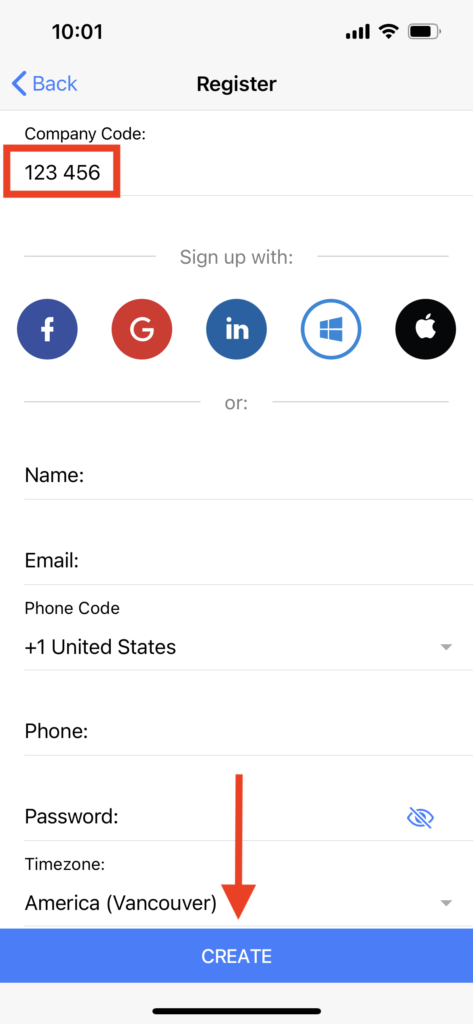
To self-register as a new user through the app, you need to provide the company code and the user's name, email, and password, or social login (Facebook, Google, LinkedIn).
Click on 'Register'
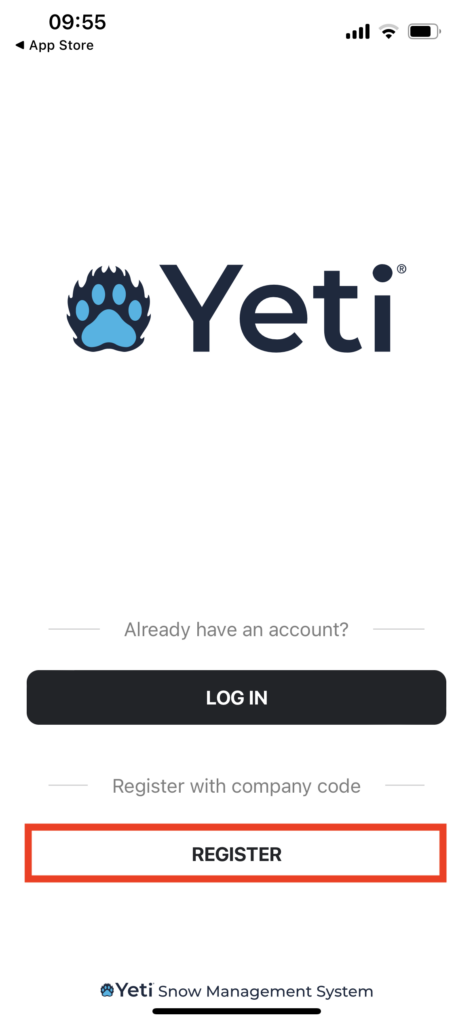
Insert the company code, fill in your information, and click on 'Create'.
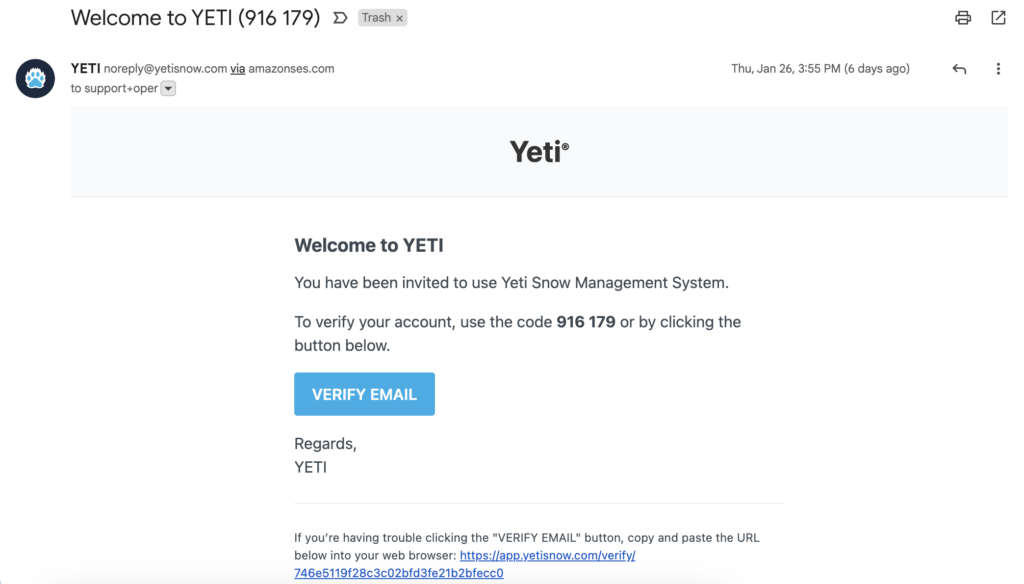
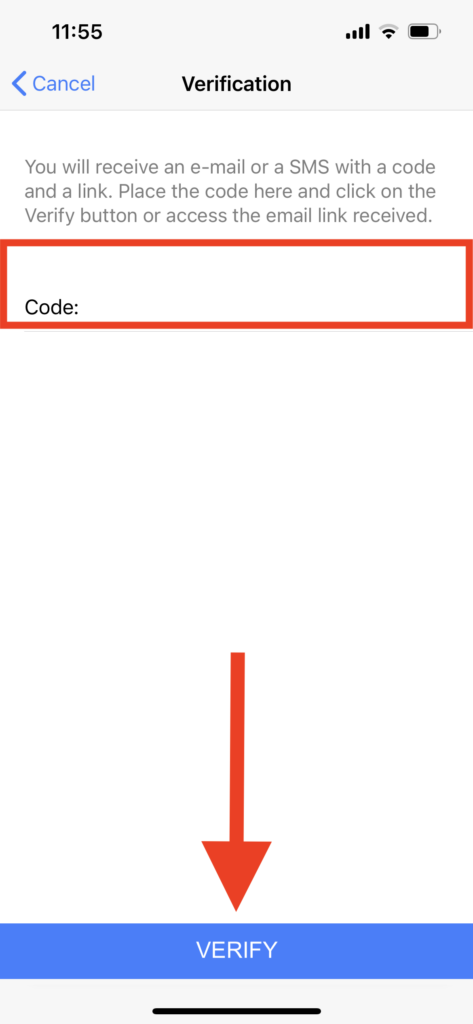
When you create a new user, you will receive a verification email with a code. Put this code in your mobile app, and click on 'Verify'.
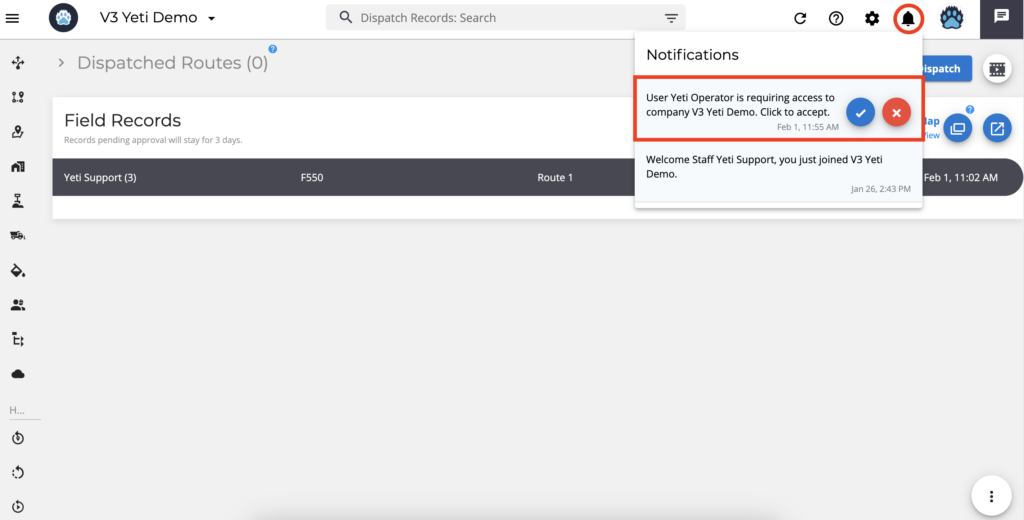
Note: In order to use Yeti App, your company must accept your user account. You can log in on the Yeti app, but you cannot perform the Shift.
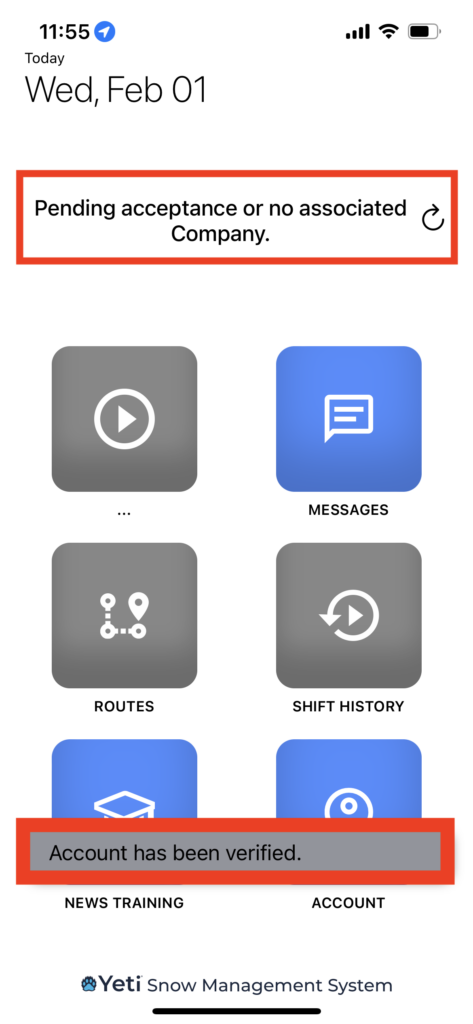
When you register as a user, your company will receive a notification to accept it.
3.How to use the app?
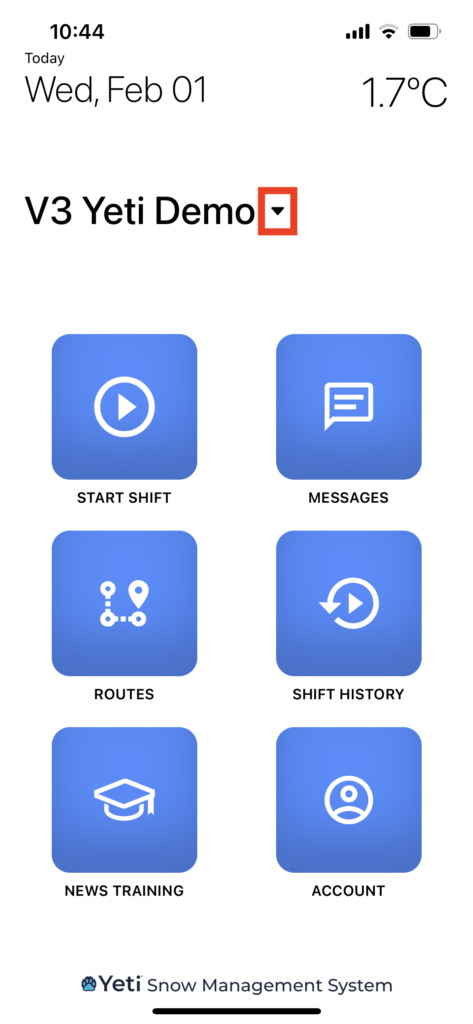
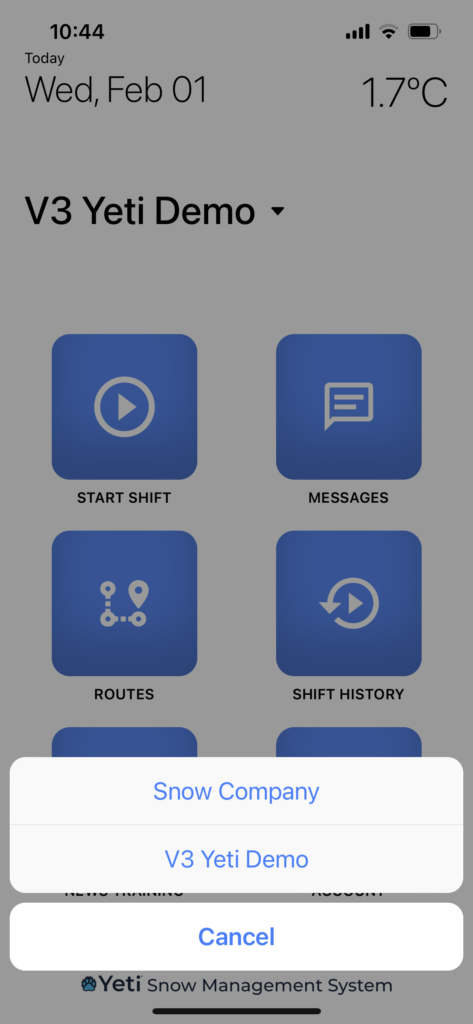
3.1 Check you're under the correct company
If you belong to more than one company, tap the arrow to view a list of companies linked to your account. Select the correct one before starting your shift.
3.2 Start the Shift
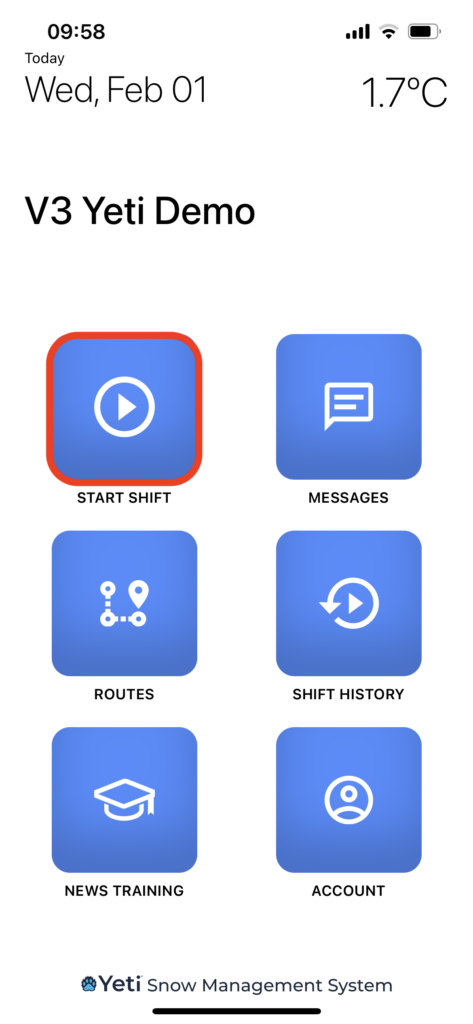
Start your shift by clicking on the play button.
3.3 Onboard equipment and Crew
3.3.1 Onboard equipment
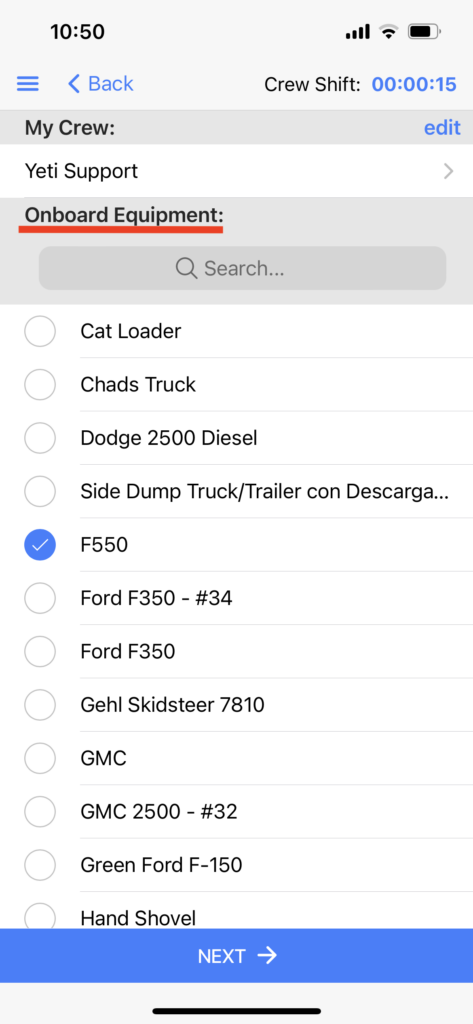
The list of equipment you see on the next page is onboard equipment. Onboard equipment refers to a specific piece of equipment. Example: F150 truck.
By selecting one of the options, the company you work for will know which operator has what piece of equipment in real time. The equipment will be tied to you until you end your shift.
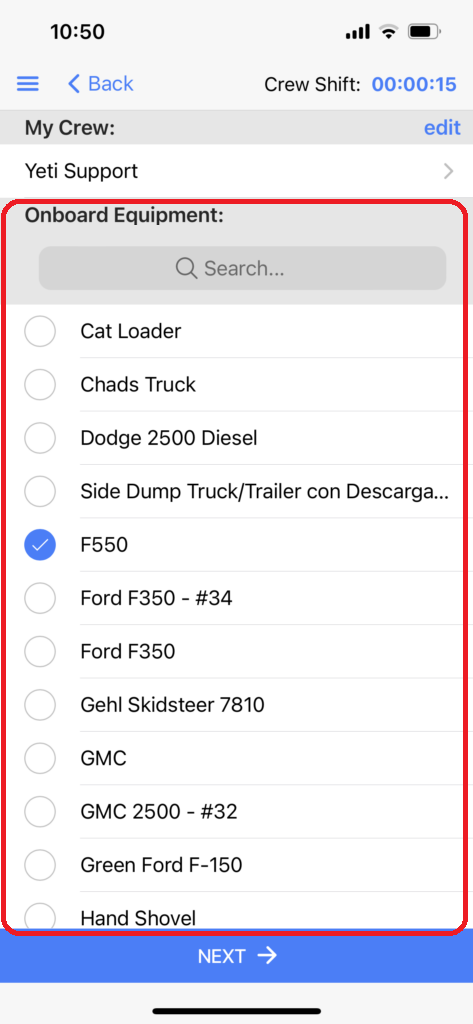
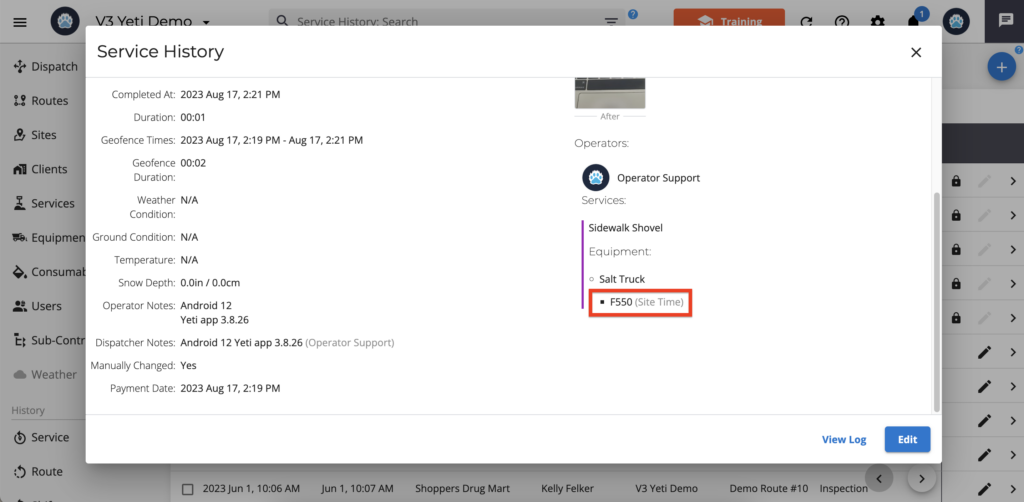
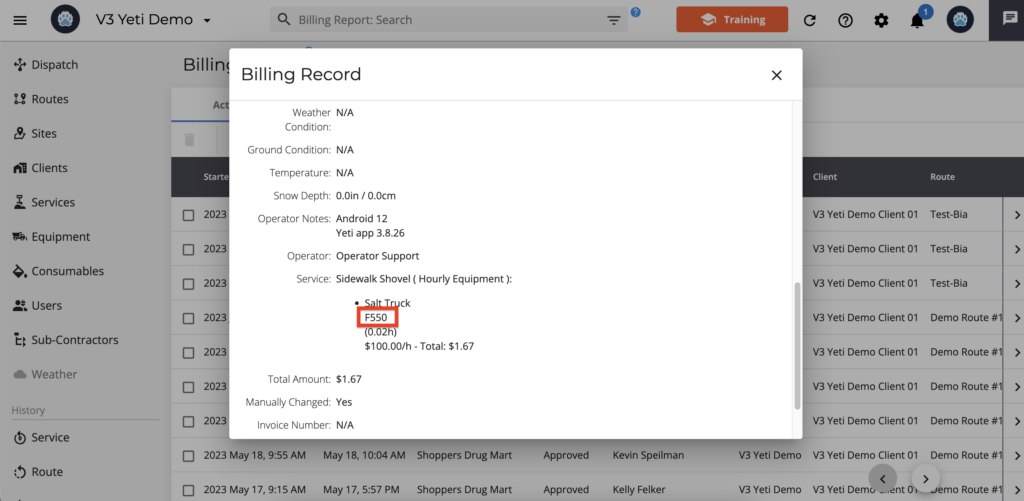
The following images will show how onboard equipment is presented in reports and records:
1. Dispatch Page
1. Service history report
2. Billing report
The equipment that shows at the beginning of the Shift (onboard equipment) is like a checklist that will help the operator to start the job. This same equipment appears in the other Sites performed within that same Shift; however, they will no longer be loaded if Shift is ended.
When performing a Site, the operator chooses a Service, the equipment category, and the equipment. The operator has the flexibility to choose equipment that is not the same one selected at the beginning of the Shift, as the operator may have taken three pieces of equipment and used only one piece of equipment on the Site.
NOTE: Once a site has started, crews will need to select the equipment they used.
When you are performing site, you may notice that some services say 'Equipment Required'. If you state that you completed this type of service, the onboard equipment you select at the start of a shift will automatically prepopulate in the equipment section.
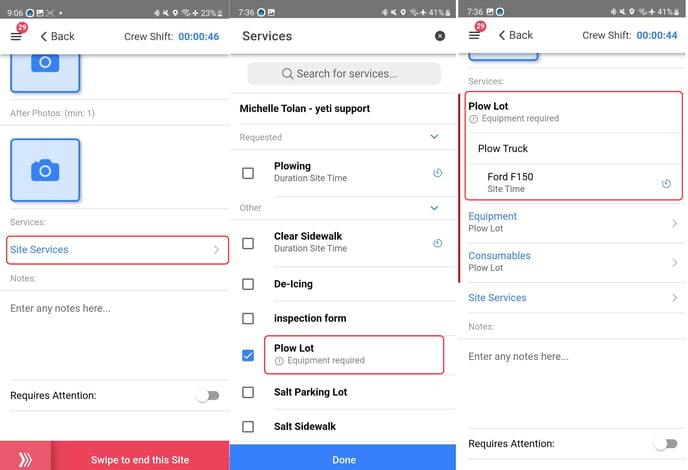
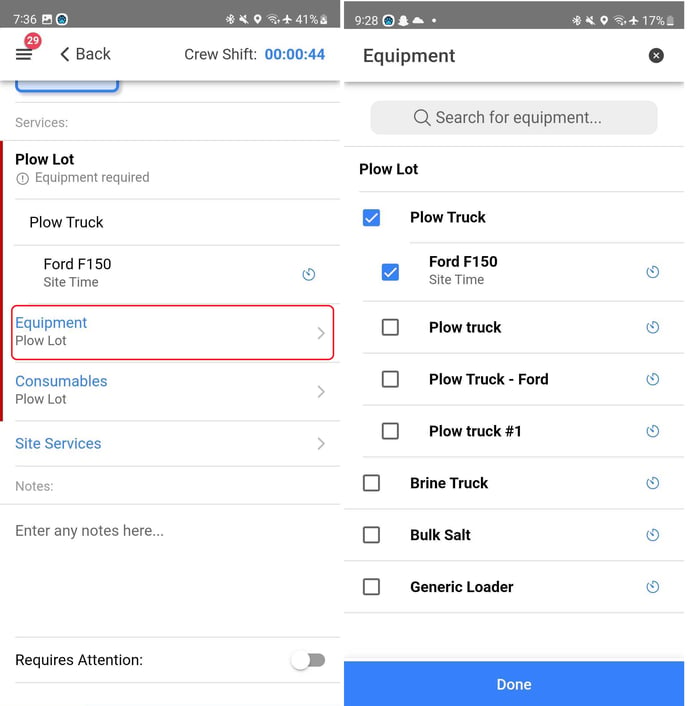
If you want to change the equipment to something else, you can. Select the equipment button to see the list of equipment categories to choose from.
3.3.2 Crew and Crew Lead
YETI allows you to set a Crew Leader. This operator will add other operators to their crew and can modify the crew throughout a shift. When a crew tackles a route, it is up to the crew leader to enter the necessary information into the mobile app on behalf of the other operators.
To be a crew leader, follow these steps.
After you start your shift, select the edit button near 'My Crew'.
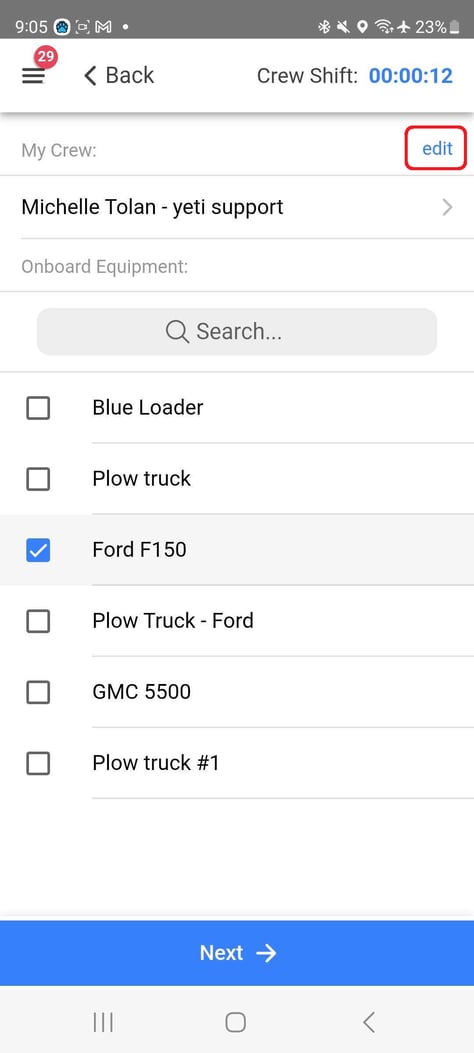
A list of operators will appear. Select who you want on your crew and hit the update crew member button.
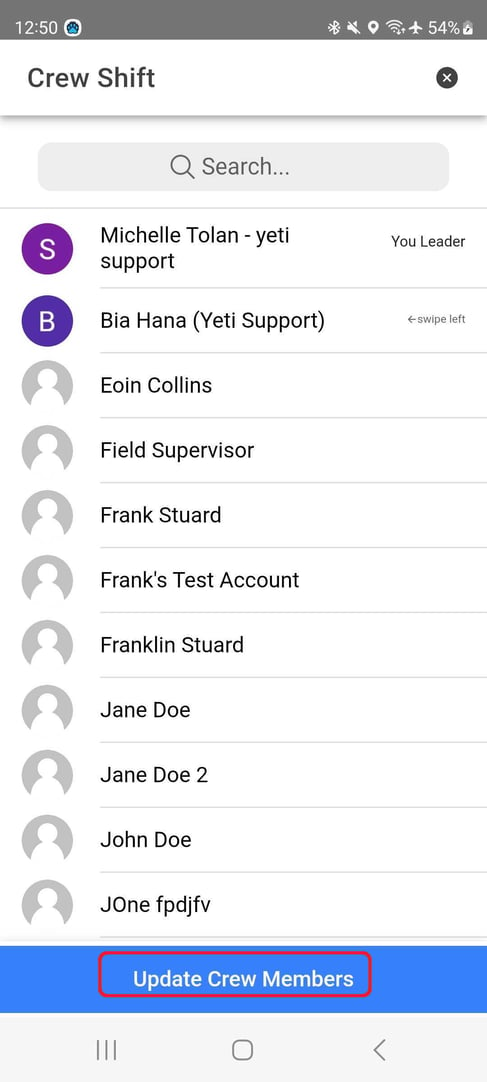
The operators you have selected should now be listed underneath your name.
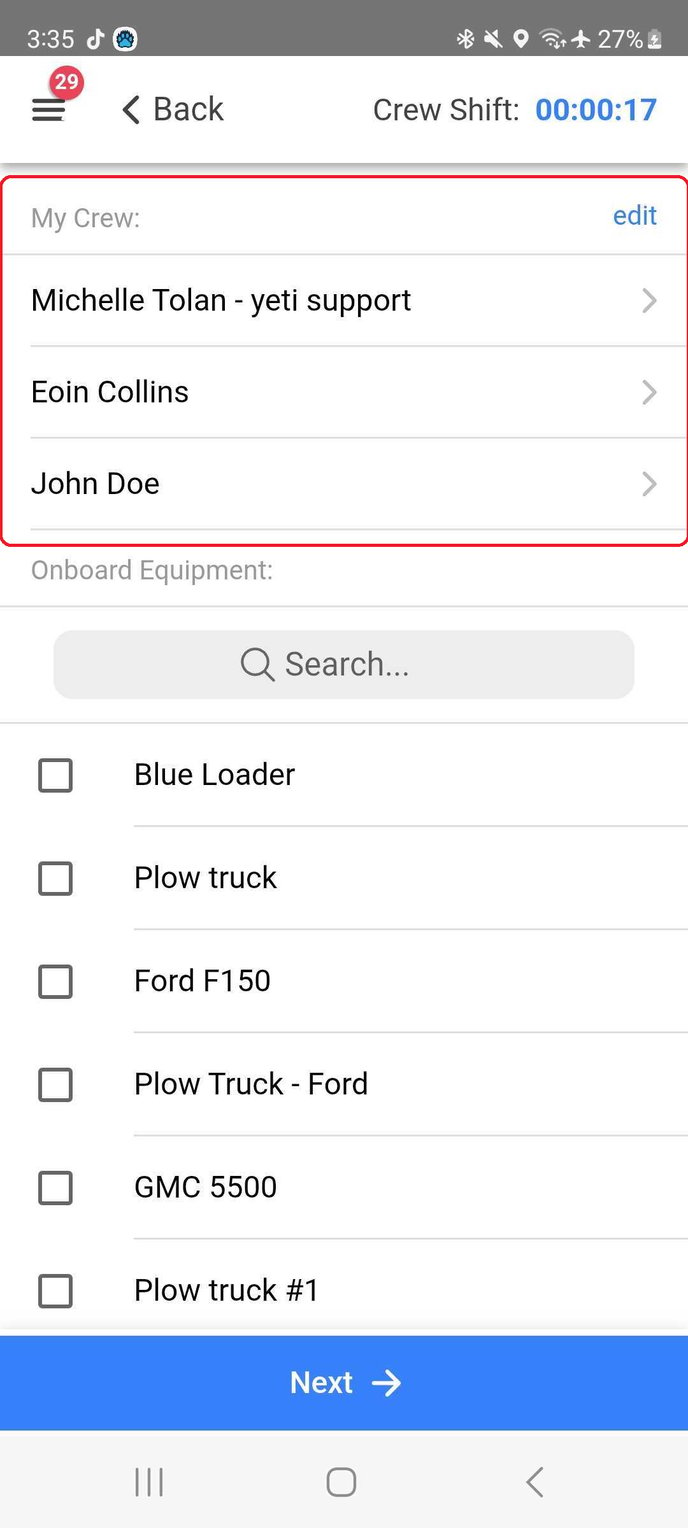
When on-site, the Crew Lead is responsible for entering the following information into the system:
-
Weather conditions
-
Services performed
-
Notes
All other operators will have limited access and can only upload before and after photos. They will be restricted from accessing or editing any of the other sections.
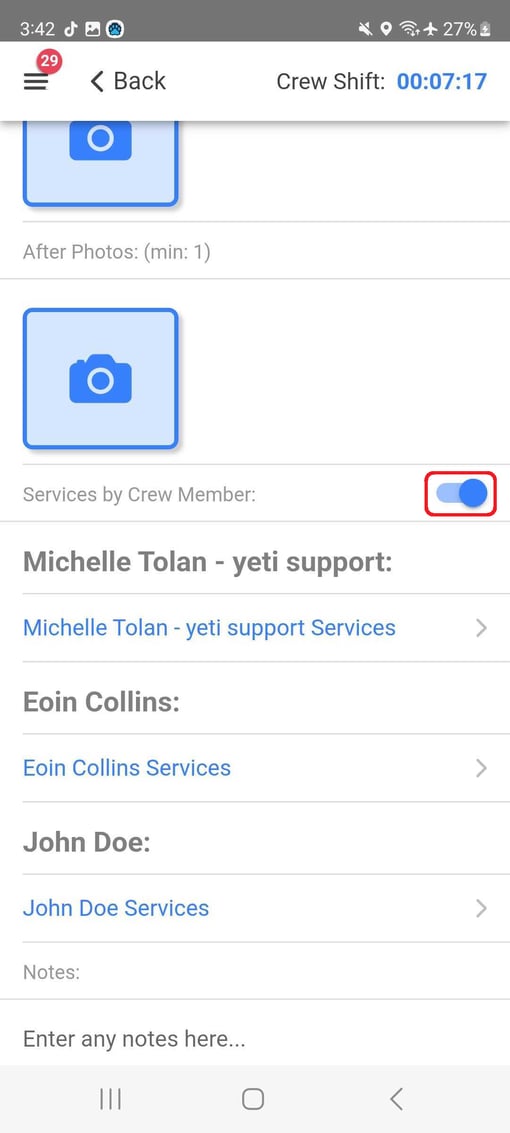
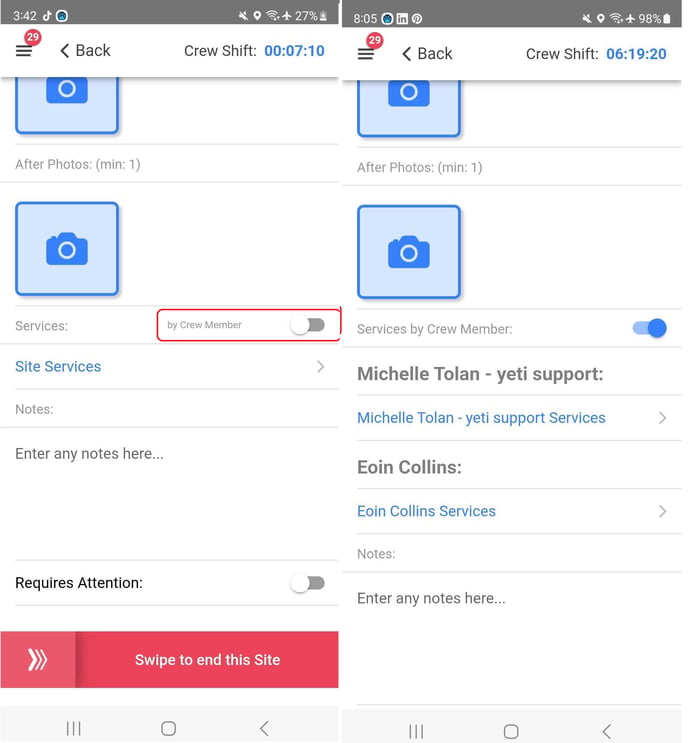
In order to state that a multiple operator worked on a site, turn the crew toggle blue.
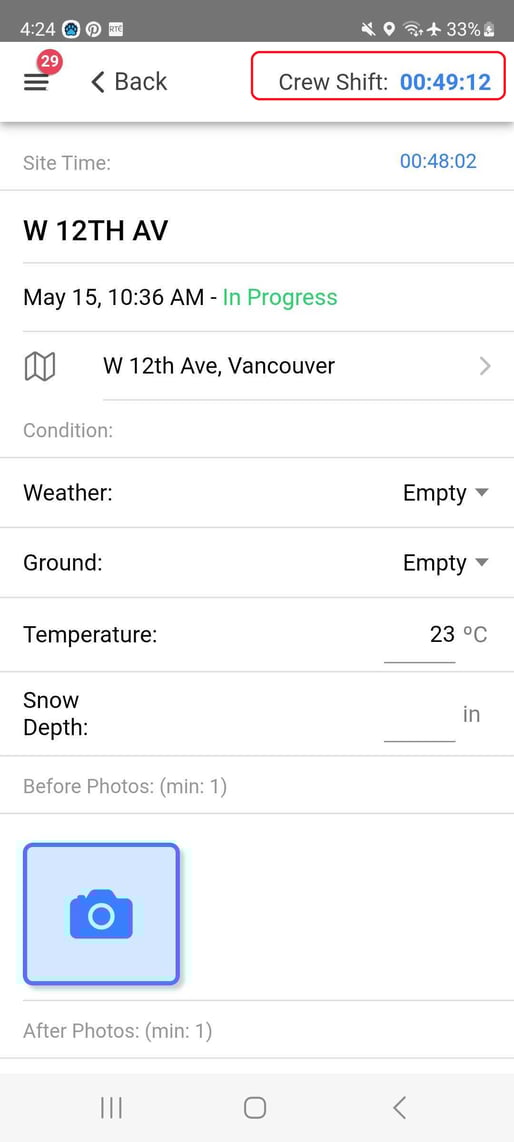
To change the operators on your crew, select the crew shift button.
3.3 Route Page
On the route page, you will see a list of routes to which you have been given access too.
This included standard routes and dispatched routes.
3.3.1 How to Identify Your Routes:
-
Dispatched Routes appear at the top of the list and are highlighted in green.
-
Standard Routes appear below and are displayed with a white background.
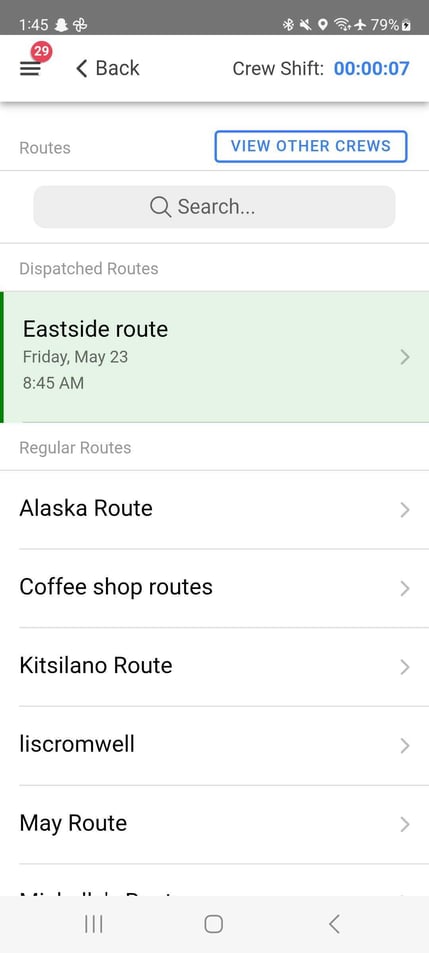
This layout helps you easily distinguish between urgent or assigned dispatches and your regular route schedule.
Select a route to see what sites are included.
You also have the option to see which other operators are working on which route by selecting the 'View other Crew' button. Learn more here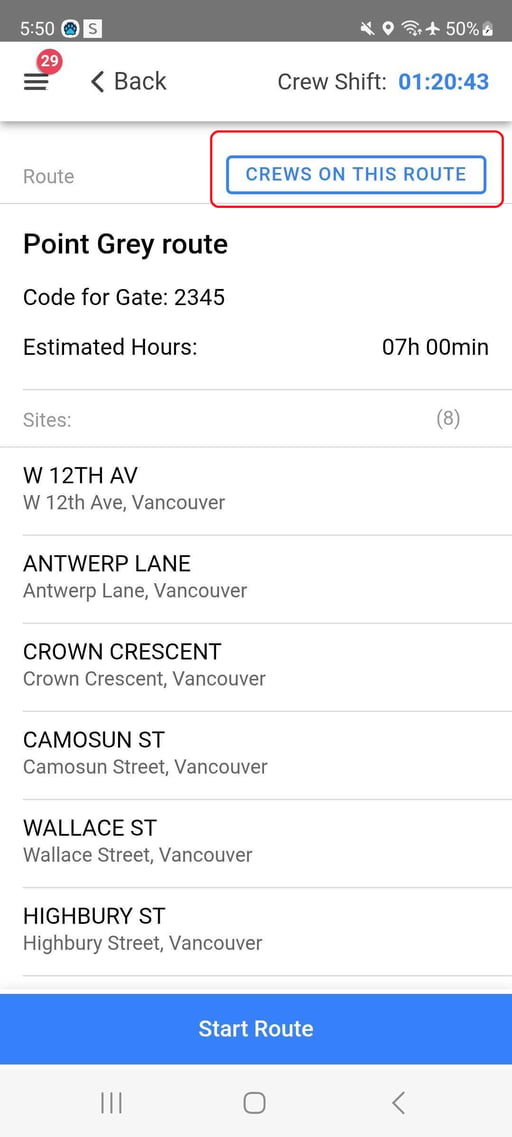
3.3.2 Start a route
When you open up a route, you will see all the sites that are included.
Above the sites is information like crew notes and estimated hours.
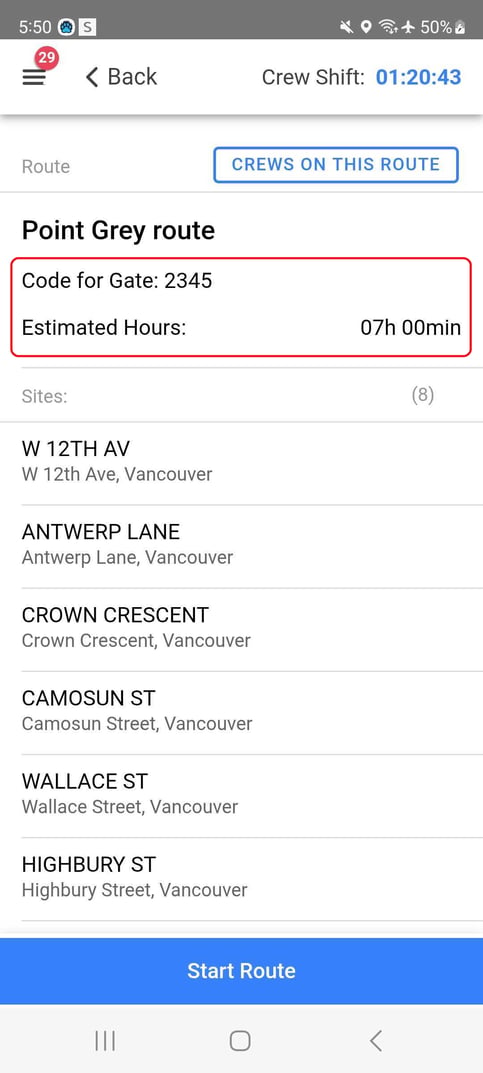
You have the flexibility to choose how you complete your route:
-
Tap “Start Route” to follow the pre-set order of sites as they are laid out.
-
Or, tap on any site to open and complete it in your preferred order.
This allows you to work in the way that best suits you, whether that means prioritizing certain sites or following the recommended sequence.
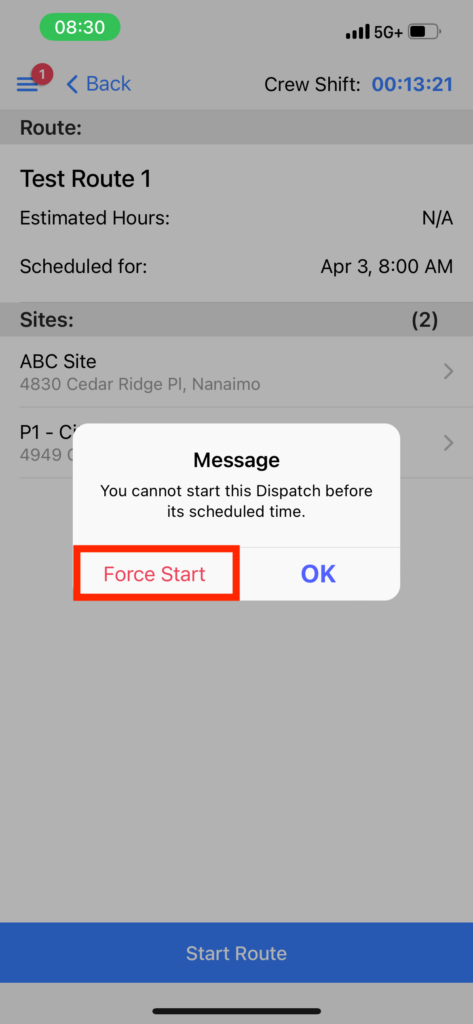
Please note: If you attempt to start a dispatched route before its scheduled date, you will see the following message:
“You cannot start this Dispatch before it's scheduled time”
If you still wish to begin the route early, tap “Force Start” to proceed
3.4 Start the Site
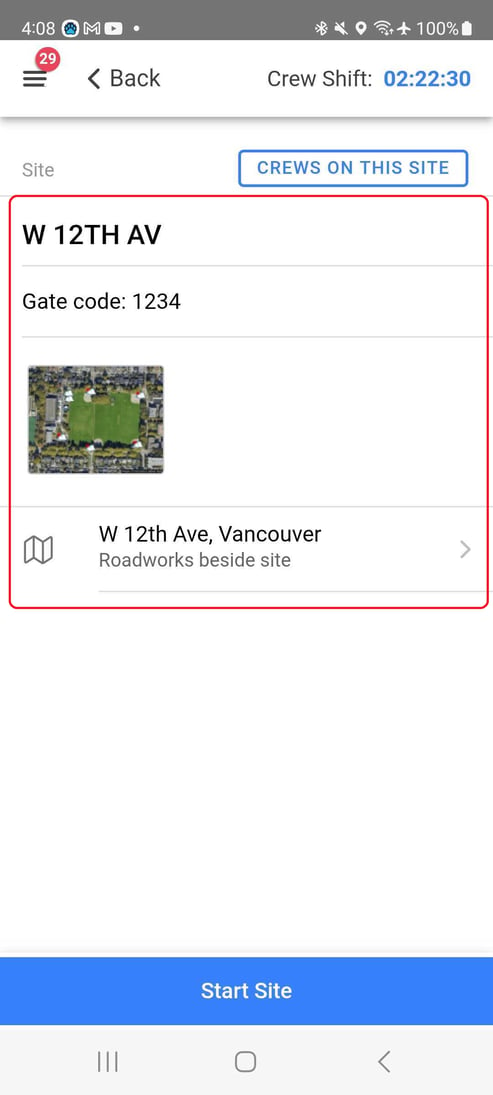
Select the Site to open it up.
You will see site information such as:
- crew notes
- site map
- Google Maps
Select start site when you're ready to begin
You will be brought to the site page. This is where you will enter in information about serving this site.
3.4.1 Entering site information
You can enter the following information when serving a site.
Important: If you are on a team, then only the crew leader is authorized to enter information such as weather conditions, services and notes. Crew members are only permitted to take photos.
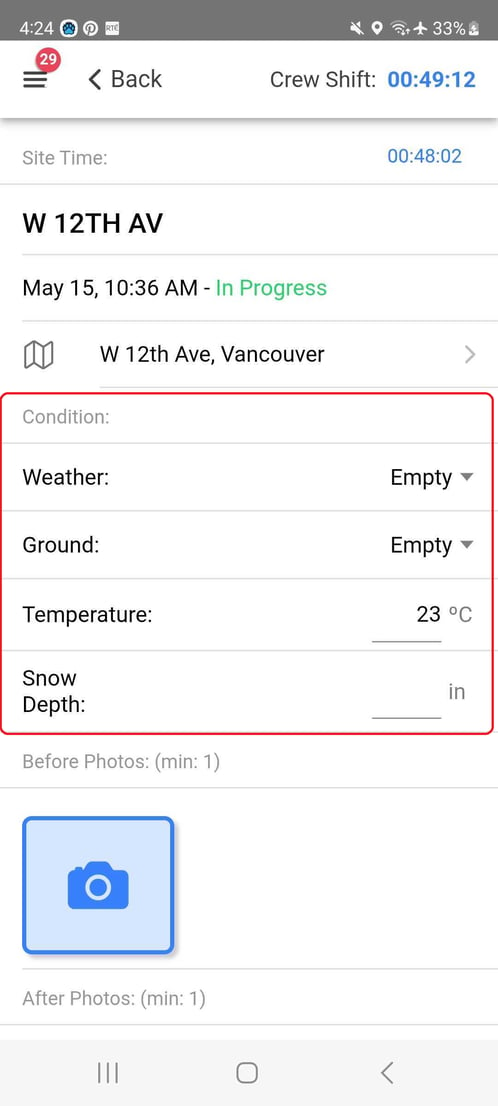
1. Weather ConditionsThis section provides key environmental data for the site, including:
- weather (e.g., snow, rain, clear skies)
- Ground
- temperature
- Snow depth
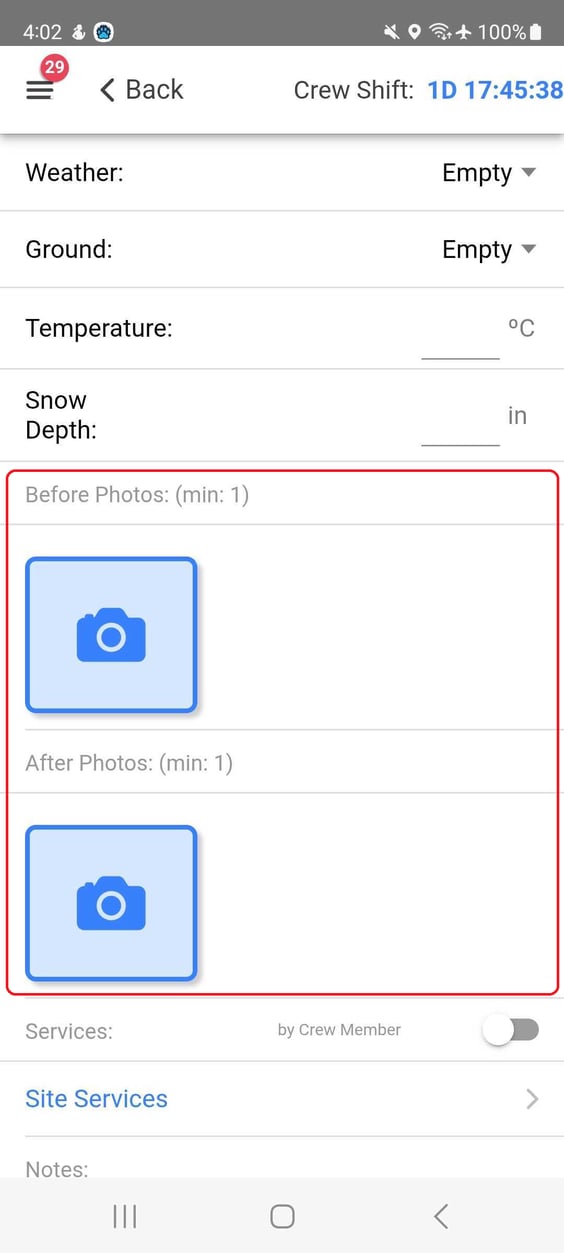
This includes:
- Before photos: taken prior to service
- After photos: taken after the service is complete
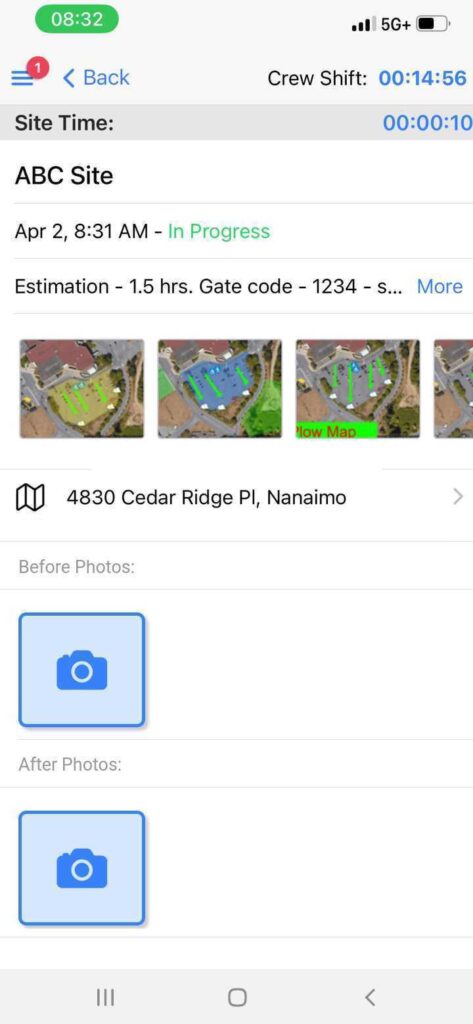
Photos and Crew
This is what the crew members see when they open a site. They will only be able to upload photos
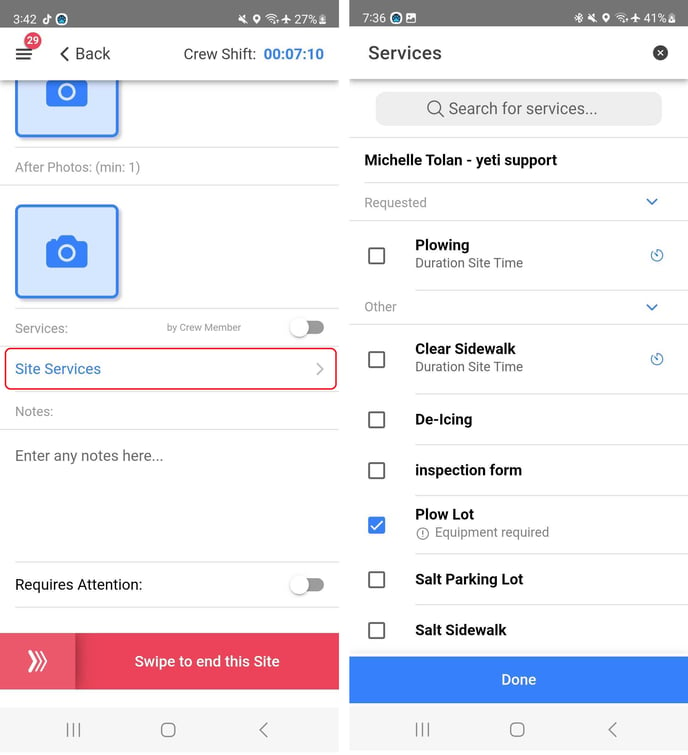
3. Service Information
Select which service which where performed on the site.
Requested services: These services are listed in the top section. They're the services that the dispatcher or site owner wants to prioritize.
Other services: Any other service that can be done on this site is listed in the other section.
Services and Equipment
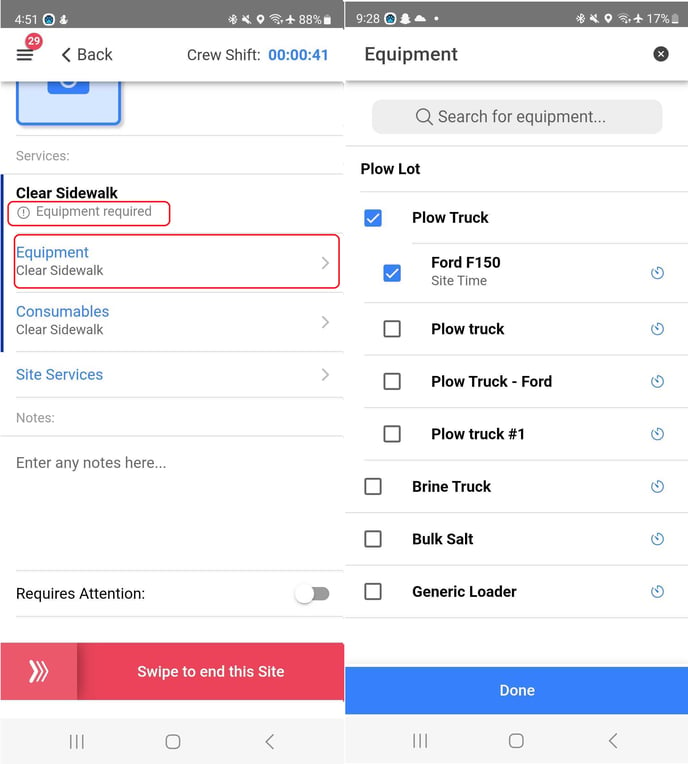
After you select the service, you have the option to state what equipment you used to complete it. If you see the words Equipment Required, then this step is mandatory.
Select the equipment button underneath the name of the service. A list of equipment will be shown. Select the equipment that you used and hit the done button.
Service and Consumables
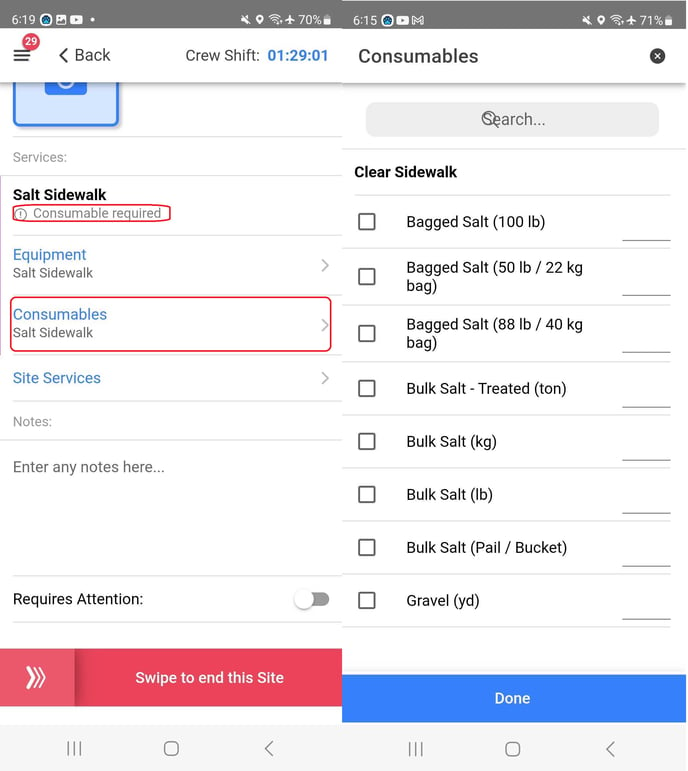
After you select the service, you have the option to state what consumable you used to complete it. If you see the words Consumables Required, then this step is mandatory.
Select the consumables button underneath the name of the service. A list of consumables will be shown. Select the consumables, list the number of units that you used and hit the done button.
Service and Crew Lead
This is what the crew lead will see. Turn the crew member toggle on to note down what service your team members worked on.
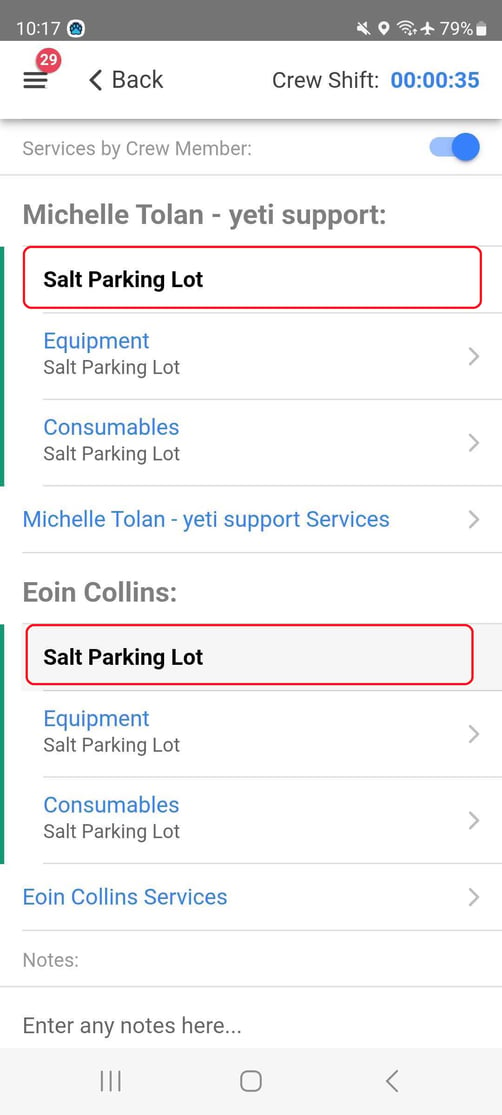
Make sure the correct services are listed under the correct operator. If two operator worked on the one service, then you need to note that service under both of their names
Operators can use this section to:
- Add additional notes relevant to the site or service
- Flag the site if any issues or concerns are identified that require attention
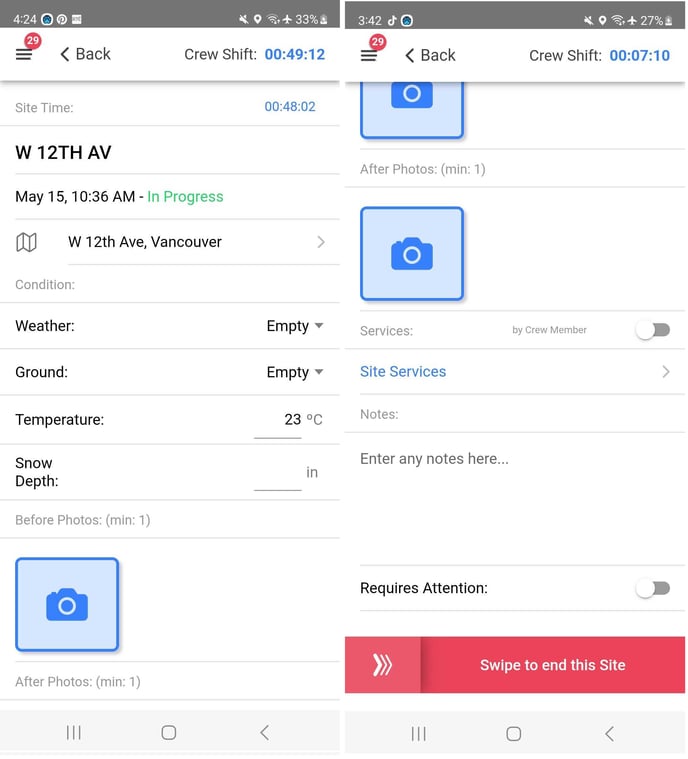
End site
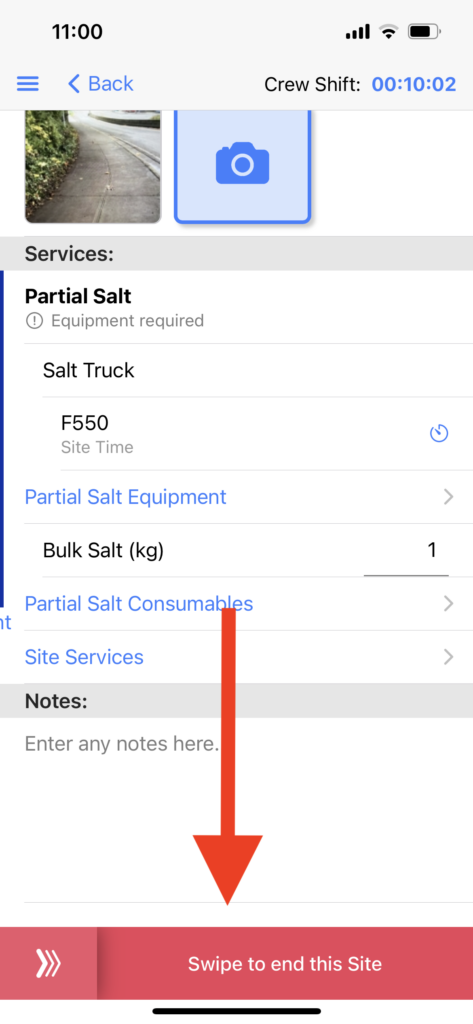
Once you have all your information entered, then you can swipe the button at the end of the site. This will bring you back to the list of sites
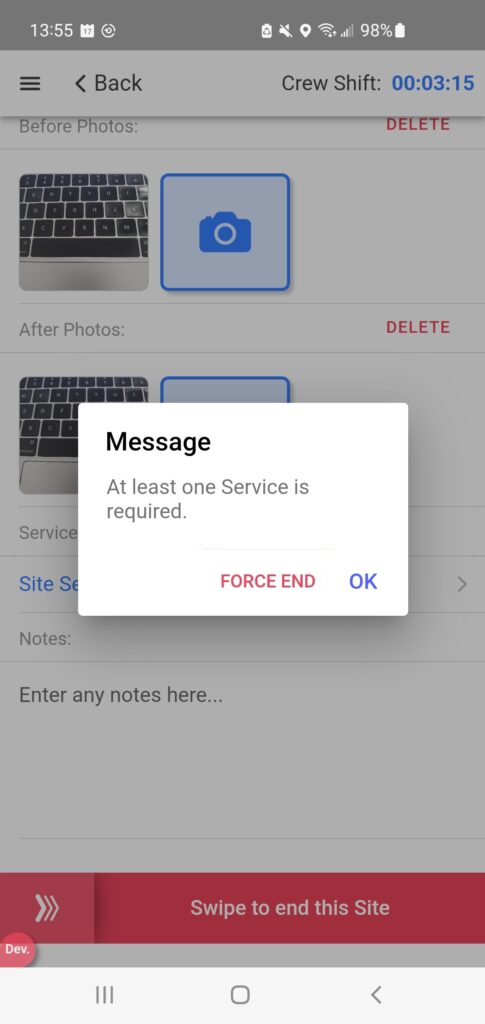
If any mandatory information is missing, then you will receive an error message.
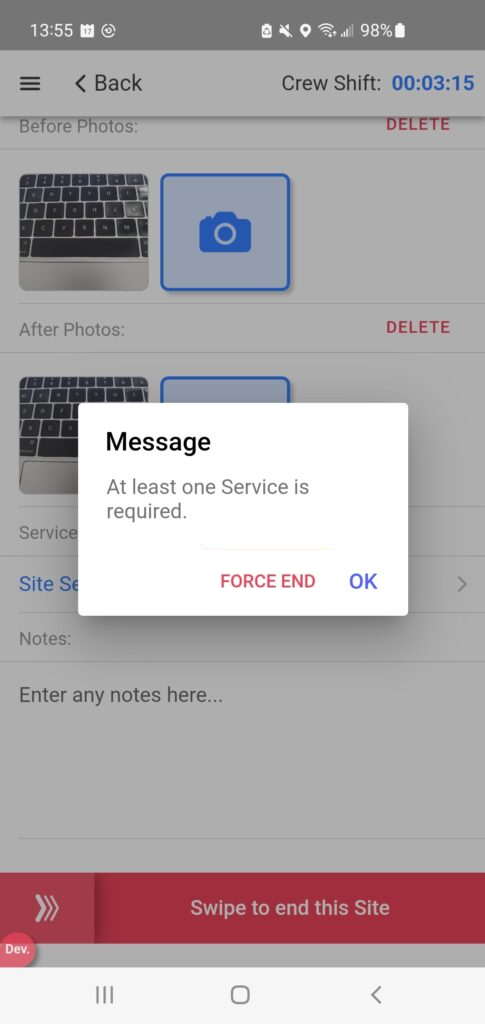
Force stop
ONLY select the force end button in case you need to move on from the site and are blocked from doing so. For example, you need to select a piece of equipment for a service but there is no options.
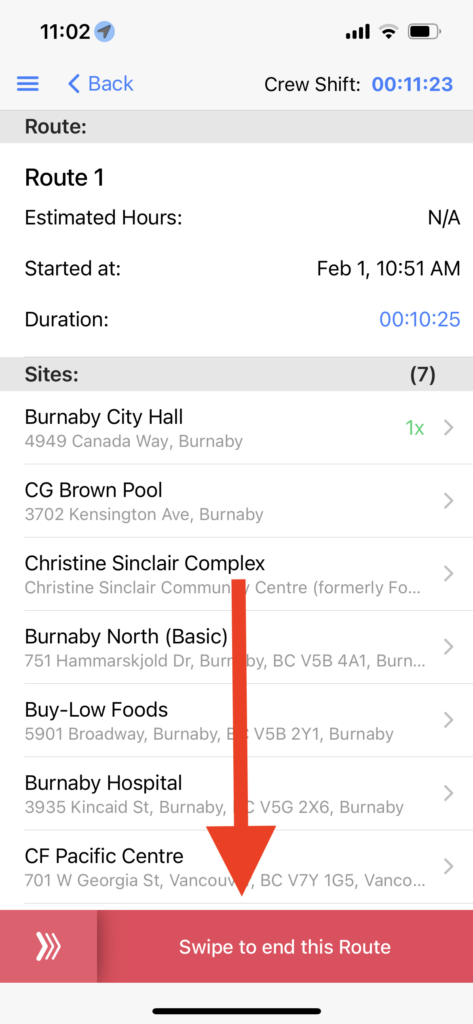
End route
You can select another Site to perform or slide the button ‘End Route’.
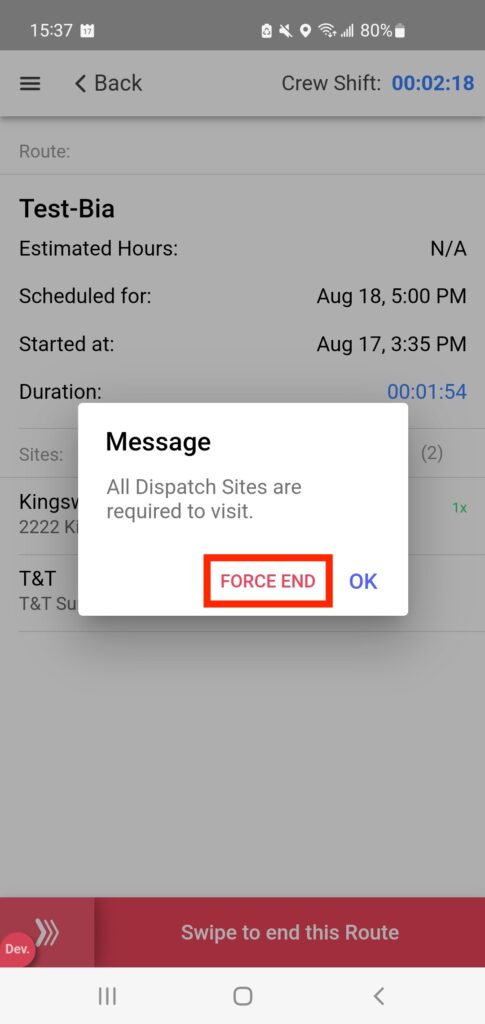
You will see this message when performing a Dispatch Route that must be completed at all Sites associated with the Route. However, you may choose to click “Force End” to manually end the Route before all Sites have been completed.
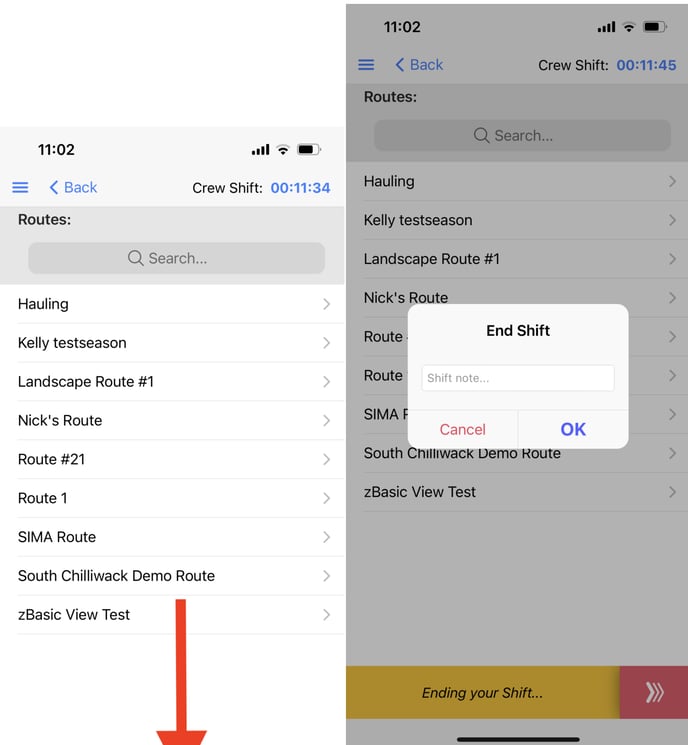
3.7 End Shift
You can select another Route to perform or slide the button ‘End Shift’ and add a note.
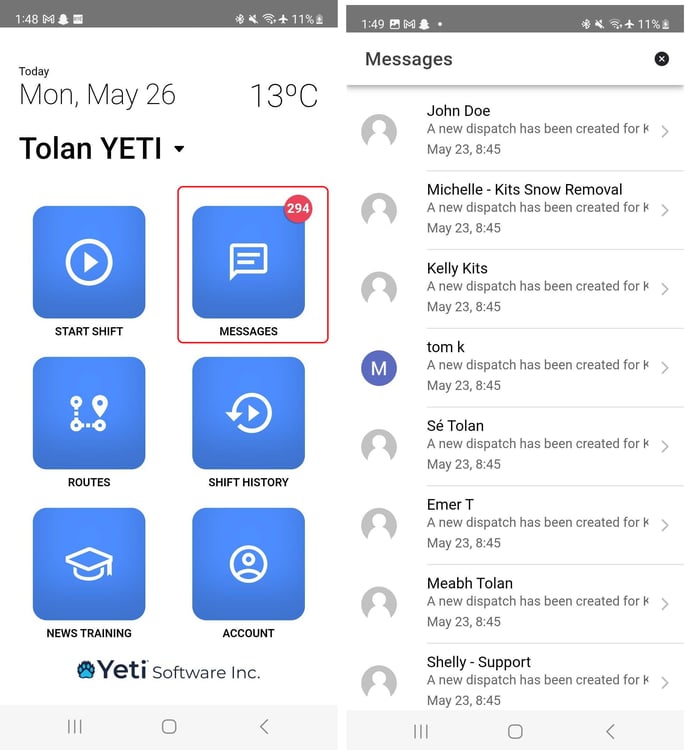
Messaging on the mobile app
Stay connected with your team and other employees using the built-in messaging feature.
Select the message button on the main page.
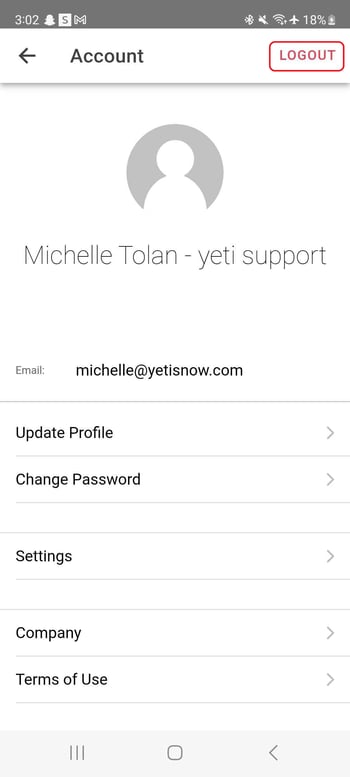
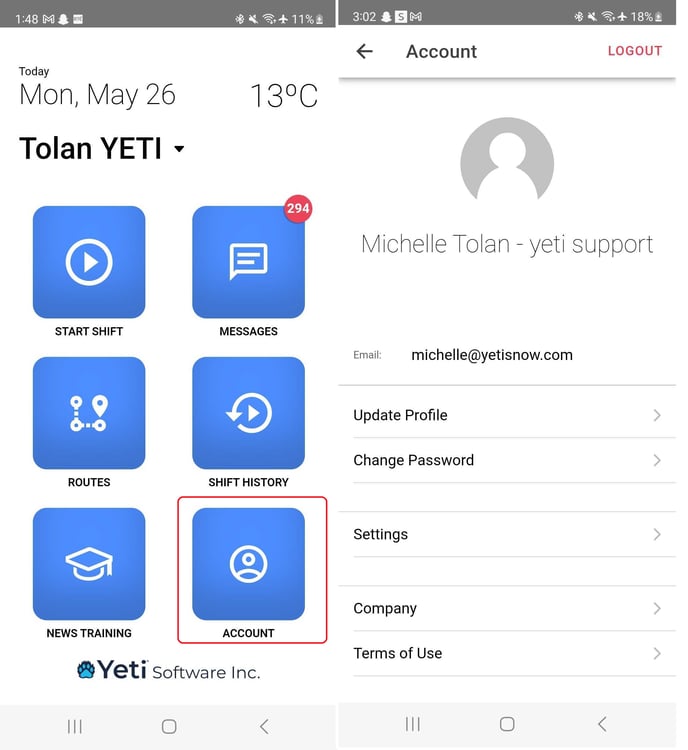
Account Settings
All settings can be accessed through the Account section, so you can easily update preferences, manage permissions, and personalize your experience.
Hit the Account button on the main page
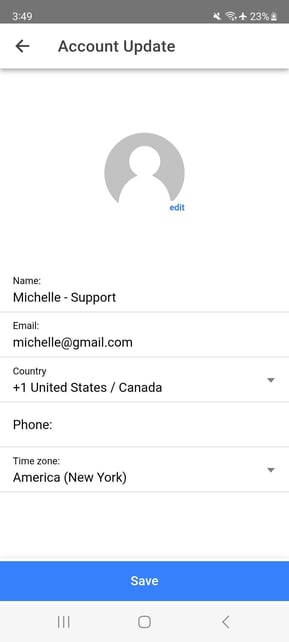
Update profile
Here you can update details such as Name, Email, timezone and phone
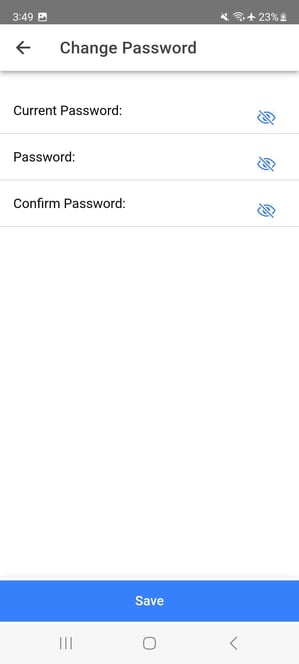
Change password
Update your password and click save
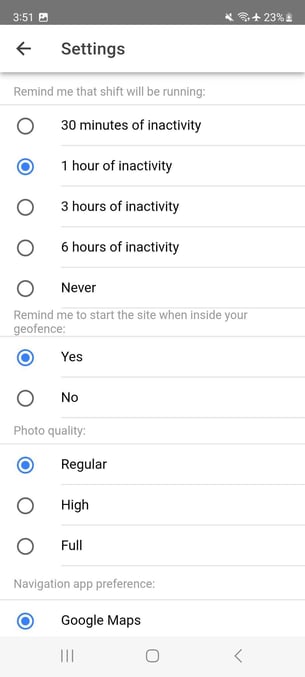
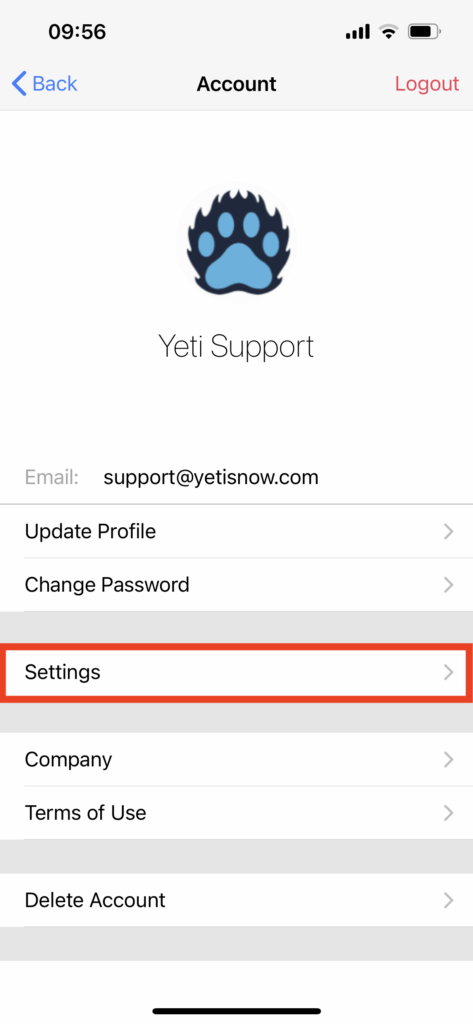
Settings
Here you can update your notifications, Geo-fence tracking, photo quality, and more.
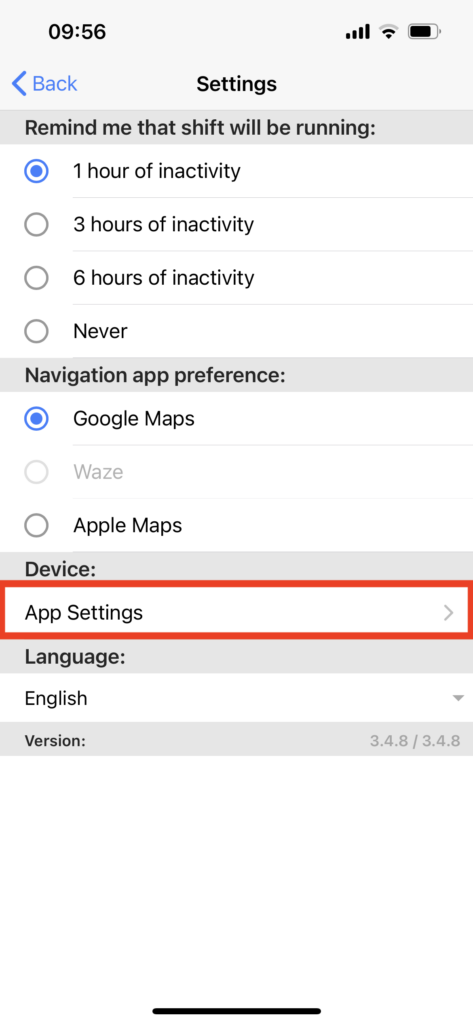
Turn on location tracking
Turn on location tracking by selecting app settings.
Turn location to Always.
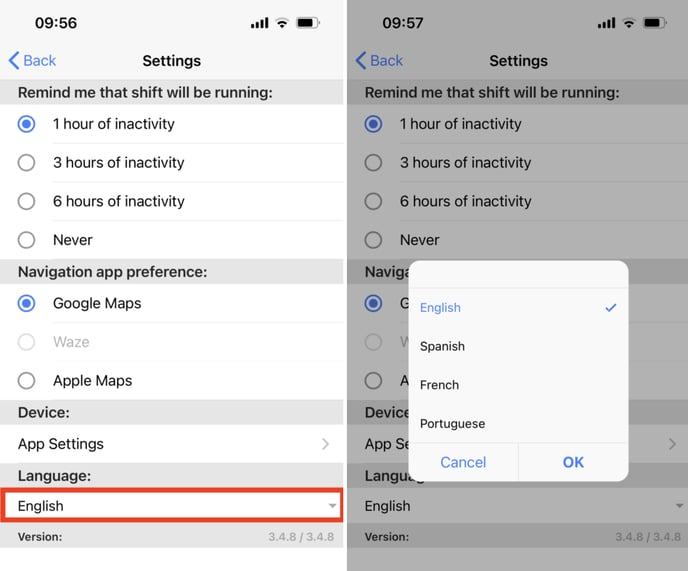
Switch languages
The Yeti mobile app is available in four languages.
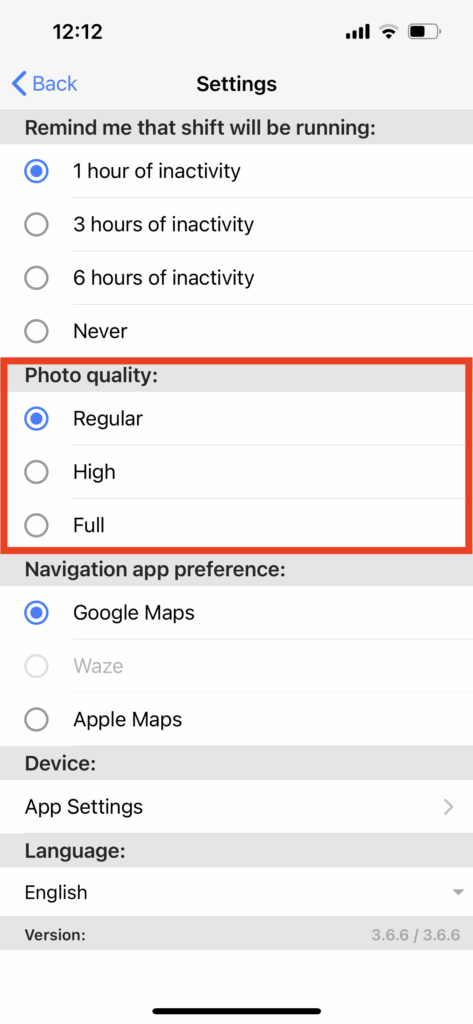
6. Set the quality of your photos
You can choose the quality of the photo you want to take.
Click on Account > Settings > Choose the photo quality
Note: The operator cannot see the difference when taking photos. However, you will notice a difference when you download or open the photo on the Yeti web app.
7. Automatically update your Yeti app
It is important that you always have the most recent version of the Yeti mobile app so that you can take advantage of the new features released and correct bugs found in the previous version. Updating your application to the latest version improves security and stability.
The instructions below will show you how to set your device to update automatically, so you don’t need to worry.
Follow the steps below according to your Android or iOS to set it as automatically updated.
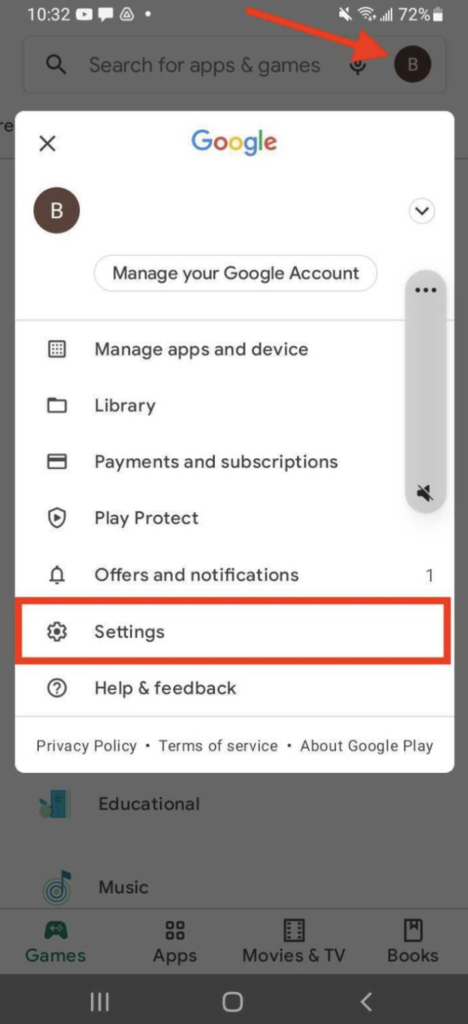
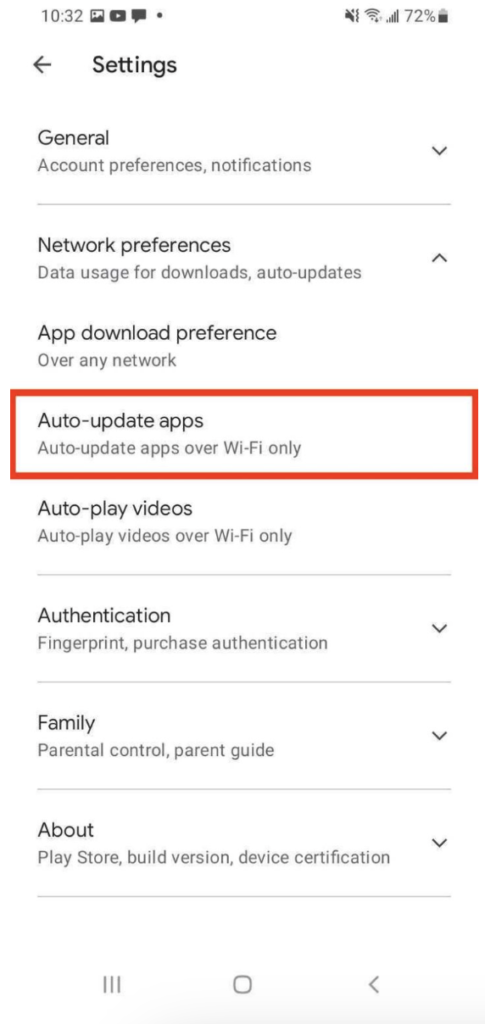
On your Android device:
- Click on your Play Store app > your avatar > Settings.
- Click on Network preferences > auto-update apps > select one of the options “over any network” or “over Wi-Fi only”.
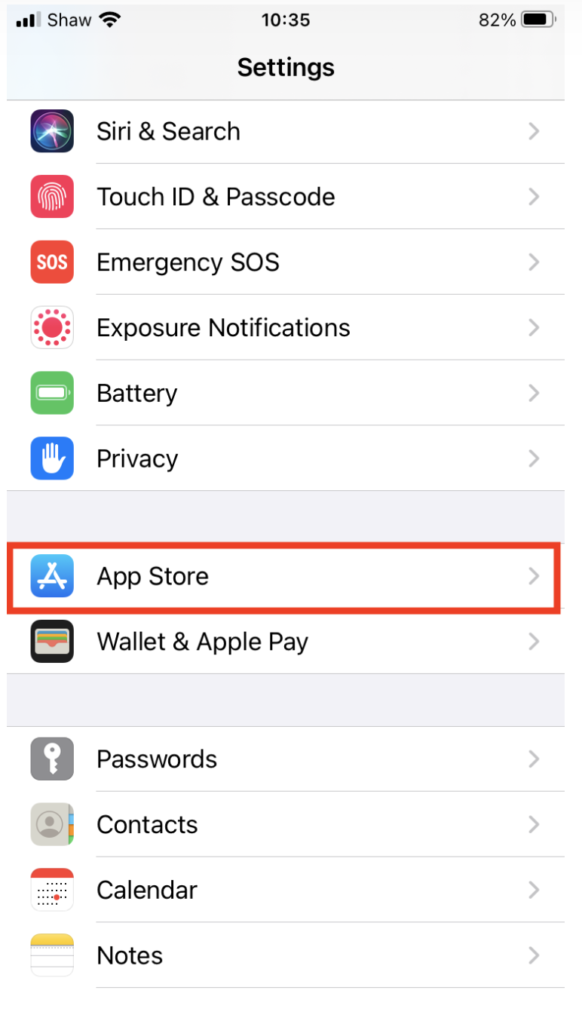
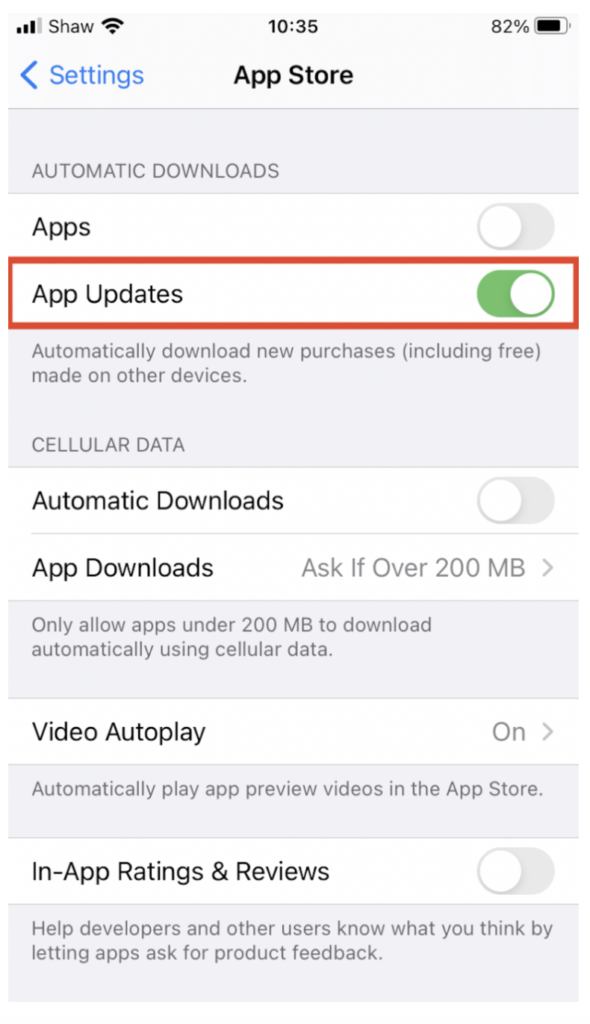
On your iOS device:
Click on ‘Settings’ > ‘App Store’ > enable ‘App Updates’.
If you still have questions about how Yeti mobile app is operating, please contact us:
support@yetisnow.com
Support Topics
Log
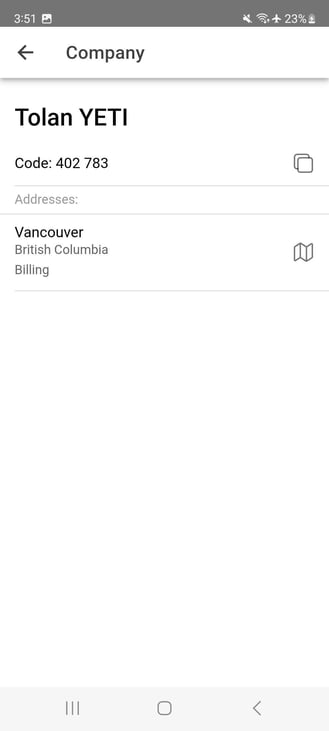
Company
Here you can find your company code
Logout
Log out of the app by selecting the logout button