![Yeti Support.png]](https://support.yetisoftware.com/hs-fs/hubfs/Yeti%20Support.png?height=40&name=Yeti%20Support.png)
You can send a Service History Report (SHR) to any contact directly from the Service History page in Yeti.
First, navigate to Service History from the main navigation.
Customize your report view
- Use the Column Configuration button to add or remove fields (such as crew leader or crew).

- Save your configuration to apply it to both the on-screen view and spreadsheet exports.
Customize PDF reports
- Click the PDF Configuration button.

- Enable the fields you want included (such as Crew Leader and Crew).
- Save your changes to apply them to PDF exports.
Select the record(s) to send
- You can manually select records or you can use the search filter to bulk select records.
Send or export reports
- Send reports directly to contacts by selecting either 'Send Selected Records Online' or "Send Selected Records as PDF via email.


- Export service history records based on your preference.



Bulk select records
When using the filter function, all matching records are automatically selected, even though the checkboxes are not checked. Once your filters are applied, the export options at the top of the page will turn blue and can be used to export the filtered records.
Create a custom SHR manually
The search filter is located at the top of most pages in Yeti. It is designed to help you quickly find what you’re looking for, whether it’s records, contracts, sites, etc.
How to use the search filter
Select the icon at the end of the search bar, and the search filter will open up.

The fields that are presented depend on what page you are on. Below is an example of the filter for the service history page. Here you can search through results based on information such as dates, users, tags and more.
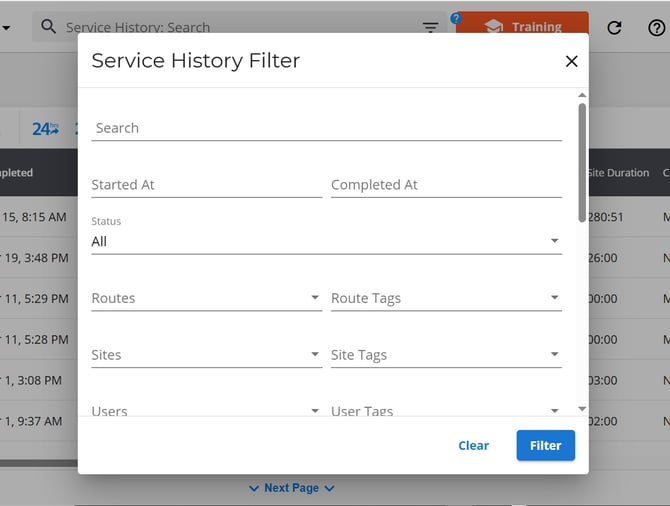
Once you have entered in your information, select the filter button.
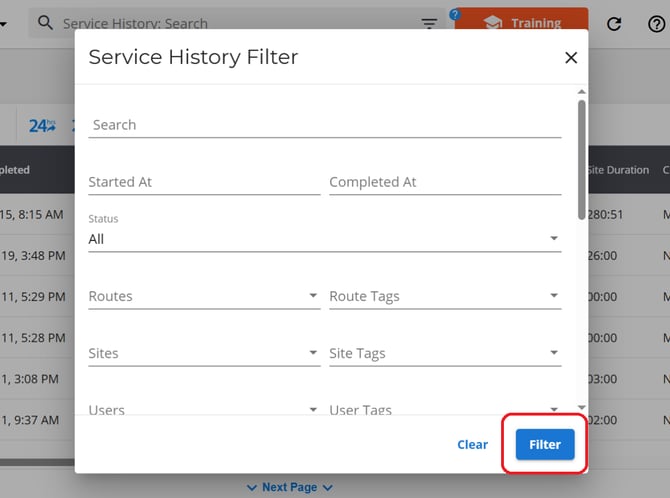
This action will pull up all records that fit that specific criteria.